

Add user
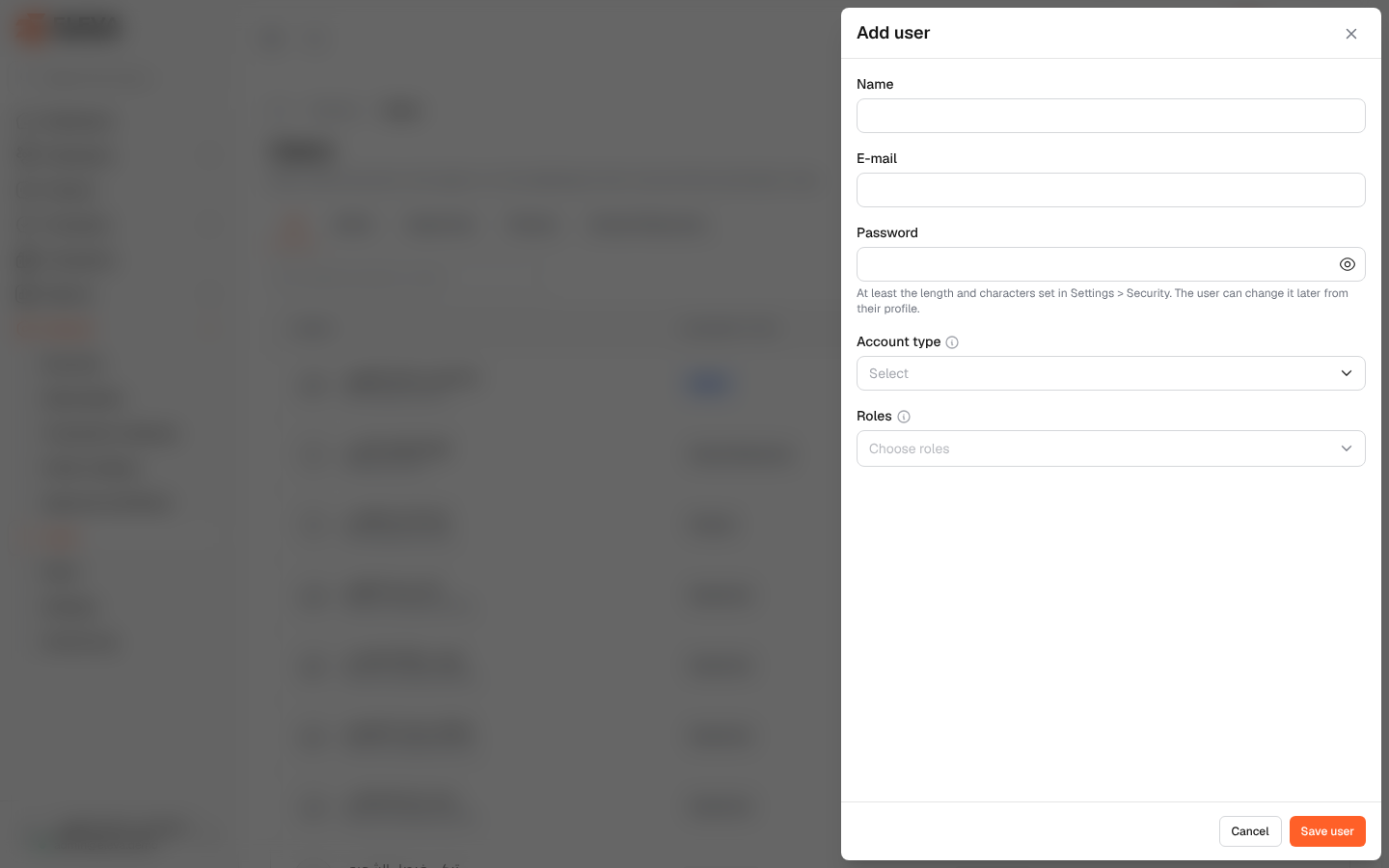
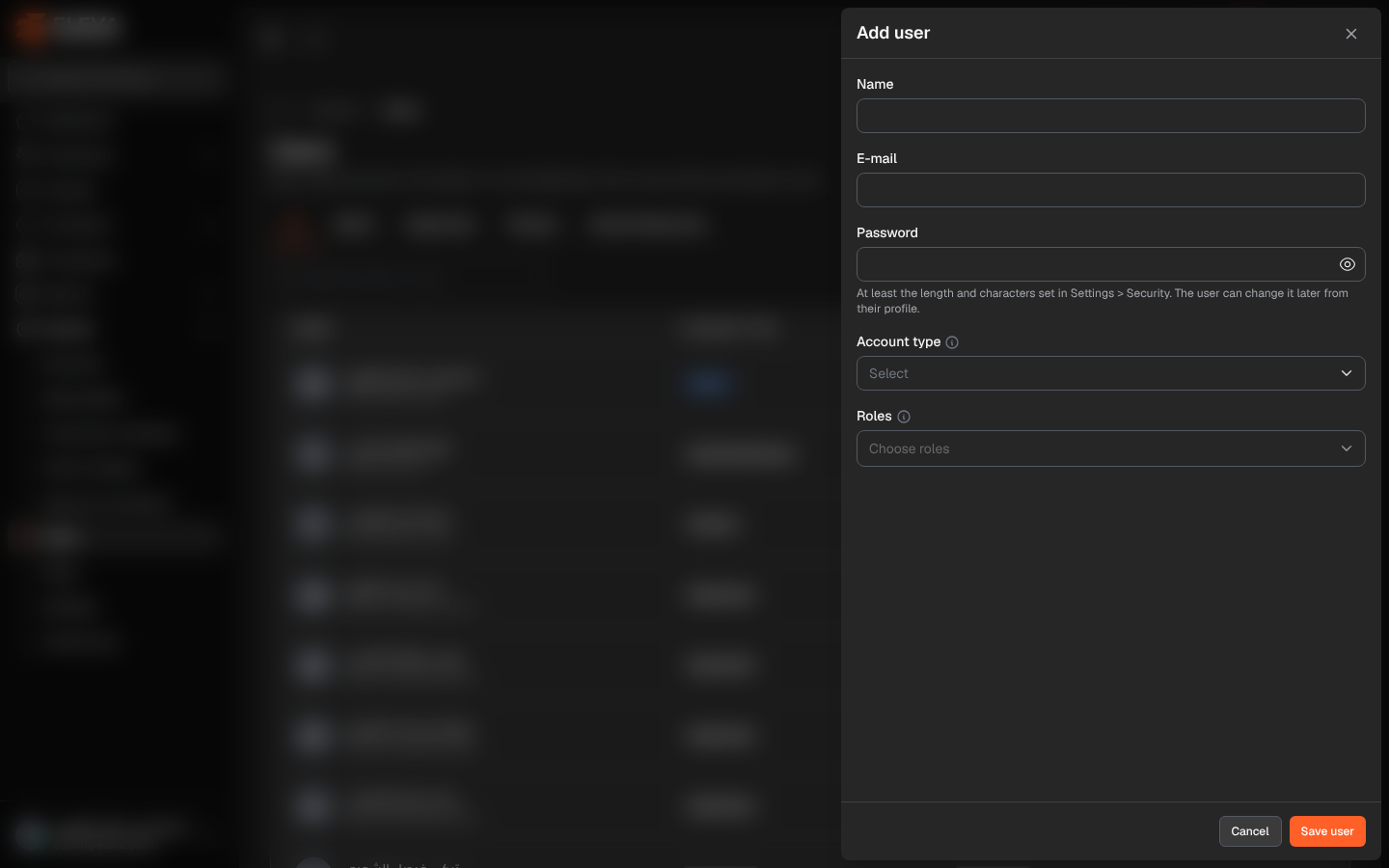
Add a user when a new staff member needs to sign in to the dashboard. The account type decides the user’s general access, and the roles add the permissions they need on each screen.
From the side menu, open General › Users, then click Add user.
Fields
Section titled “Fields”- Name — the user’s full name (required).
- E-mail — the address the user signs in with (required). It must not belong to another account, including deleted ones.
- Password — required. It must meet the length and characters set in Settings › Security. The user can change it later from their profile.
- Account type — required:
- Admin — full access, including settings and the activity log.
- Supervisor — sees only the employees and projects they supervise, and cannot open the back-office screens such as users, roles and recruitment.
- Finance and Human Resources — staff accounts whose access comes from their roles. Human Resources accounts also see new recruitment applications and are notified of them.
- Roles — one or more roles from Roles & permissions. The user gets every permission of each role.
How to add a user
Section titled “How to add a user”- Click Add user.
- Enter the Name, E-mail and Password.
- Choose the Account type.
- In Roles, choose the roles the user needs.
- Click Save user. To leave without saving, click Cancel.
- Share the sign-in details with the user securely.
Required permission
Section titled “Required permission”Users › Create.