

Edit role
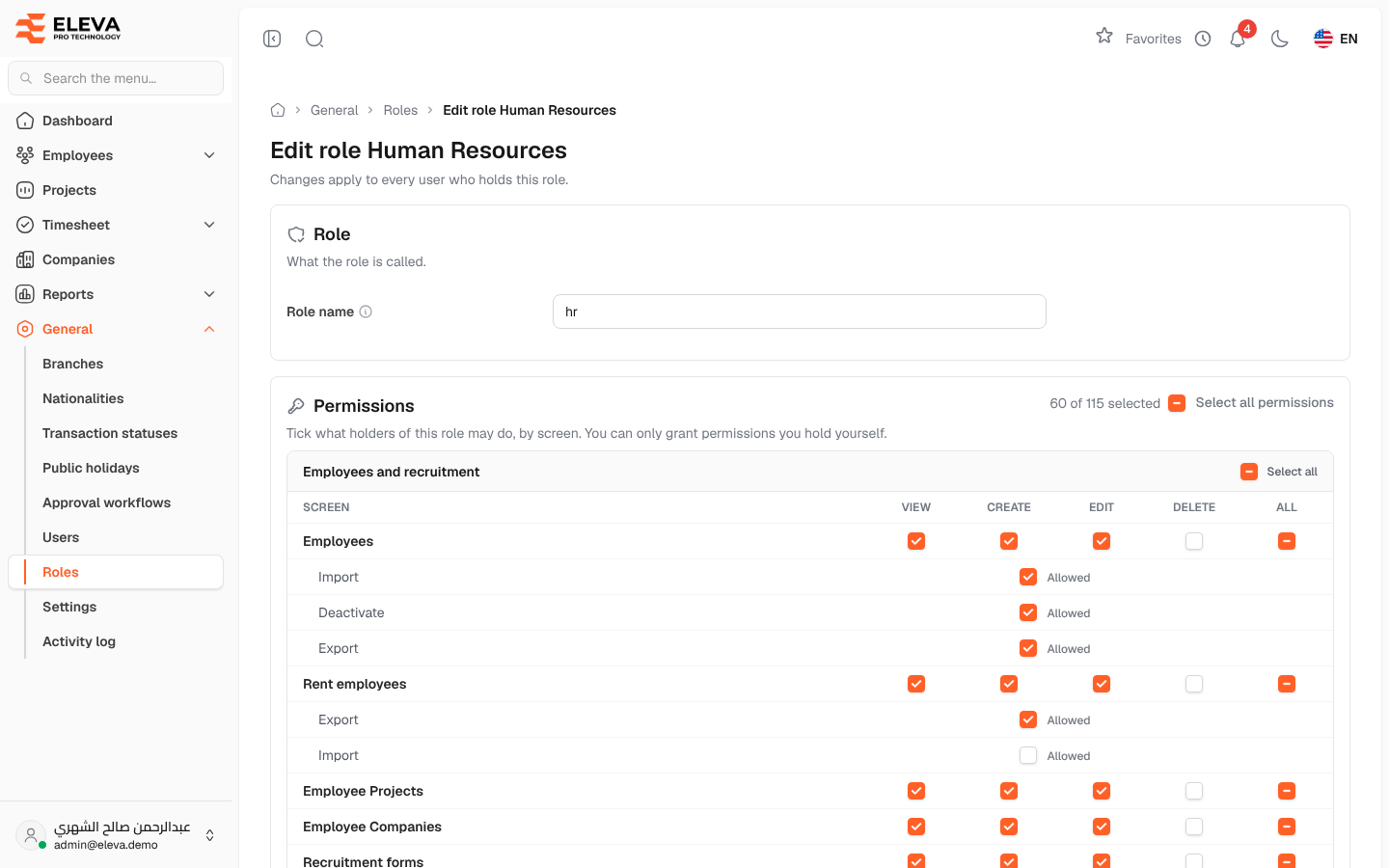
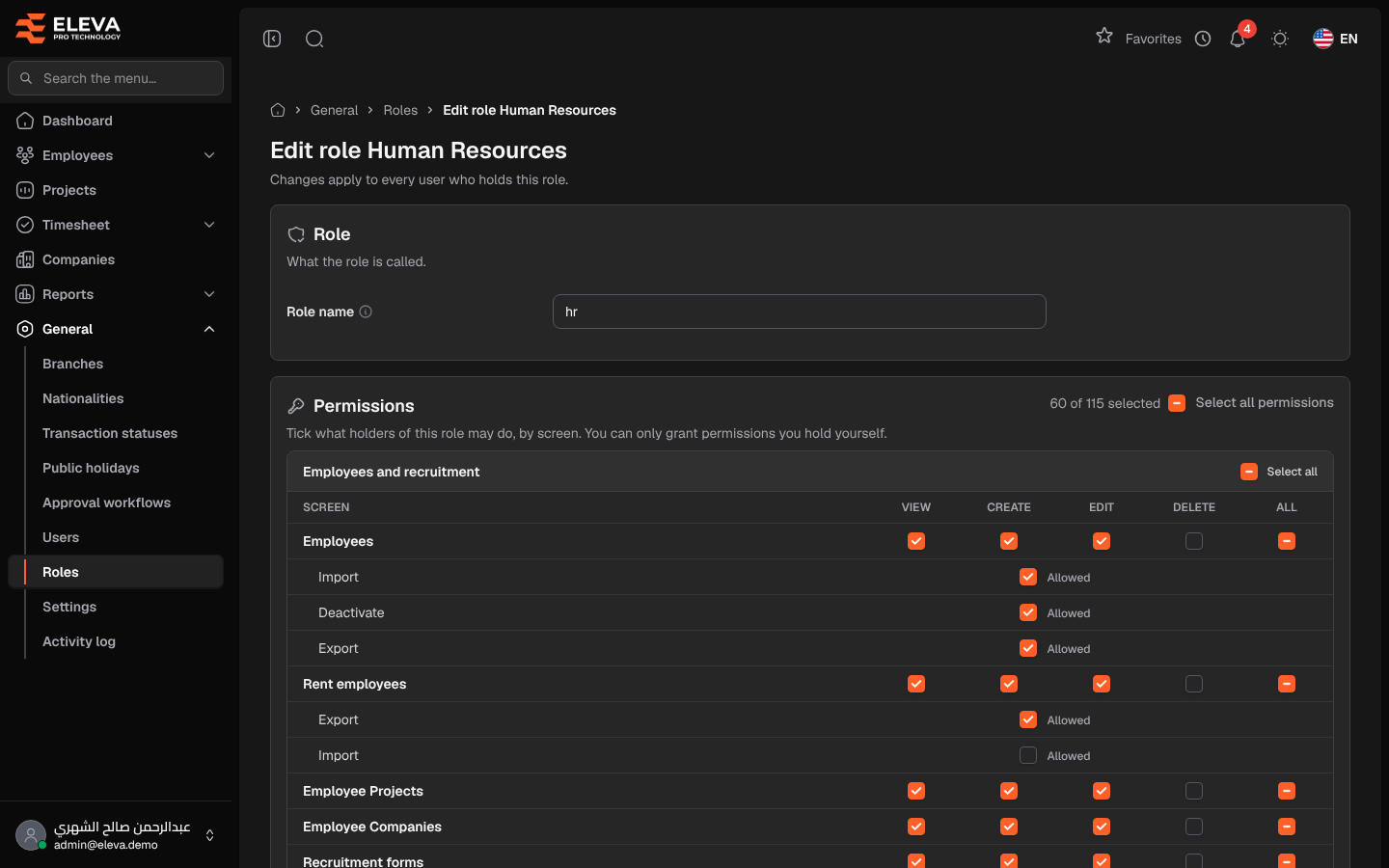
The role form sets the role’s name and its permissions. Permissions are shown as a table: one row for each screen, with columns for View, Create, Edit and Delete, and extra rows for other actions such as import, export, print or approve.
From the side menu, open General › Roles, then click the pencil icon of a role. To create a role, click Add role; the form is the same.
What’s on this screen
Section titled “What’s on this screen”- Role — the Role name.
- Permissions — the permission table, with N of M selected and Select all permissions.
- Cancel and Save changes (Save role for a new role).
The permission table
Section titled “The permission table”The screens are grouped into areas: Employees and recruitment, Transactions and approvals, Projects and master data, Dashboard and reports, Administration and Personal.
- Tick a box to give that permission on that screen.
- Select all at the top of an area ticks or clears every permission in it.
- The All box at the end of a row ticks or clears every permission of that screen.
- Select all permissions ticks or clears the whole table.
How to edit a role
Section titled “How to edit a role”- Change the Role name if needed. Use English letters, for example site_manager.
- Tick or clear the permissions.
- Click Save changes.
Changes apply at once to every user who holds the role.
- The role name is required and must be unique.
- At least one permission must be ticked.
- You can only give permissions you hold yourself; an administrator can give any permission.
- A user who is not an administrator cannot save a role they hold; a warning explains this and the form is locked.
- The built-in Admin role cannot be edited.
Required permission
Section titled “Required permission”Roles & Permissions › Edit (or Roles & Permissions › Create to add a role).