

Timesheet grid
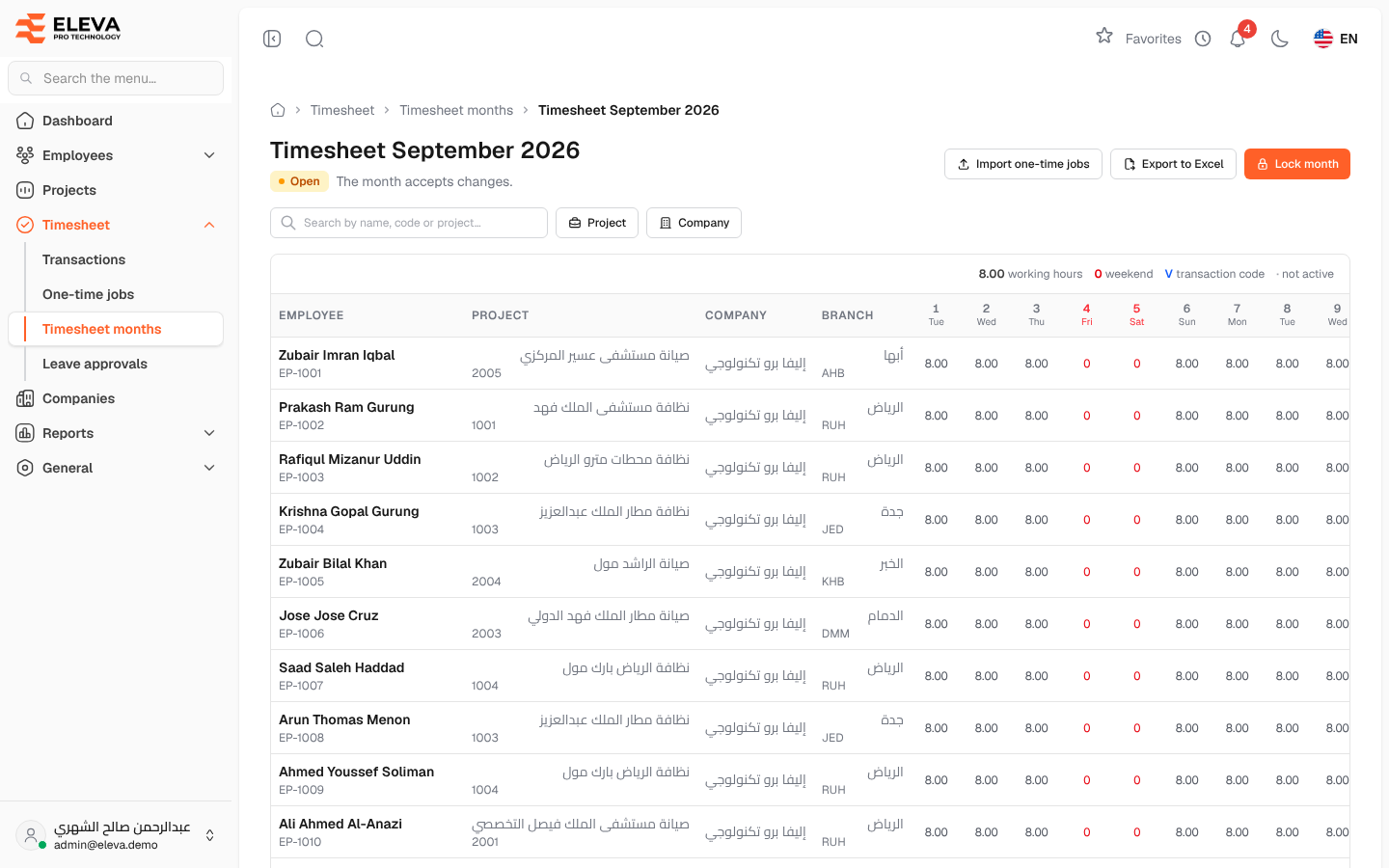
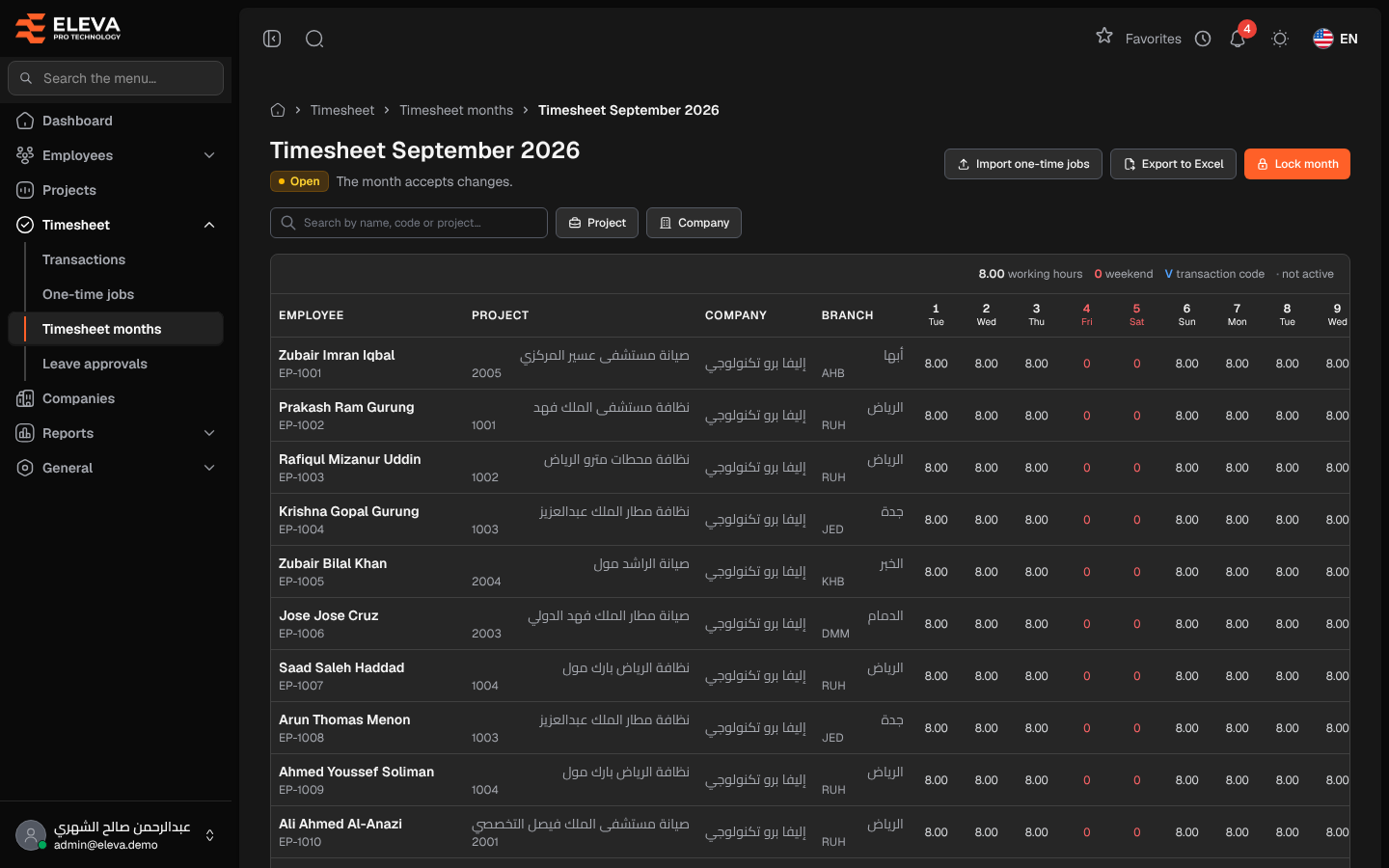
The month’s timesheet shows every employee day by day for one month: the days worked, weekends, and the code of any transaction such as a leave. It is also where the one-time job amount and its justification are entered for each employee, and where the month is exported or locked.
From the side menu, open Timesheet › Timesheet months, then click a month (or Open timesheet).
What’s on this screen
Section titled “What’s on this screen”- Header — Timesheet with the month name, its status and what the status means.
- Import one-time jobs — uploads an Excel file of one-time jobs for this month (open months only).
- Export to Excel — downloads the grid as you see it, with the current filters (open months).
- Download timesheet — downloads the month’s files (locked months).
- Lock month — locks the month (with the Lock permission).
- Search by name, code or project…, and the Project and Company filters.
Columns
Section titled “Columns”- Employee — name and code. This column stays visible while you scroll sideways.
- Project, Company and Branch — one row per employee for each project and company they had in the month.
- One column per day, with the weekday under the number; weekends are in red. In the current month, days up to today are shown.
- Attendance days — days with working hours or weekend.
- Absence days — days with a transaction code.
- One-time job — the amount paid once this month.
- Overtime & bonus justifications — the reason for the amount.
Reading the day cells
Section titled “Reading the day cells”- 8.00 — working hours.
- 0 — weekend.
- A code, for example V — the transaction code on that day.
- · — the employee was not active on that project or company that day.
How to enter a one-time job
Section titled “How to enter a one-time job”- Click in the One-time job cell of the row and type the amount (zero or more).
- Press Enter or click elsewhere. A spinner shows while it saves, then a check mark. Press Esc to undo your typing.
- Type the justification in Overtime & bonus justifications the same way.
If saving fails, the cell turns red and shows why.
Required permissions
Section titled “Required permissions”- Timesheet months — View to open the grid; Lock and Download for those buttons.
- One-time jobs — Create to edit amounts and notes in the grid, Import to import a file.
- Transactions — Export to export to Excel.
A supervisor sees only their own employees.