

Dashboard
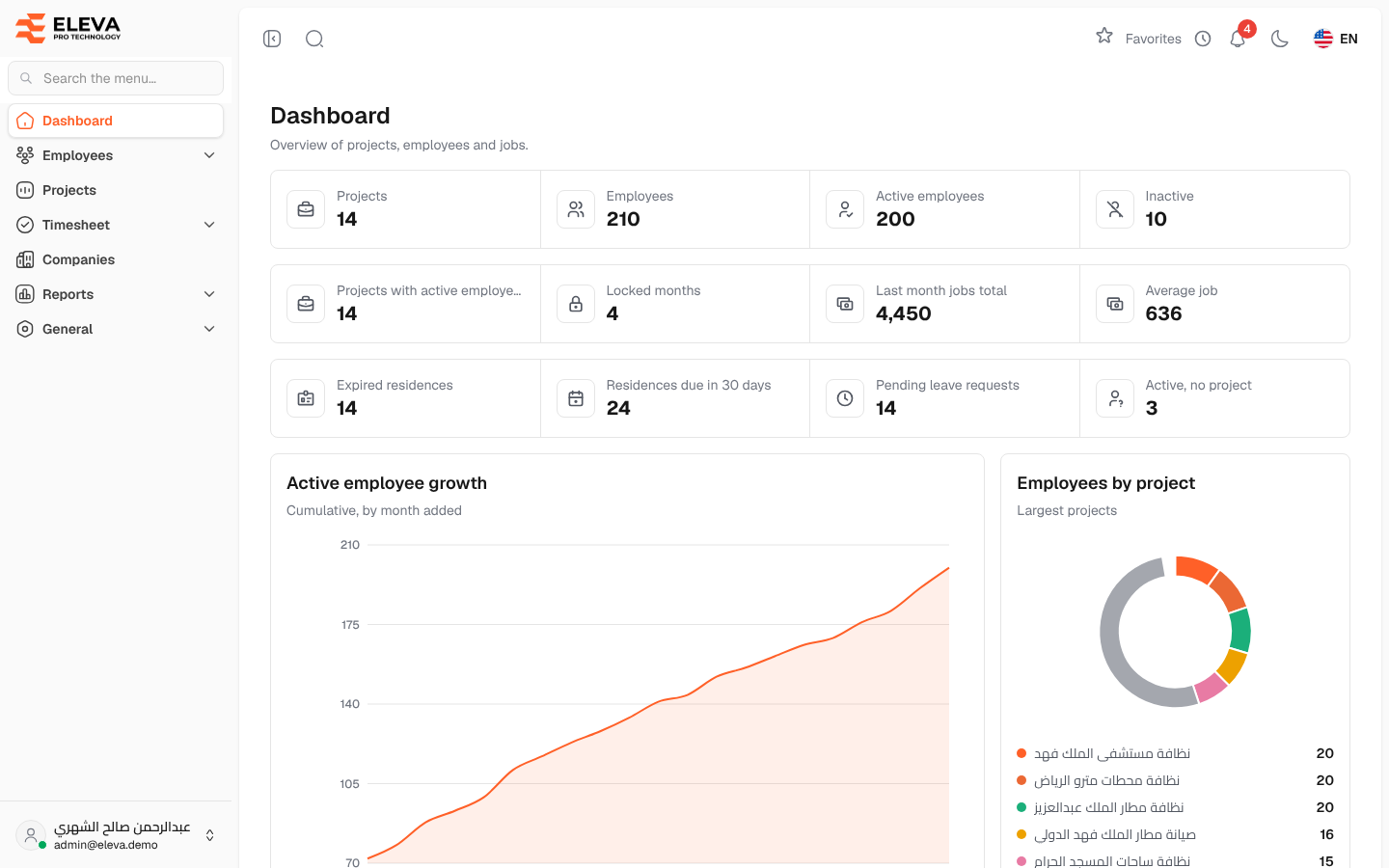
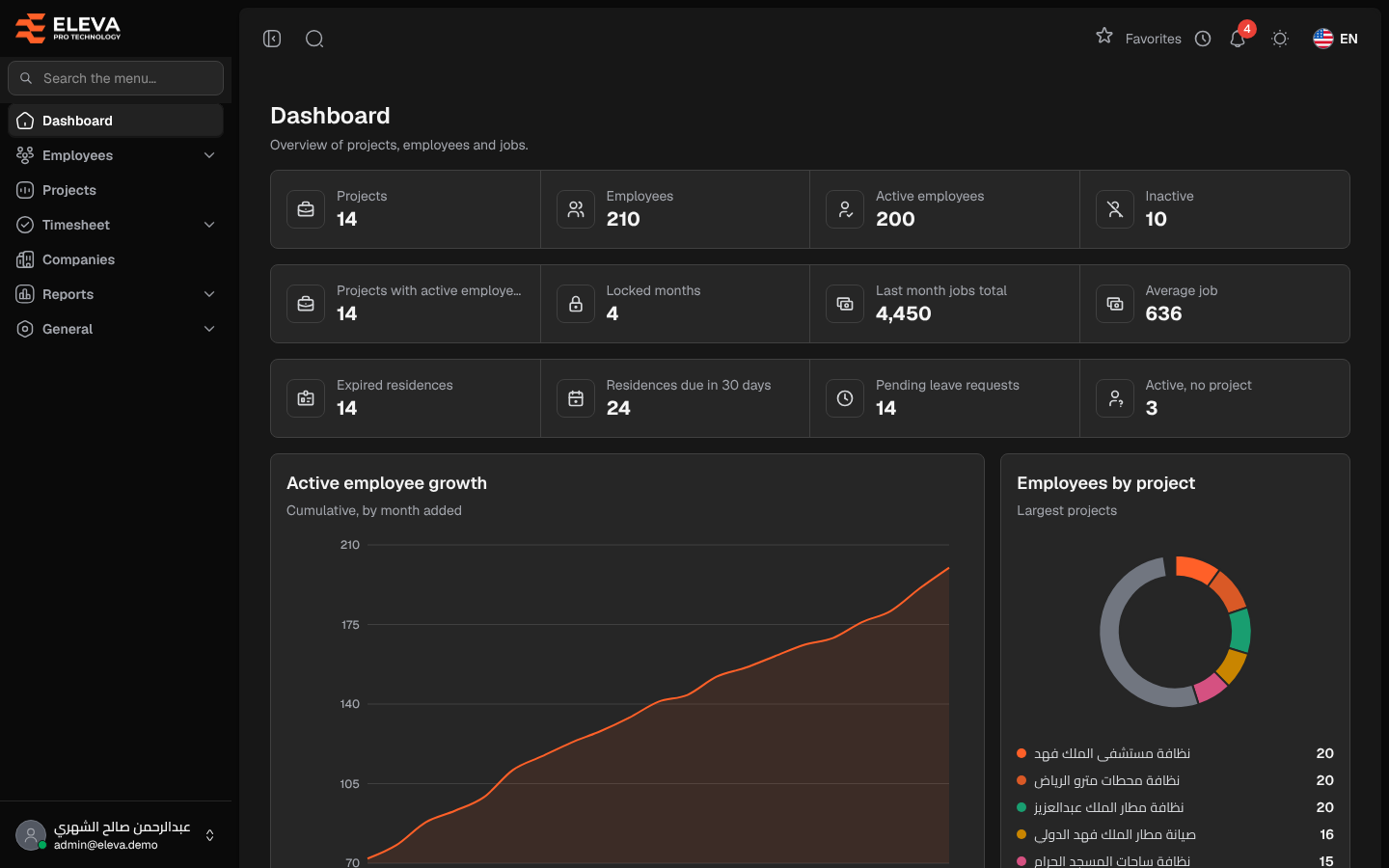
The dashboard is the home screen after you sign in. It gives a company-wide overview of projects, employees and one-time jobs, and points out what needs follow-up: expired residences, residences about to expire and leave requests waiting for approval. To return to it, click Dashboard at the top of the side menu.
What’s on this screen
Section titled “What’s on this screen”The first three rows show key figures:
- Projects, Employees, Active employees and Inactive.
- Projects with active employees: projects with at least one active employee assigned today.
- Locked months: timesheet months that are locked.
- Last month jobs total and Average job: the total and the average amount of the one-time jobs in the latest timesheet month.
- Expired residences and Residences due in 30 days: employees whose residence renewal date has passed or falls within the next 30 days.
- Pending leave requests: leave requests waiting for a decision.
- Active, no project: active employees who are not assigned to any project today.
Below them are the charts:
- Active employee growth: the cumulative number of active employees by the month they were added.
- Employees by project: the five largest projects; the rest are grouped under Others.
- One-time job amounts: the total amount for each timesheet month.
- Employees by branch and Employees per supervisor: the ten largest, then Others.
- Contract vs actual employees: for the largest contracts, the contracted number next to the active employees on the project today, with Contract coverage, Empty places and Projects below contract.
Point at a bar or slice to see its exact number.
How to follow up from the dashboard
Section titled “How to follow up from the dashboard”- Click the number under Expired residences or Residences due in 30 days to open the Employee renewals report already filtered.
- Click the number under Pending leave requests to open Leave approvals.
- Click See all on the Contract vs actual employees card to open the Project contract count report.
These links appear only if your role can open the target screen.
Required permission
Section titled “Required permission”Dashboard › View.