

Project contract count
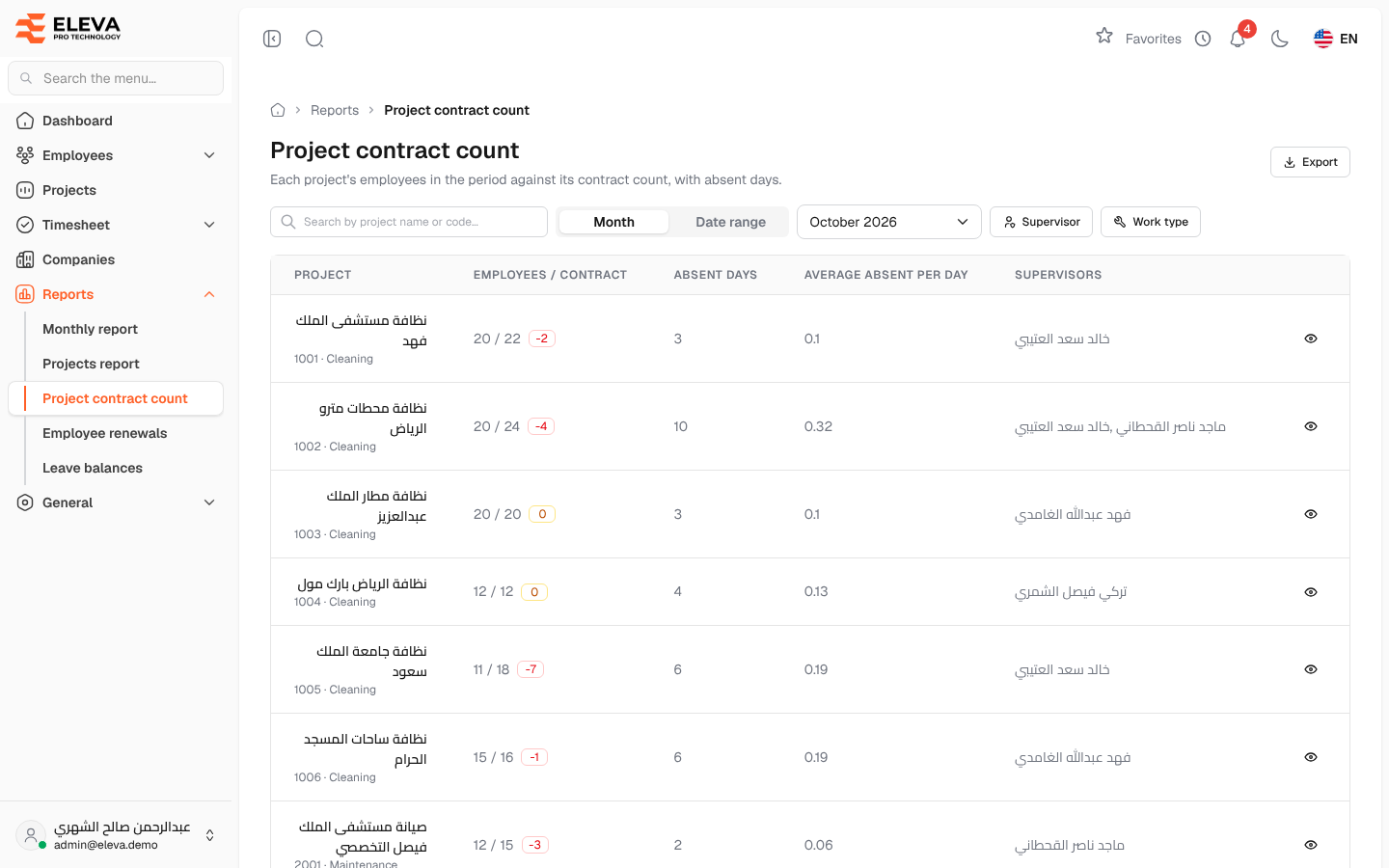
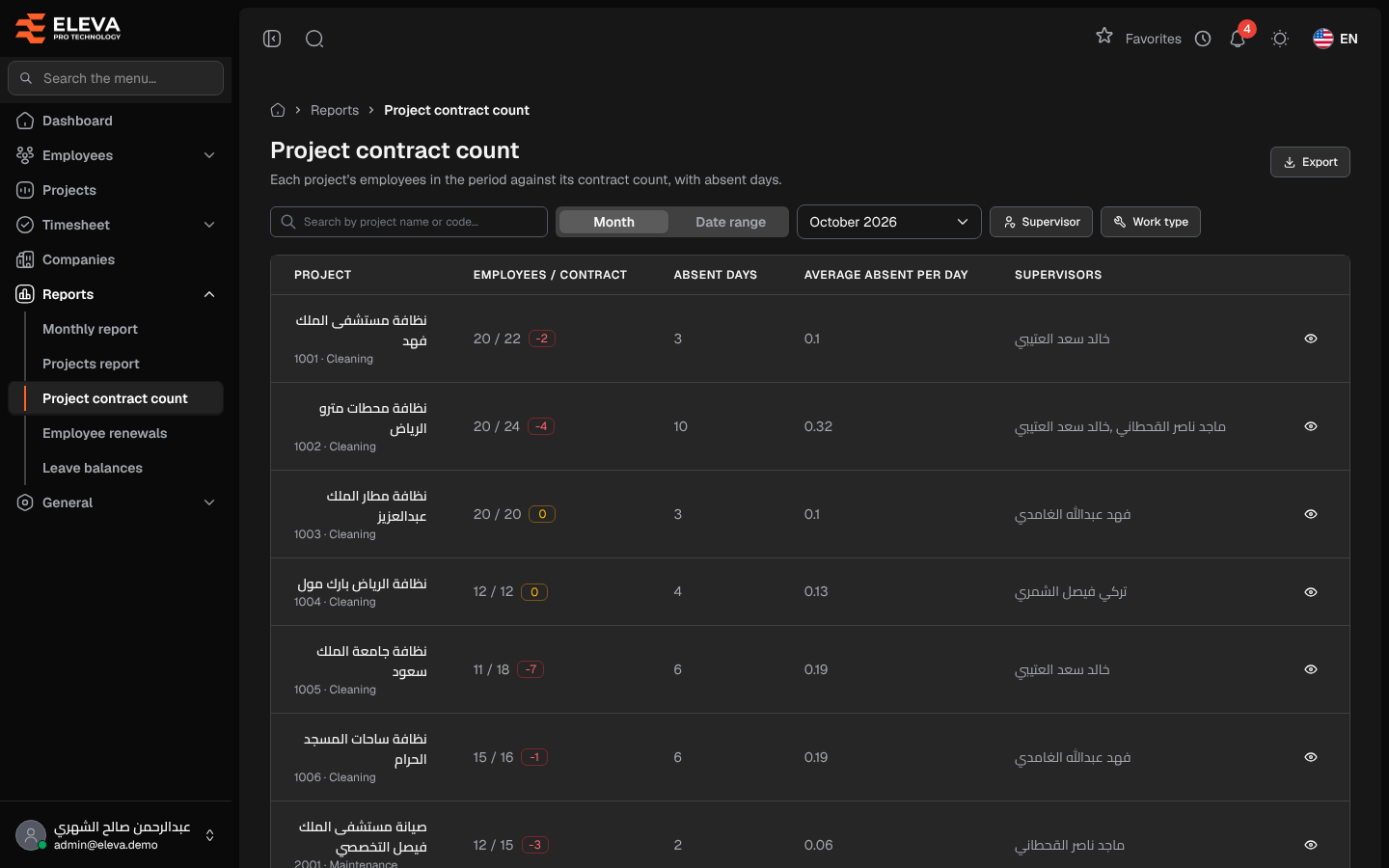
The Project contract count report compares, for each project, the number of employees in a month or a date range with the number agreed in the contract, and shows how many days those employees were absent. Use it to spot projects that are under- or over-staffed and projects with high absence.
From the side menu, open Reports › Project contract count.
Filters
Section titled “Filters”- Month / Date range — choose whether the report covers one month or a range of dates. In month mode, pick the month (the current month by default). In range mode, the range applies once both dates are chosen.
- Search by project name or code… — free-text search.
- Supervisor — the projects of one supervisor. Shown to administrators and finance users only.
- Work type — Cleaning, Maintenance or Other, taken from the first digit of the project code.
The filters stay in the page address, so the same report can be reopened or shared.
Columns
Section titled “Columns”- Project — the project name, with its code and work type underneath.
- Employees / contract — employees on the project in the period (active at its end) against the contract count, with the difference: green with a plus sign when over, red with a minus sign when under, amber when equal.
- Absent days — the days of approved transactions of those employees while they were on the project.
- Average absent per day — absent days divided by the number of days in the period.
- Supervisors — the project’s supervisors.
- Eye icon — View project, which opens the project’s employees for the same month.
How to run and export
Section titled “How to run and export”- From the side menu, open Reports › Project contract count.
- Choose Month or Date range and set the period.
- Narrow the list with the search box, Supervisor or Work type if needed.
- Click Export to download the projects matching the current period, filters and search as an Excel file.
Required permissions
Section titled “Required permissions”- Reports — View to open the report, Export to download it.
- Projects — View to open a project from the report.
A supervisor sees only the projects they supervise.