

Leave balances
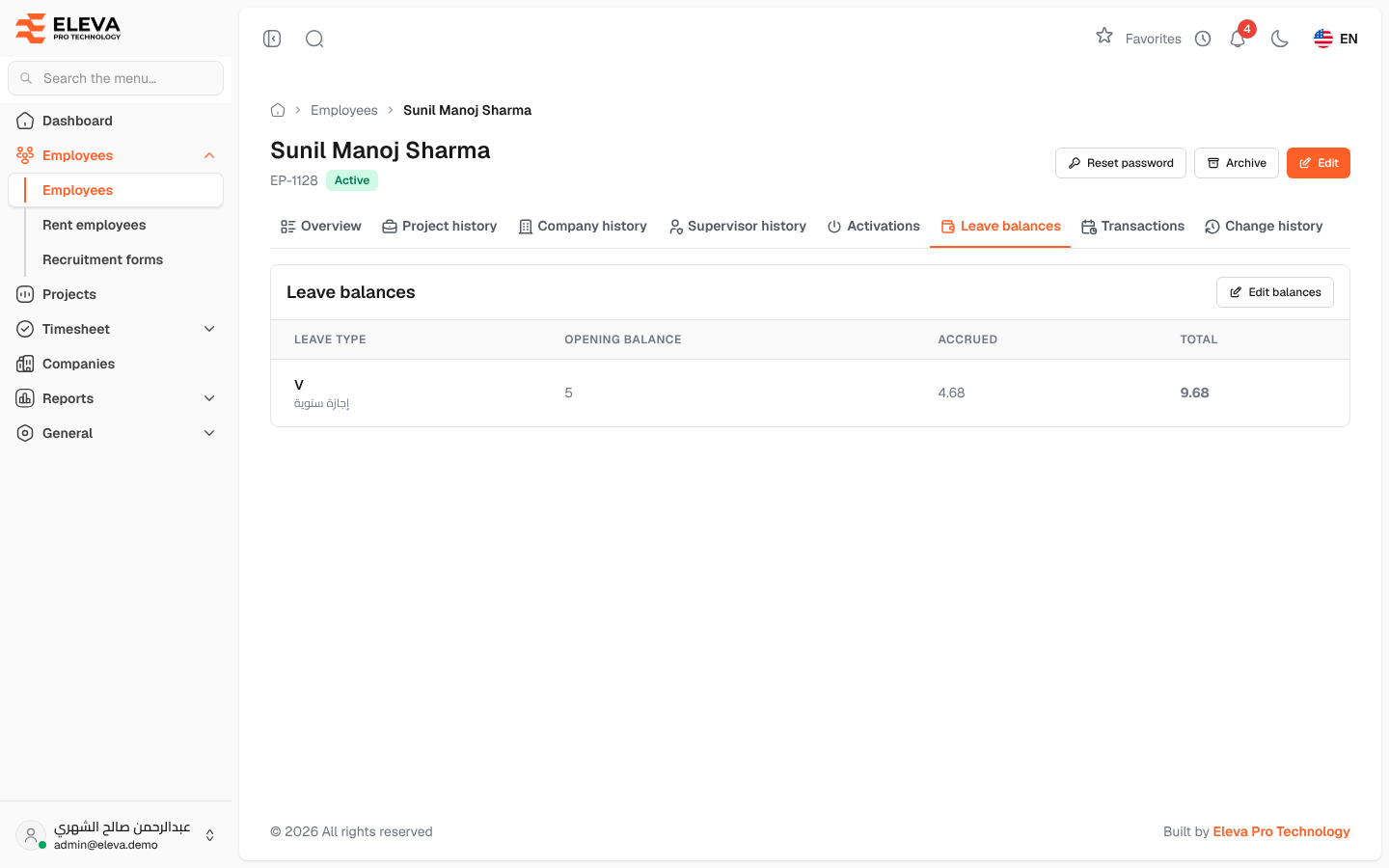
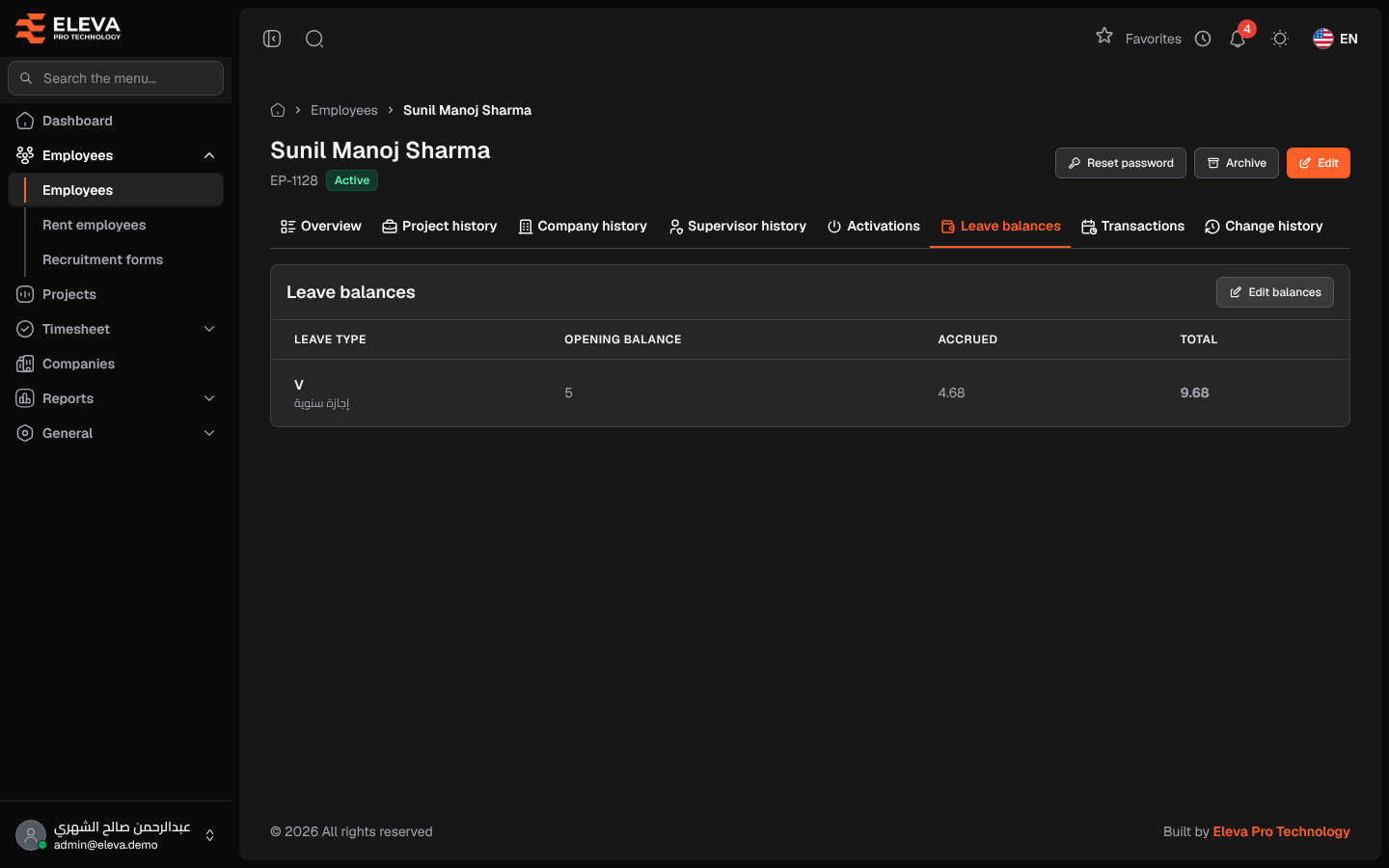
The Leave balances tab of an employee’s record shows how many leave days the employee has for each leave type that carries a balance, such as annual leave. Check it before approving a long leave, or when an employee asks how many days they have left.
From the side menu, open Employees › Employees, click the employee, then the Leave balances tab. The tab exists only for employees of the company itself, not for rent employees.
Columns
Section titled “Columns”- Leave type: the type’s code with its description below it.
- Opening balance: the days the employee started with, for example days carried over from before the system was used.
- Accrued: the days the employee has earned since, added automatically over time according to the leave policy.
- Total: opening balance plus accrued, the days the employee can still take.
When no leave type has a balance, the tab shows No leave types with a balance.
How leave affects the balance
Section titled “How leave affects the balance”When a leave request is approved, its days are deducted from the balance: first from Accrued, then from Opening balance. A request cannot be approved when the balance is not enough. If an approved leave is later rejected or cancelled, the days are given back.
How to edit the opening balances
Section titled “How to edit the opening balances”- Click Edit balances.
- In the window Leave balances of …, enter the new opening balance for each leave type (0 to 365 days). The accrued days are shown next to each field for reference.
- Click Save balances.
Only the opening balance can be edited; the accrued part is calculated by the system.
Required permissions
Section titled “Required permissions”- Employees › View to see the tab.
- Edit balances is available to administrators who have Employee Leave Balances › Edit.