

Reset your password
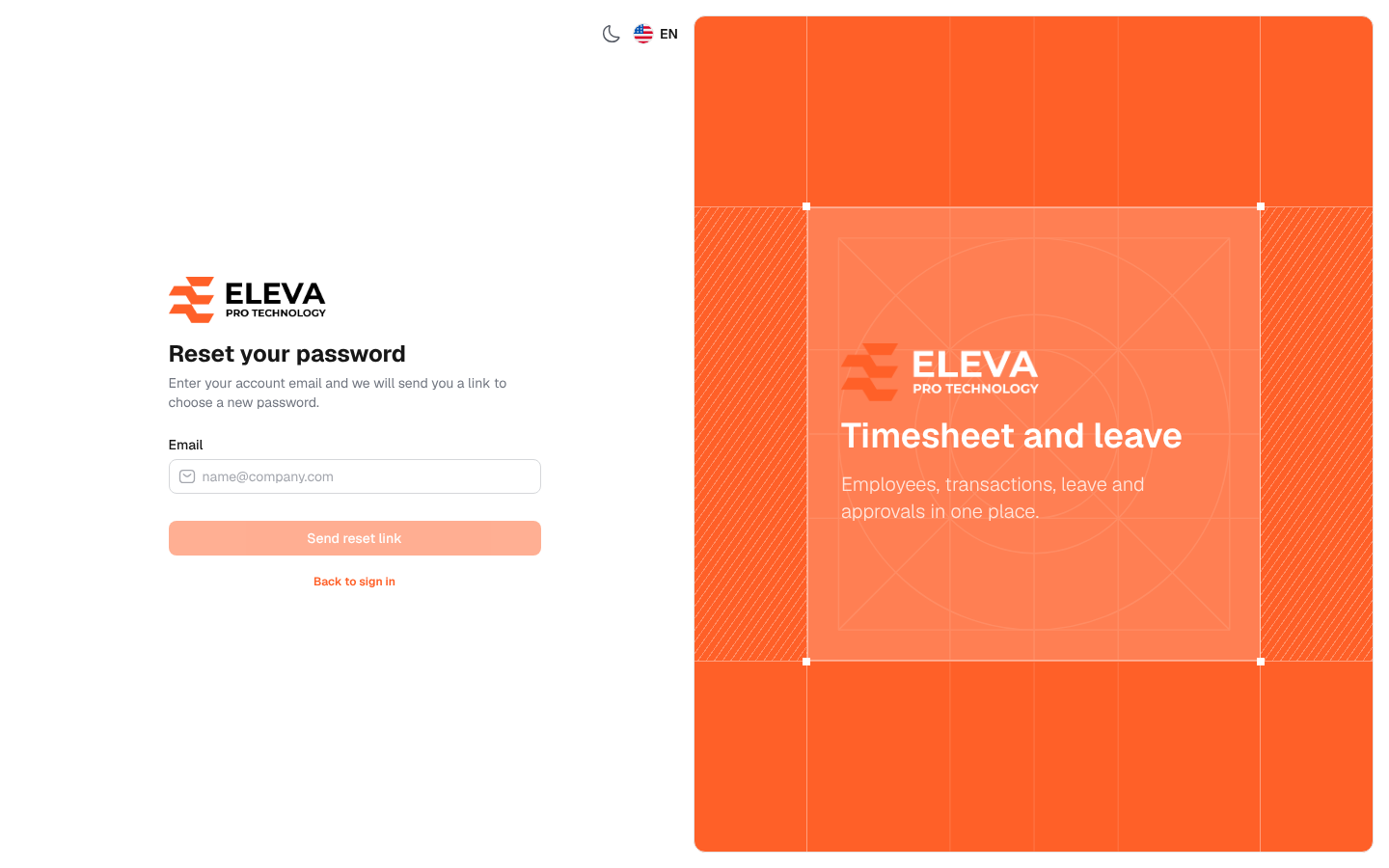
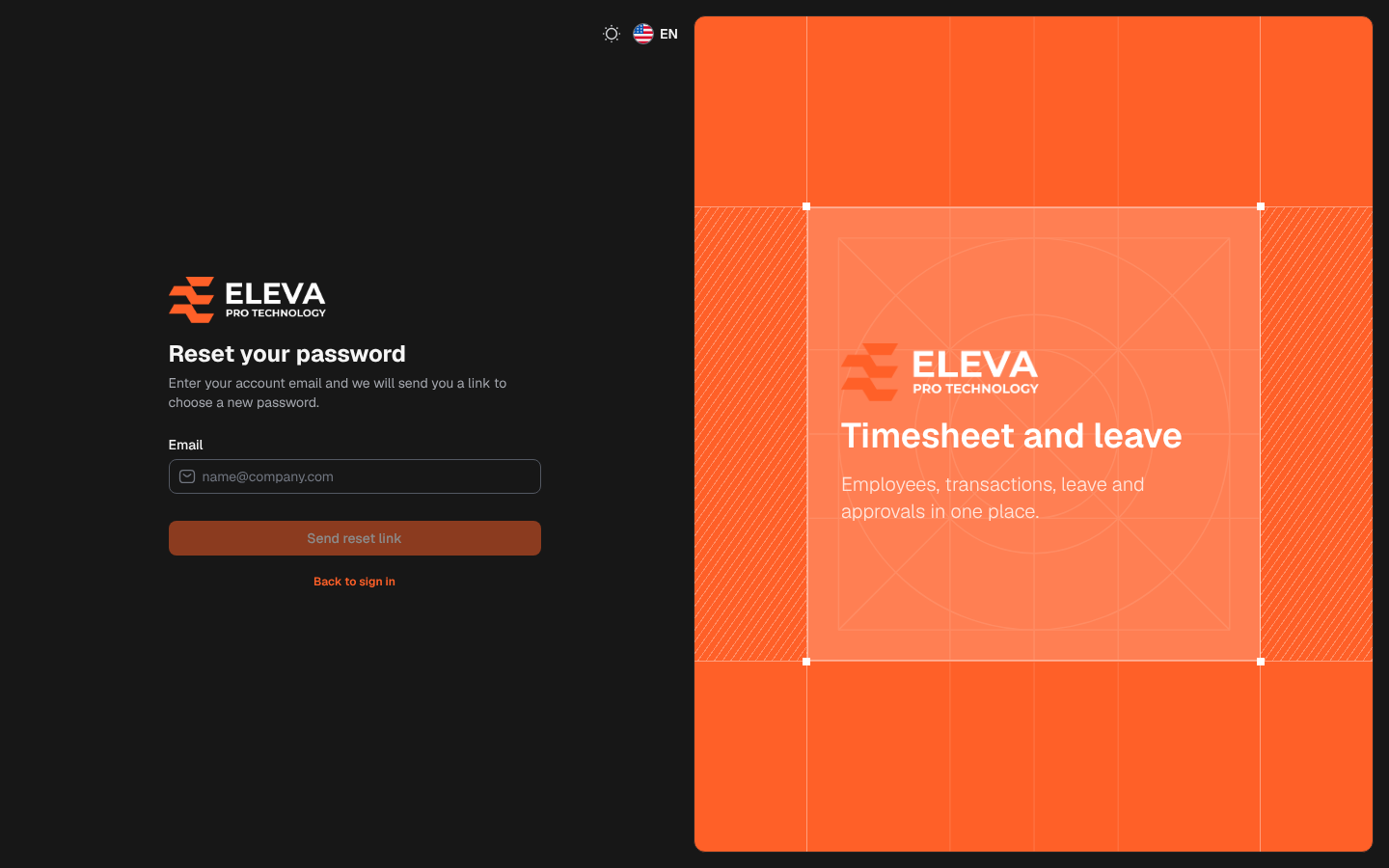
If you are a staff member and forgot your password, you can choose a new one yourself. The system e-mails a reset link to the address registered on your account. To open this page, click Forgot password? on the sign-in page.
What’s on this screen
Section titled “What’s on this screen”- Email: the e-mail address of your account.
- Send reset link: sends the link. It is available once you type an address.
- Back to sign in: returns to the sign-in page.
How to request a reset link
Section titled “How to request a reset link”- On the sign-in page, click Forgot password?.
- In Email, type the e-mail you sign in with.
- Click Send reset link.
- A confirmation message appears at the top of the page.
For your security, the page shows the same confirmation whether or not the address belongs to an account, so check that you typed it correctly.
How to choose a new password
Section titled “How to choose a new password”- Open the e-mail and click the reset link. The Choose a new password page opens.
- Check your address in Email.
- Type the password in New password and again in Confirm new password. If the two do not match, the page shows The passwords do not match.
- Click Save new password, then sign in with the new password.
If the link no longer works, click Request a new link on that page.
Password rules
Section titled “Password rules”By default a password must be at least 8 characters and contain letters and numbers. The administrator can change these rules in Settings › Security.