

Branches
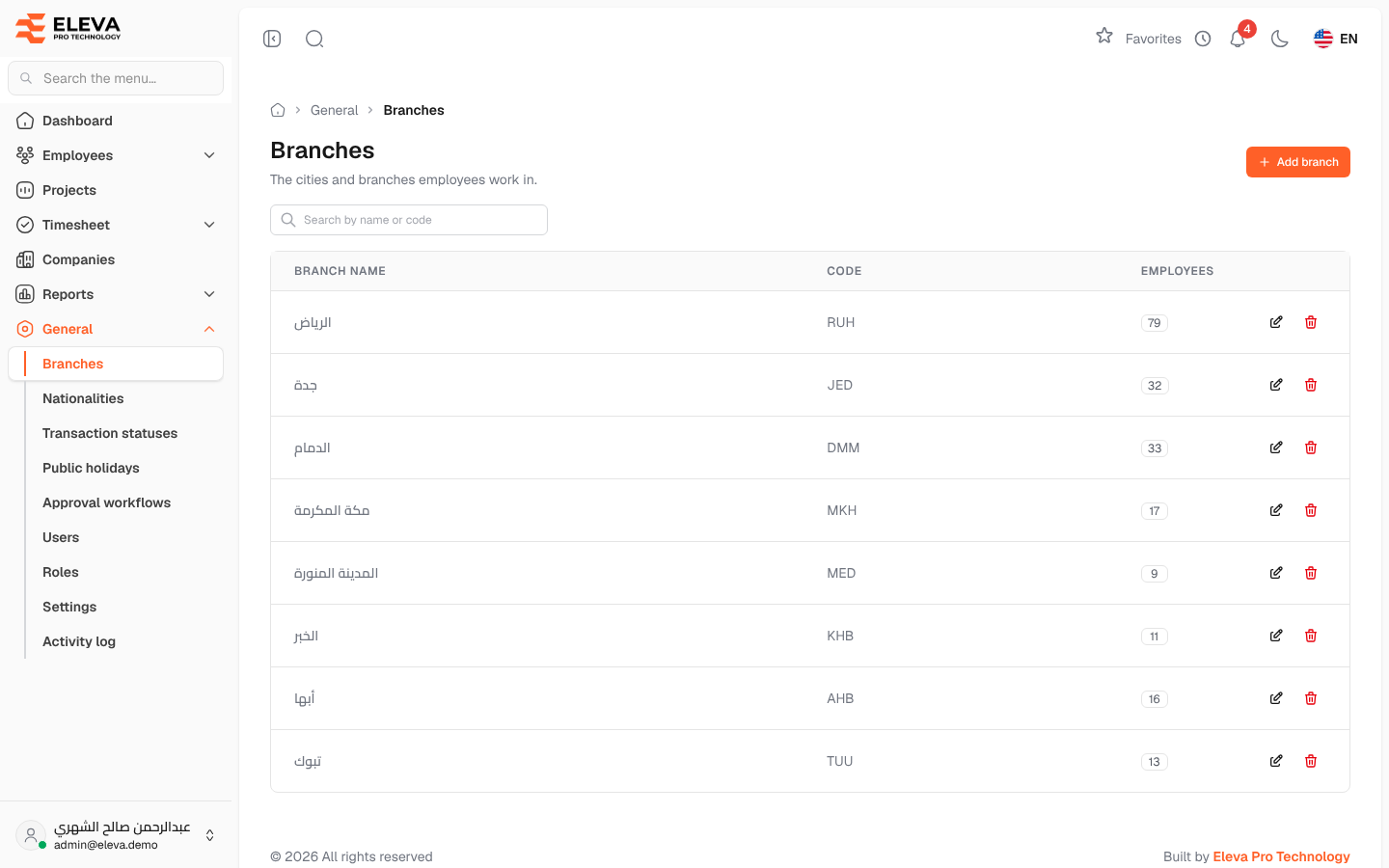
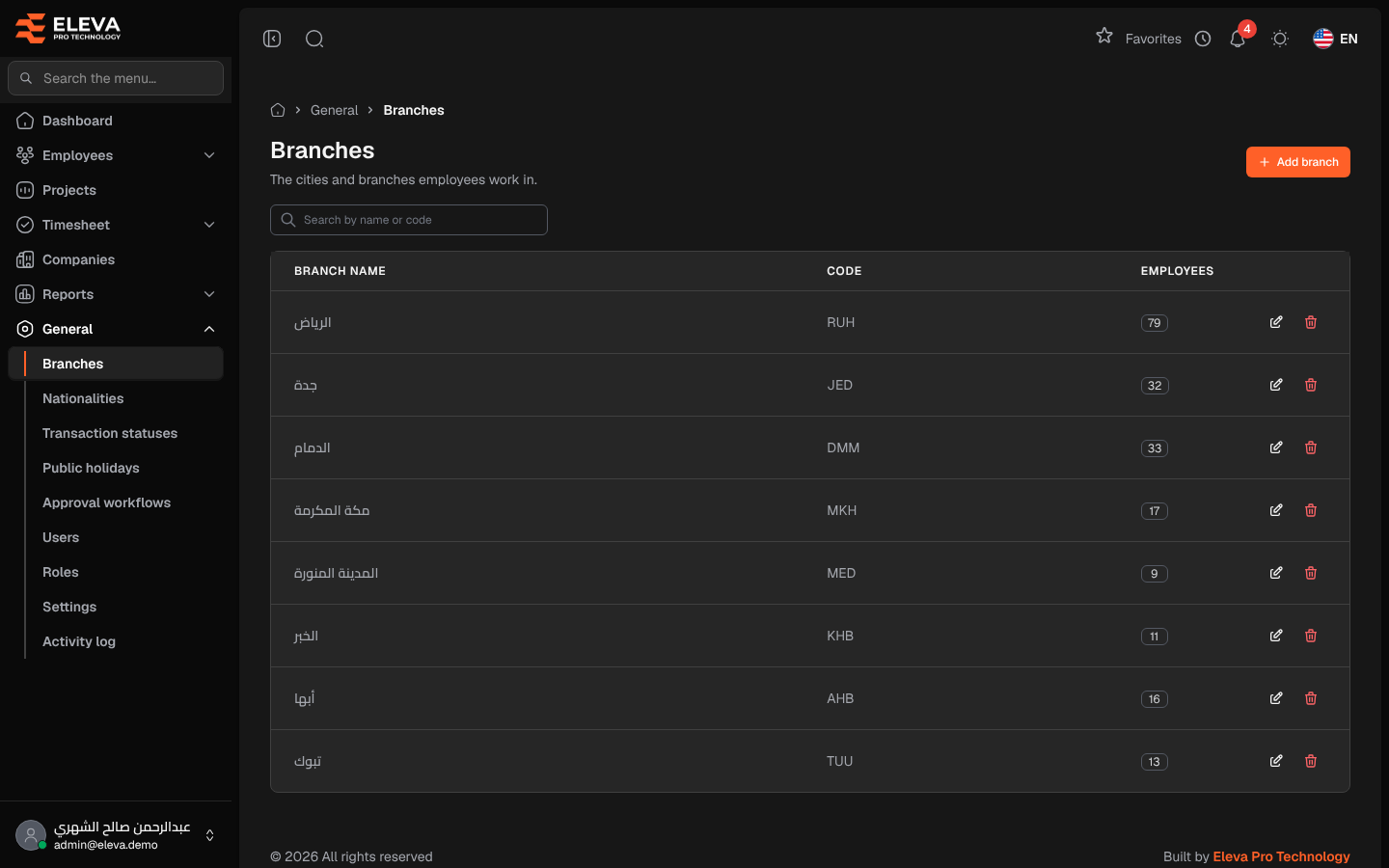
Branches are the cities and sites your employees work in. Each employee is linked to a branch, so set up the branches before you add employees.
From the side menu, open General › Branches.
What’s on this screen
Section titled “What’s on this screen”- Search by name or code — find a branch quickly.
- Add branch — create a new branch.
- A table of branches; click a row to edit it.
Columns
Section titled “Columns”- Branch name.
- Code — the branch’s short code.
- Employees — how many employees work in the branch.
- Actions — Edit (pencil icon) and Delete (trash icon).
Fields
Section titled “Fields”- Branch name — required and must be unique.
- Code — required and must be unique.
How to add a branch
Section titled “How to add a branch”- Click Add branch.
- Enter the Branch name and the Code.
- Click Save branch.
How to edit or delete a branch
Section titled “How to edit or delete a branch”- Click the branch’s row, or the pencil icon, change the details and click Save changes.
- To delete, click the trash icon and confirm in the Delete branch window.
Required permission
Section titled “Required permission”Branches › View. Adding, editing and deleting need Branches › Create, Branches › Edit and Branches › Delete. Supervisor accounts cannot open this screen.