

Users
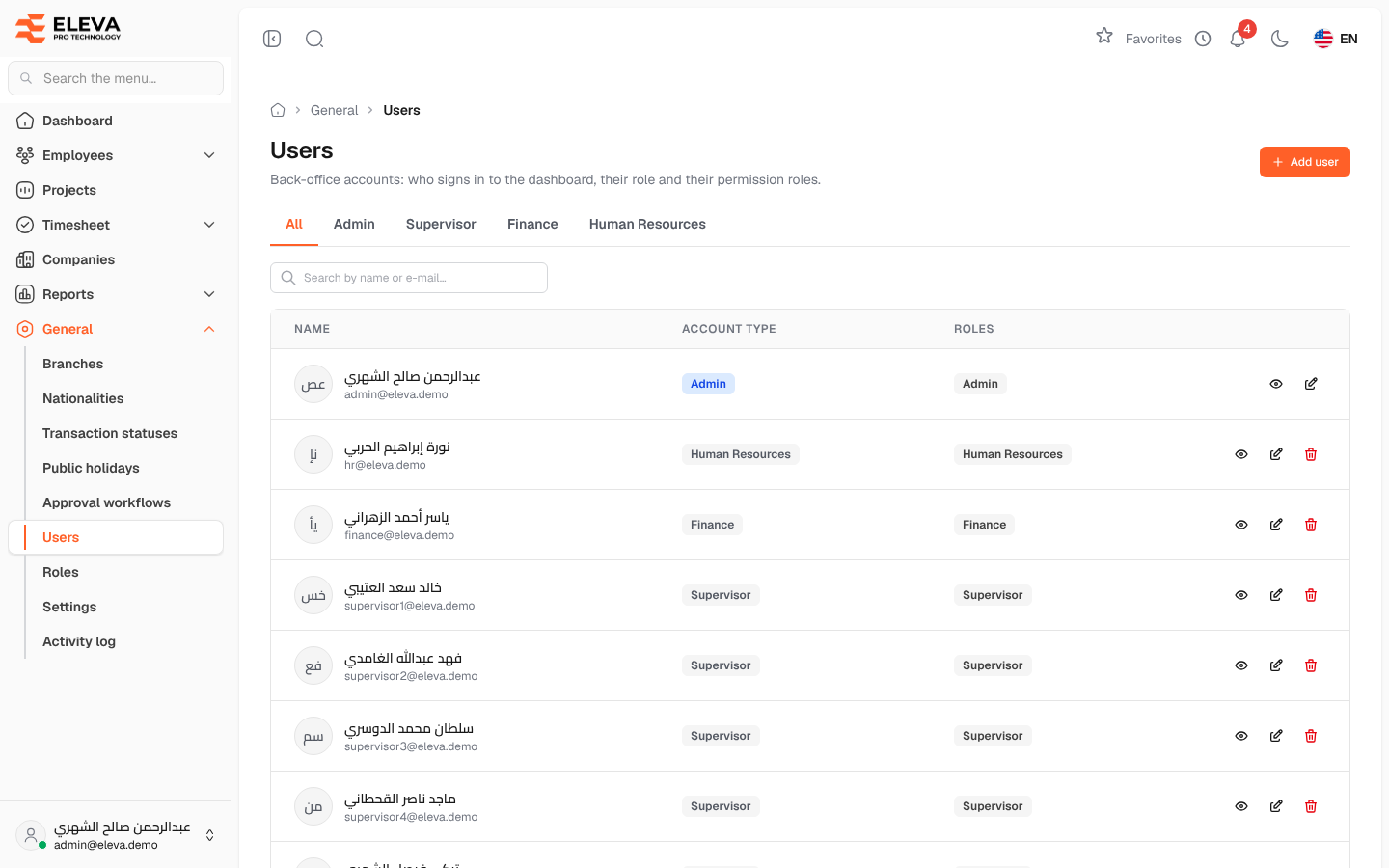
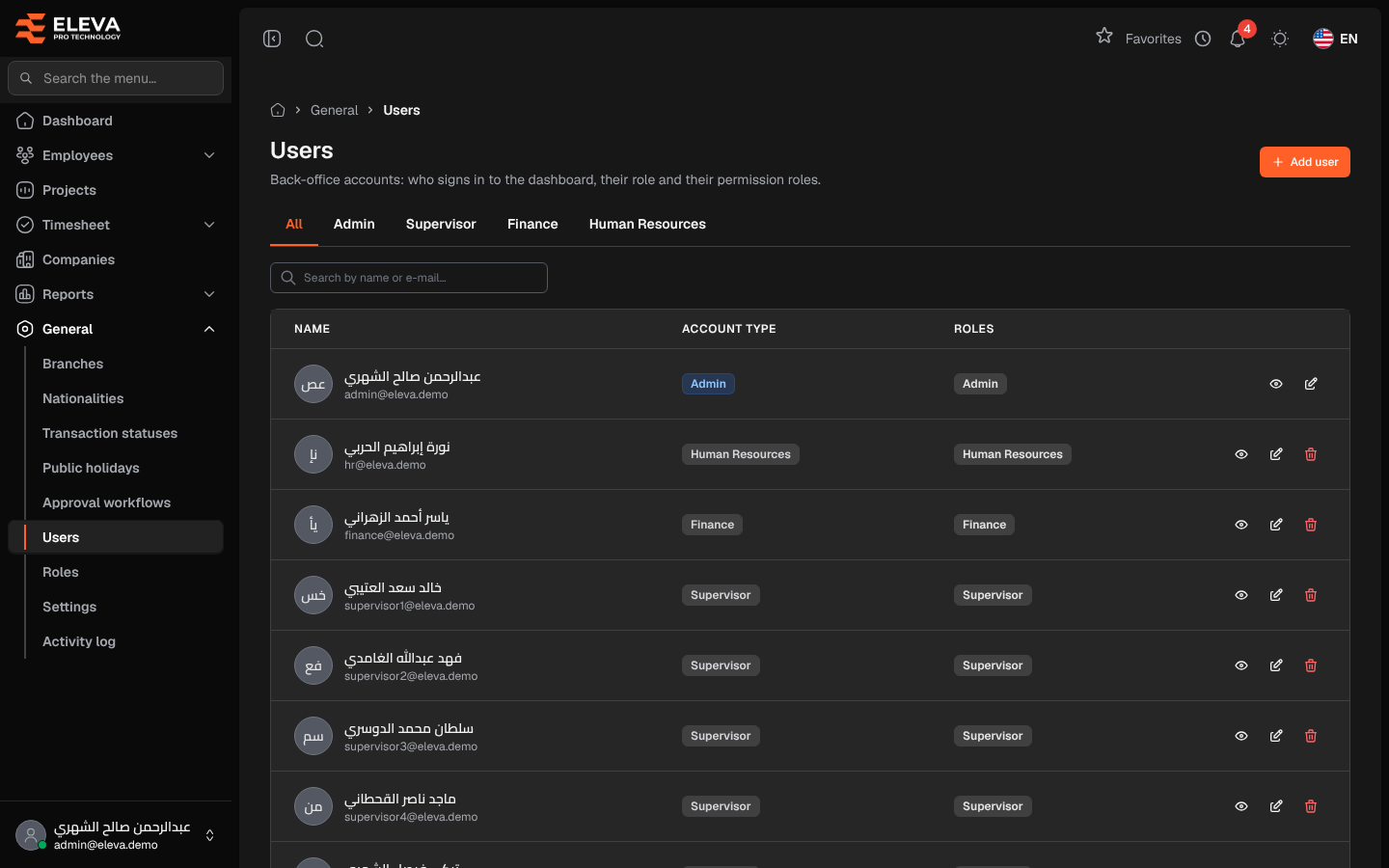
This screen lists the back-office accounts: everyone who signs in to the dashboard, with their account type and the permission roles they hold. Administrators use it to add staff, change what they can do, and remove accounts that are no longer needed. Employees sign in to their own portal and are not listed here.
From the side menu, open General › Users.
What’s on this screen
Section titled “What’s on this screen”- Account type tabs — All, Admin, Supervisor, Finance and Human Resources.
- Search by name or e-mail… — find a user quickly.
- Add user — create a new account.
- A table of users. Clicking a row opens the edit window, or the details if you cannot edit that user. A row only shows the buttons you may use: administrator accounts can be changed only by administrators, and nobody can delete their own account.
Columns
Section titled “Columns”- Name — the user’s name and e-mail address.
- Account type — Admin, Supervisor, Finance or Human Resources.
- Roles — the roles from Roles & permissions that the user holds.
- Actions — View details (eye icon), Edit (pencil icon) and Delete (trash icon).
How to view or edit a user
Section titled “How to view or edit a user”- Find the user with the tabs or the search box.
- Click the eye icon to open User details, then Edit user if you need to change something.
- Change the Name, E-mail, Account type or Roles and click Save changes.
The password is not changed here; users change their own password from their profile.
How to delete a user
Section titled “How to delete a user”- Click the trash icon on the user’s row.
- Confirm in the Delete user window.
Required permission
Section titled “Required permission”Users › View. Adding, editing and deleting need Users › Create, Users › Edit and Users › Delete. Supervisor accounts cannot open this screen.