

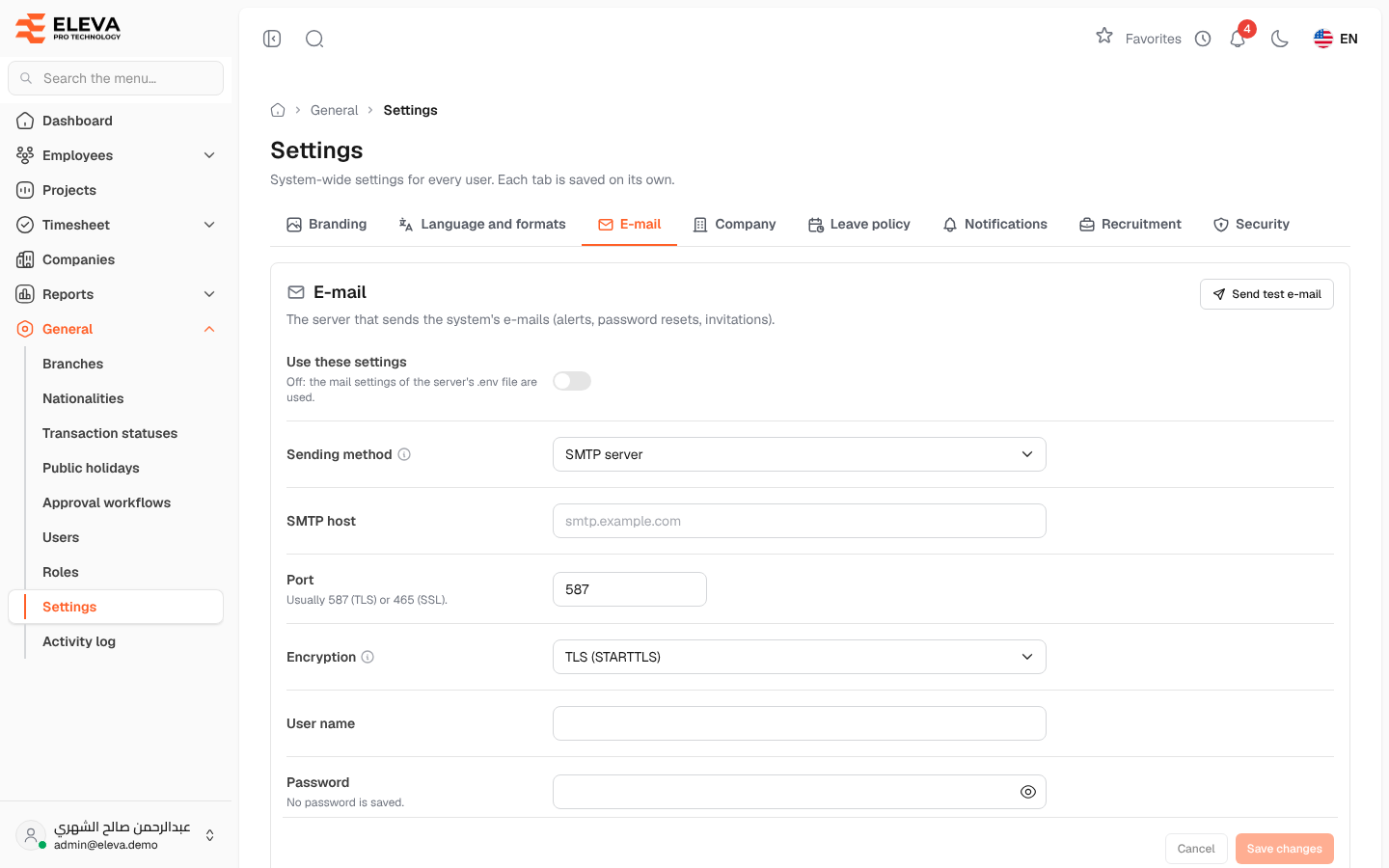
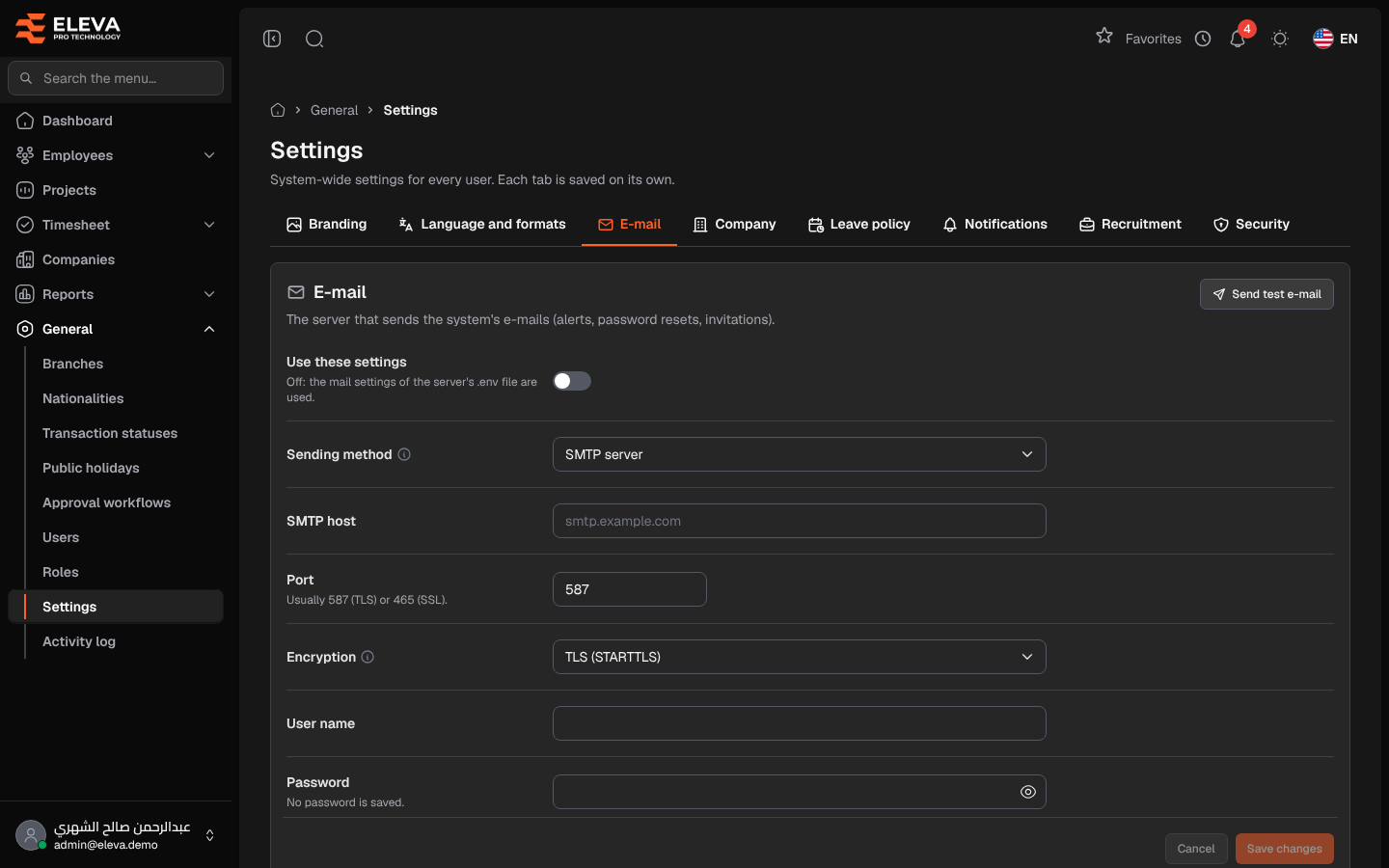
The E-mail tab sets the mail server the system uses to send its messages, such as alerts, password resets and recruitment invitations. Set it up when the system is installed and whenever your mail server or sender address changes, then send a test e-mail.
From the side menu, open General › Settings, then click the E-mail tab.
Fields
Section titled “Fields”- Use these settings — when off, the server’s own mail settings are used and the values below are ignored.
- Sending method — SMTP server sends through a mail server; Sendmail uses the server’s own program; Log only (nothing is sent) is for testing.
- SMTP host and Port — required for an SMTP server. The port is usually 587 (TLS) or 465 (SSL).
- Encryption — TLS (STARTTLS), SSL or None / automatic. It must match the mail server.
- User name and Password — the mail account. When a password is saved, Saved is shown; leave the field blank to keep it.
- Sender address and Sender name — shown on every e-mail the system sends. When empty, the default shown under the field is used.
The server fields appear only when SMTP server is chosen.
How to update the e-mail settings
Section titled “How to update the e-mail settings”- Switch on Use these settings and choose the Sending method.
- Fill in the server details, the account and the sender.
- Click Save changes. To discard your edits, click Cancel.
How to send a test e-mail
Section titled “How to send a test e-mail”- Click Send test e-mail at the top of the section.
- Check the Send to address; it starts with your own e-mail.
- Click Send test e-mail. A message tells you whether it was sent.
How to remove the saved password
Section titled “How to remove the saved password”Click Remove password next to the password and confirm. E-mails may fail until a new password is saved.
Required permission
Section titled “Required permission”Settings › Manage, on an Admin account.