

Roles & permissions
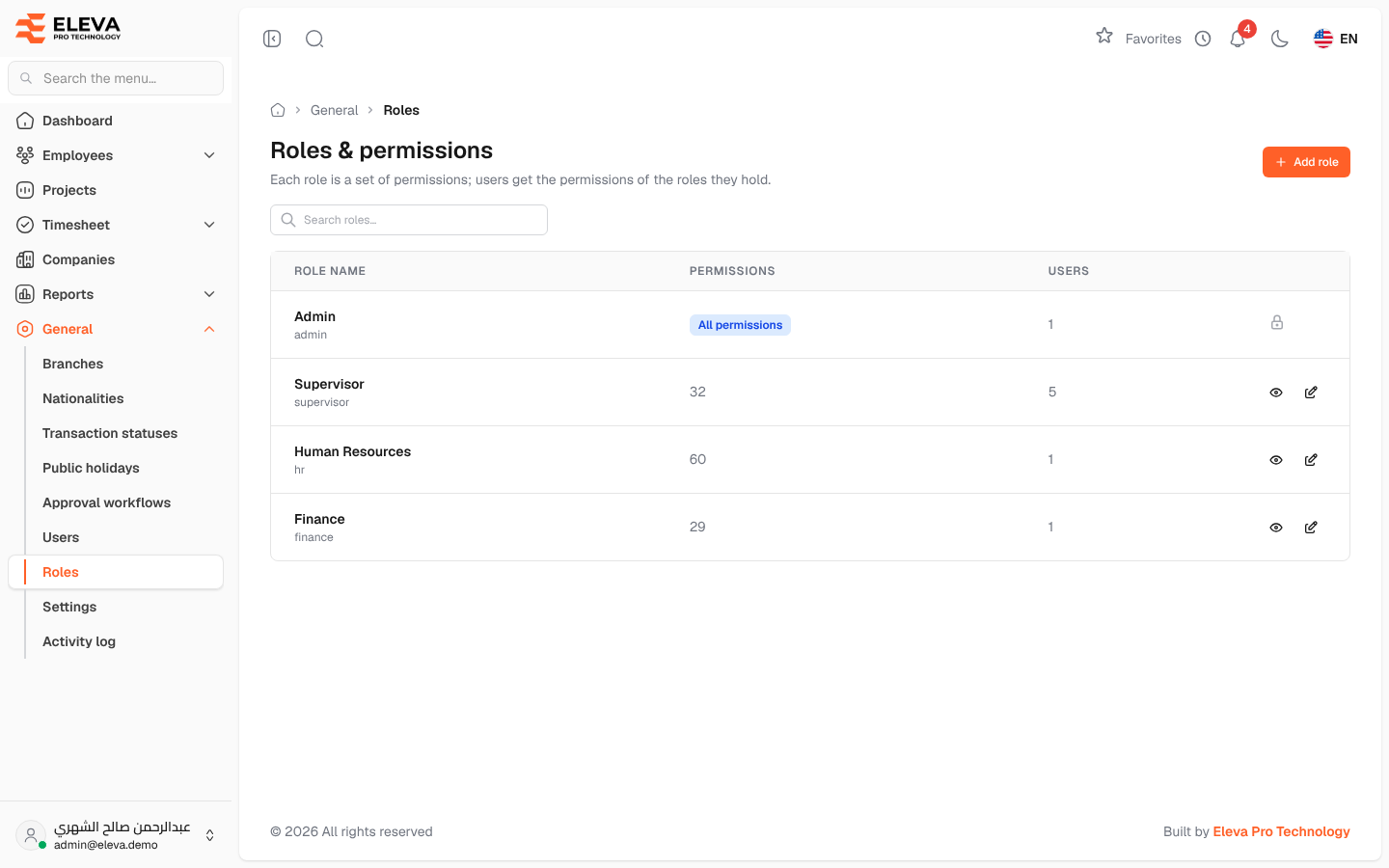
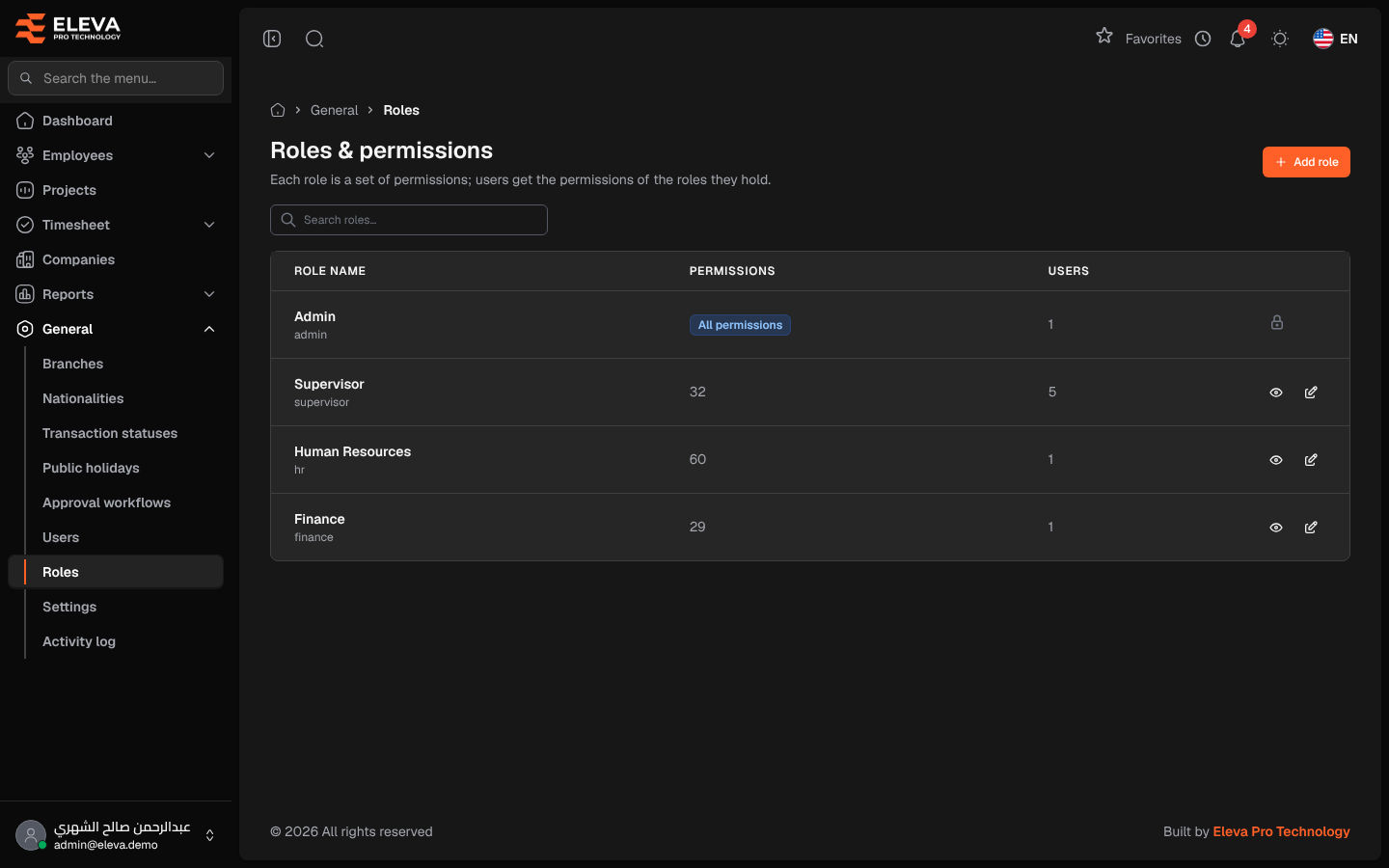
A role is a named set of permissions. Users get the permissions of every role they hold, so roles decide which screens each person sees and what they can do there. Use this screen to review the roles, create new ones and remove roles that are no longer used.
From the side menu, open General › Roles.
What’s on this screen
Section titled “What’s on this screen”- Search roles… — find a role quickly.
- Add role — create a new role with its permissions.
- A table of roles; click a row to open the role.
Columns
Section titled “Columns”- Role name — the role’s name, with its code underneath when the two differ.
- Permissions — how many permissions the role gives. The built-in Admin role shows All permissions.
- Users — how many users hold the role.
- Actions — View role (eye icon), Edit (pencil icon) and Delete (trash icon). Edit is not shown for a role you hold yourself (unless you are an administrator), and Delete only for a role that no user holds.
How to review a role
Section titled “How to review a role”- Find the role with the search box.
- Click the row or the eye icon. The role’s page shows its name, the number of permissions and users, and a read-only table of the screens it has permissions on.
- Click Edit role to change it, or Delete to remove it.
How to delete a role
Section titled “How to delete a role”- Click the trash icon on the role’s row, or Delete on the role’s page.
- Confirm in the Delete role window.
Required permission
Section titled “Required permission”Roles & Permissions › View. Adding, editing and deleting need Roles & Permissions › Create, Roles & Permissions › Edit and Roles & Permissions › Delete. Supervisor accounts cannot open this screen.