

Leave approvals
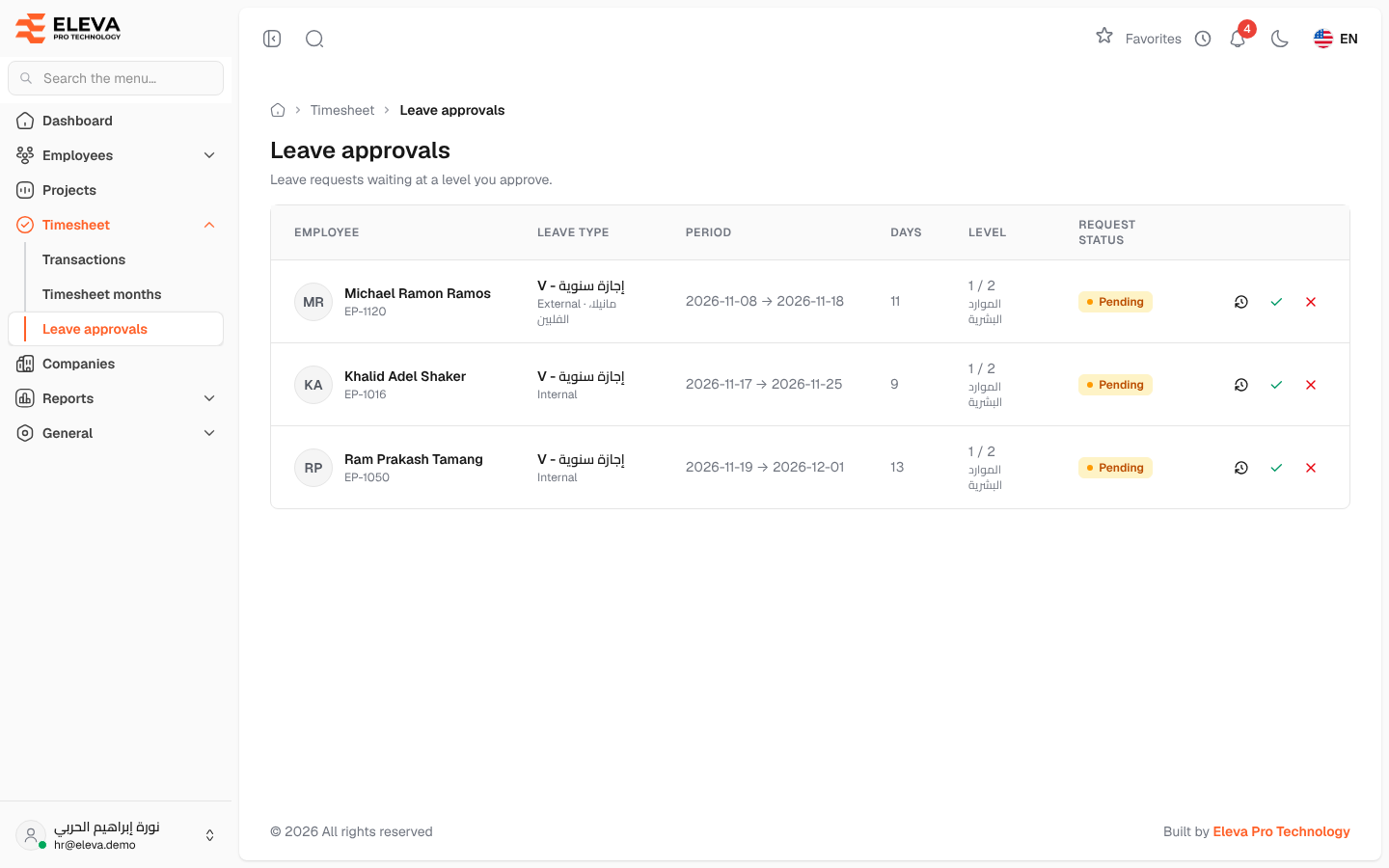
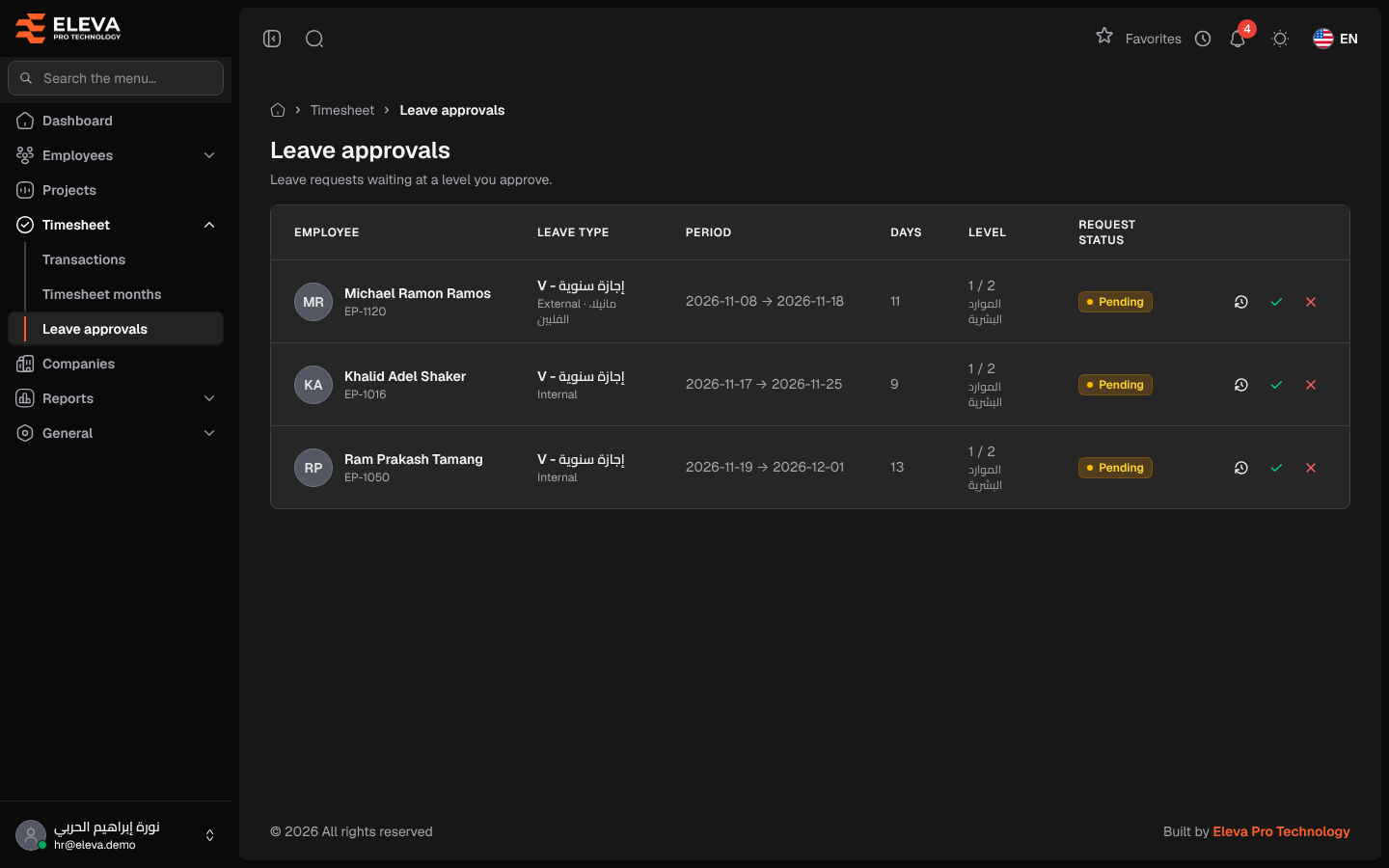
The Leave approvals screen lists the leave requests that employees sent from the employee portal and that are waiting for a decision at a level you approve (administrators see every pending request). Each request follows the approval workflow set for it, one level at a time, and the days are deducted from the employee’s balance only when the last level approves.
From the side menu, open Timesheet › Leave approvals.
What’s on this screen
Section titled “What’s on this screen”- Approval workflows — opens the screen where approval levels and approvers are set (administrators only).
- The table of pending requests, newest first, 20 per page. When nothing is waiting, it shows No leave requests are waiting for approval.
Columns
Section titled “Columns”- Employee — name and employee code.
- Leave type — the type, with Internal or External underneath (and the destination for external leave).
- Period — start and end dates.
- Days — the number of days requested.
- Level — the current level and the total number of levels, for example 1 / 2, with the level’s name.
- Request status — Pending.
- Actions — Details and history, Approve and Reject. If you are not an approver of the current level, the row shows Waiting for this level’s approvers instead.
How to review a request
Section titled “How to review a request”Click the row or the history icon. A side panel shows the request details (type, period, days, location, destination and contact numbers for external leave, and the employee’s reason) and the Approval history of earlier levels.
How to approve or reject
Section titled “How to approve or reject”- Click Approve (check icon) or Reject (cross icon) on the row.
- Optionally type Notes. When rejecting, the notes are the reason the employee sees.
- Confirm with Approve or Reject.
If more levels follow, the request moves to the next level and its approvers are notified. On the last level the window warns that approving deducts the days from the employee’s balance, and the request becomes Approved. Rejecting at any level ends the request. The employee is notified of the final decision.
Required permissions
Section titled “Required permissions”- Leave approvals — View to open the screen, Approve and Reject to decide.
- You must also be an approver of the request’s current level in its approval workflow. Administrators see every pending request and can approve or reject it at any level, for example when a level’s approver is away.