

Change password
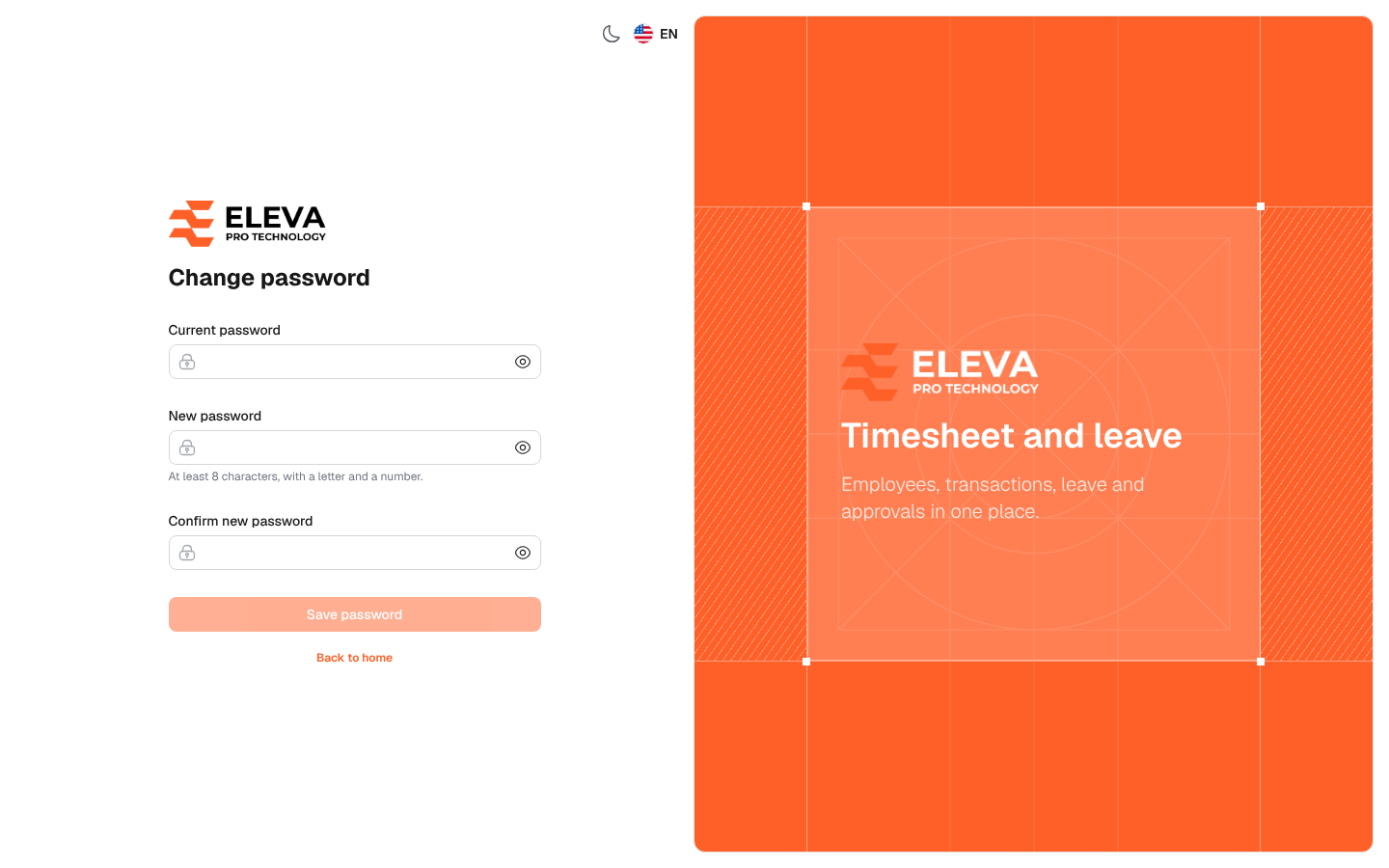
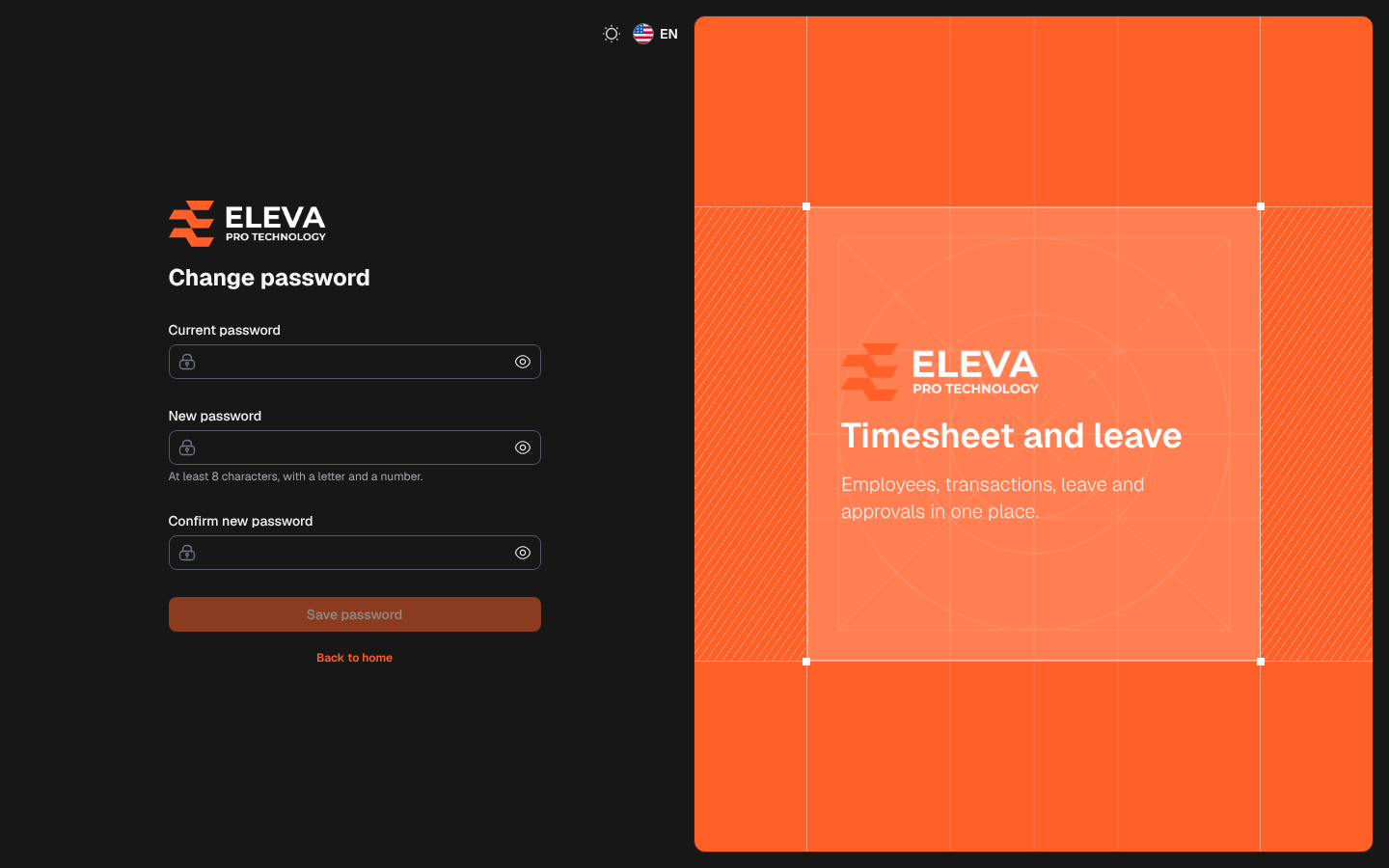
Employees who sign in to the employee portal with their Iqama number use this page to set their own password. To open it at any time, click your name at the bottom of the side menu and choose Password and sessions.
The page also opens by itself:
- the first time you sign in, with the message Welcome! Choose your own password before you start using the system.
- after an administrator resets your password, with the warning Your password expired or was reset by an administrator. Choose a new password to continue.
In both cases you cannot use the portal until you save a new password.
Fields
Section titled “Fields”- Current password: the password you signed in with. After a reset, this is the temporary password you received from HR or the administrator.
- New password: the password you want to use from now on.
- Confirm new password: type the new password again. If the two do not match, the page shows The passwords do not match.
All three fields are required.
How to change your password
Section titled “How to change your password”- Type your Current password.
- Type the New password and repeat it in Confirm new password.
- Click Save password.
- A confirmation appears and My leave requests opens.
To leave without changing anything, click Back to home. When the change is required, the link is replaced by Sign out.
Password rules
Section titled “Password rules”- At least 8 characters with letters and numbers (default rules; the administrator can change them in Settings › Security).
- It must be different from your current password.
- Passwords known to have leaked on the internet are refused.
If the current password is wrong, the page shows The current password is incorrect. and clears the fields so you can try again.