

New leave request
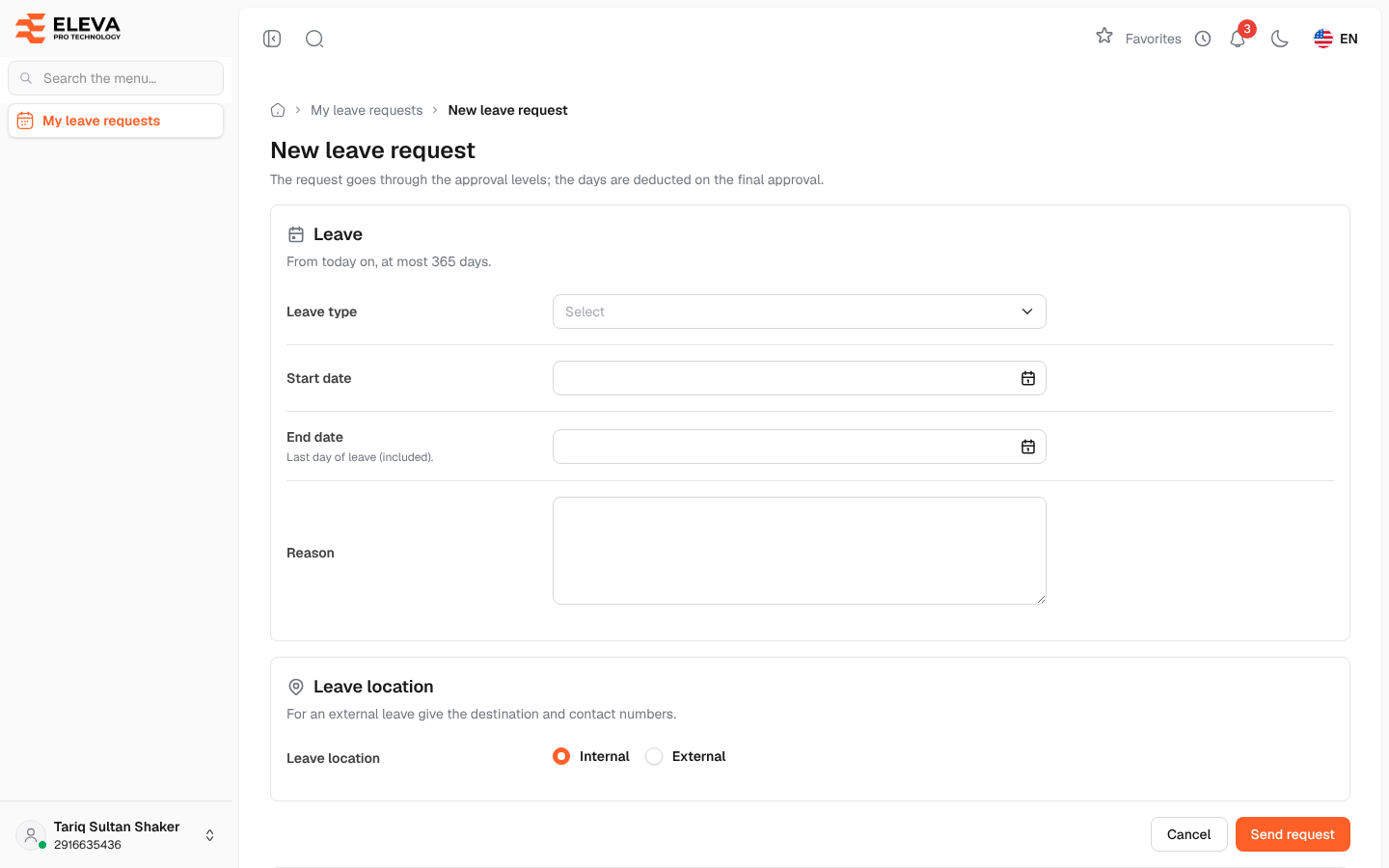
Use this form to ask for leave. The request goes through the approval levels set for you, and the days are deducted from your balance only on the final approval.
From the side menu, open My leave requests, then click New leave request.
How to send a leave request
Section titled “How to send a leave request”- Choose the Leave type. For a type with a balance, three tiles appear: Current balance, Pending days and Remaining. For a type without a limit, the form says This type has no balance limit.
- Choose the Start date and End date.
- Optionally write the Reason.
- Under Leave location, choose Internal or External. For external leave, fill in the extra fields.
- Click Send request, or Cancel to go back without sending.
You return to My leave requests, where the new request shows Pending.
Fields
Section titled “Fields”Leave
- Leave type (required) — the kind of leave.
- Start date (required) — today or a later day.
- End date (required) — the last day of leave, which is included. It cannot be before the start date, and the leave cannot be longer than the limit shown under Leave (for example “From today on, at most 365 days”).
- Reason — optional, up to 500 characters.
Leave location
- Leave location (required) — Internal or External.
- Destination — where you are travelling to (required for external leave).
- Contact (home country) and Contact (destination) — phone numbers where you can be reached (required for external leave).
Your Leave balances table is shown at the bottom of the form for reference.
Who can use this screen
Section titled “Who can use this screen”Every active employee who can sign in to the employee portal.