

Transactions
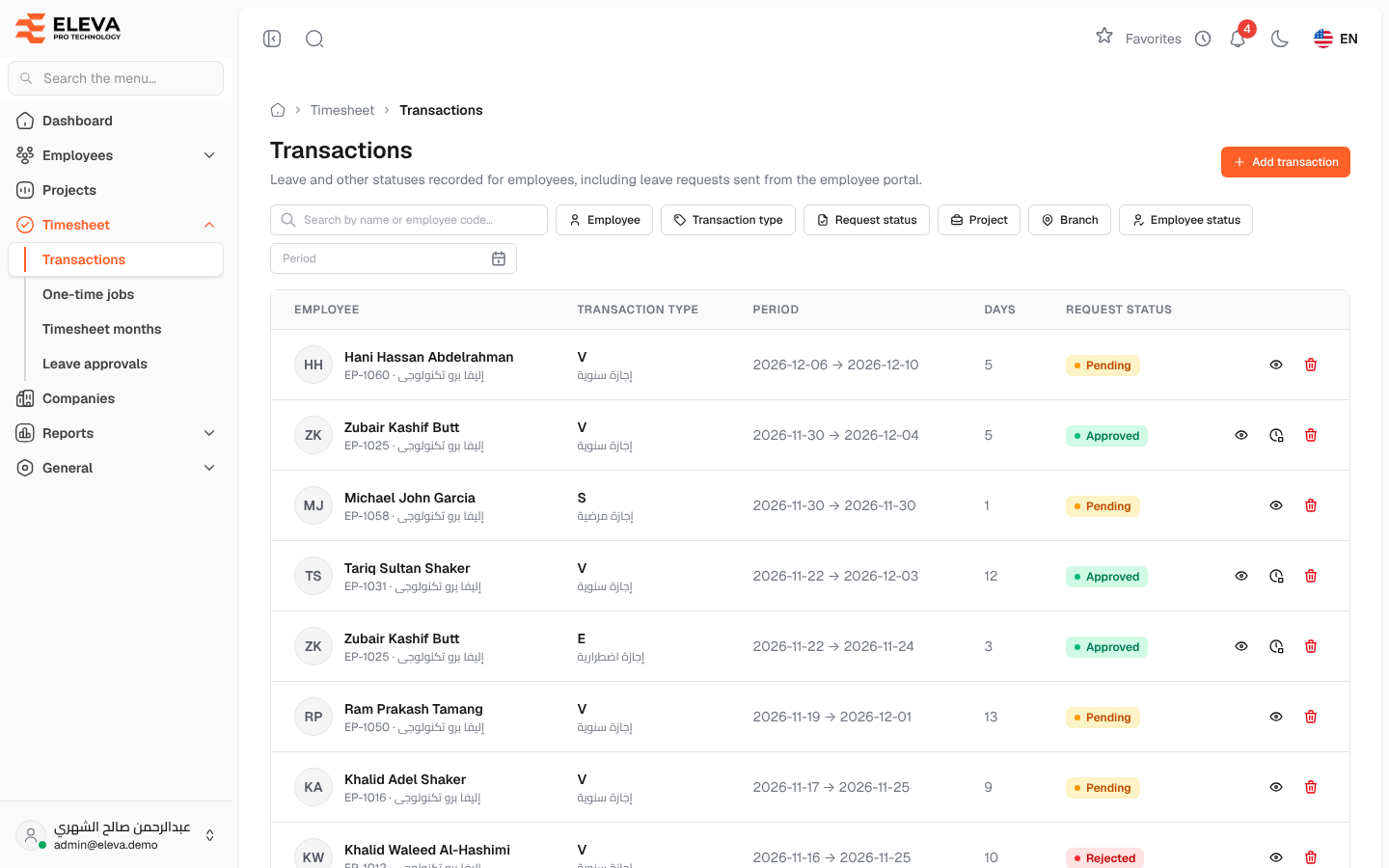
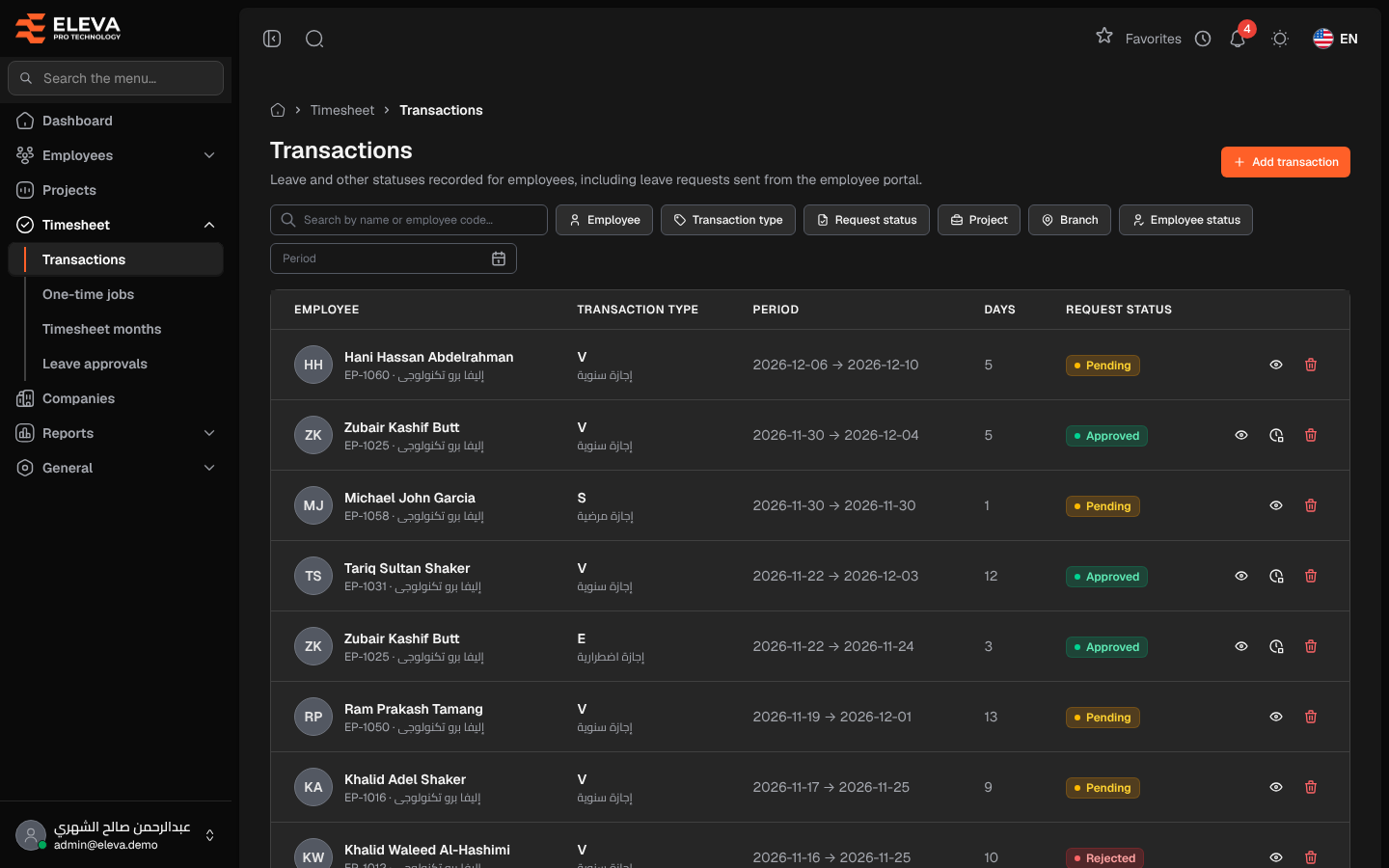
The Transactions screen lists the leave and other statuses recorded for employees over a period, such as annual leave, sick leave or absence. It includes both transactions entered by the back office and leave requests that employees sent from the employee portal. These transactions are what the timesheet months grid and the reports read.
From the side menu, open Timesheet › Transactions.
What’s on this screen
Section titled “What’s on this screen”- Add transaction — opens the form to record a new transaction.
- Search by name or employee code… — free-text search.
- The transactions table, newest first, with page controls at the bottom.
Filters
Section titled “Filters”- Employee — one employee’s transactions.
- Transaction type — one type, for example a leave type.
- Request status — Pending, Approved, Rejected, or Entered (no request) for transactions entered by the back office.
- Project and Branch — transactions of employees on that project or in that branch.
- Employee status — Active employees or Inactive employees.
- Period — transactions that overlap a date range.
The filters stay in the page address, so you can bookmark or share a filtered list.
Columns
Section titled “Columns”- Employee — name, employee code and company.
- Transaction type — the type code and its description.
- Period — start and end dates. A lock icon means the period falls in a locked month.
- Days — the number of days.
- Request status — the leave request’s status, or Entered for a back-office transaction.
- Action icons — View, End early, Edit and Delete, shown only when the action is allowed.
How to work with a transaction
Section titled “How to work with a transaction”- Click a row, or the eye icon, to open the transaction.
- Click the pencil icon to edit it. Leave requests sent by employees cannot be edited.
- Click End early on an approved leave request when the employee returned before the end date. Choose the Last day of leave and click End leave. The days no longer taken go back to the employee’s balance.
- Click the trash icon to delete a transaction, then confirm. Deleting an approved leave request gives its days back to the balance.
Required permissions
Section titled “Required permissions”- Transactions — View to open the screen, and Create, Edit or Delete for the matching actions.
- A supervisor sees only their own employees’ transactions, and cannot delete leave requests sent by employees or end a leave early.