

Recruitment applications
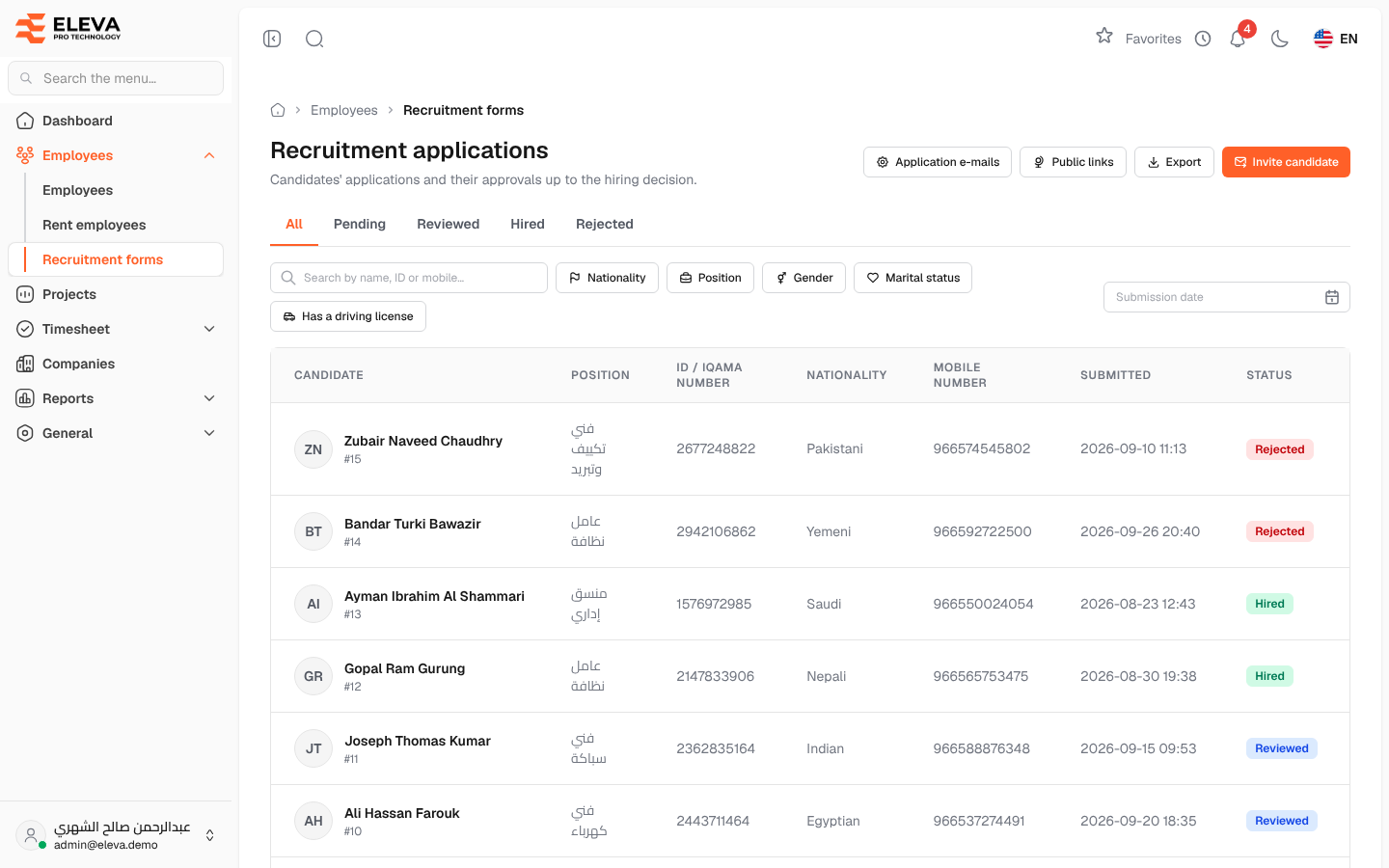
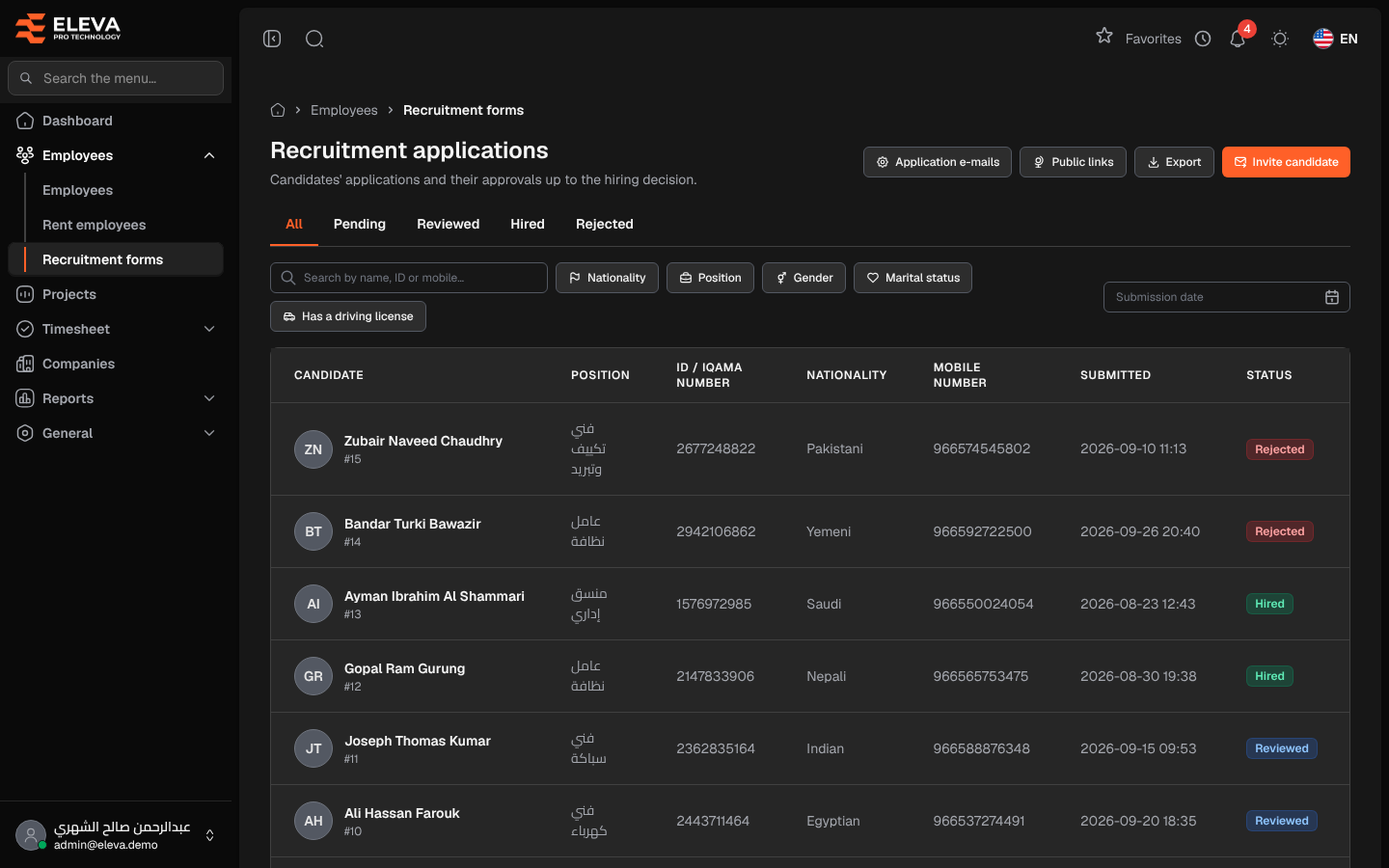
This screen lists the applications that candidates send through the online application form, together with their progress from the preliminary approvals to the hiring decision. Human Resources uses it to follow up on candidates, invite new ones and export the list.
From the side menu, open Employees › Recruitment forms.
What’s on this screen
Section titled “What’s on this screen”- Status tabs — All, Pending, Reviewed, Hired and Rejected.
- Search by name, ID or mobile… — finds an application by the candidate’s name, ID number, mobile number, e-mail and other details.
- Submission date — limits the list to applications sent in a period.
- Application e-mails — chooses who receives an e-mail when a new application arrives.
- Public links — opens the list of public application links.
- Export — downloads the list, with the current filters, as an Excel file.
- Invite candidate — sends a private invitation or creates a public link.
Filters
Section titled “Filters”- Nationality, Position, Gender, Marital status and Has a driving license.
Columns
Section titled “Columns”- Candidate — the candidate’s name and the application number.
- Position, ID / Iqama number, Nationality and Mobile number.
- Submitted — when the application was sent.
- Status — Pending (new, waiting for the preliminary approvals), Reviewed (preliminary approvals completed), Hired (converted to an employee) or Rejected.
- View application (eye icon) — opens the application.
How to find an application
Section titled “How to find an application”- Choose a status tab, or All.
- Type in the search box, or use the filters and Submission date.
- Click the row to open the application.
Required permission
Section titled “Required permission”Recruitment forms › View. Invite candidate and Public links need Recruitment forms › Invite, and Application e-mails needs Recruitment forms › Settings. Supervisor accounts cannot open this screen.