

Preliminary approvals
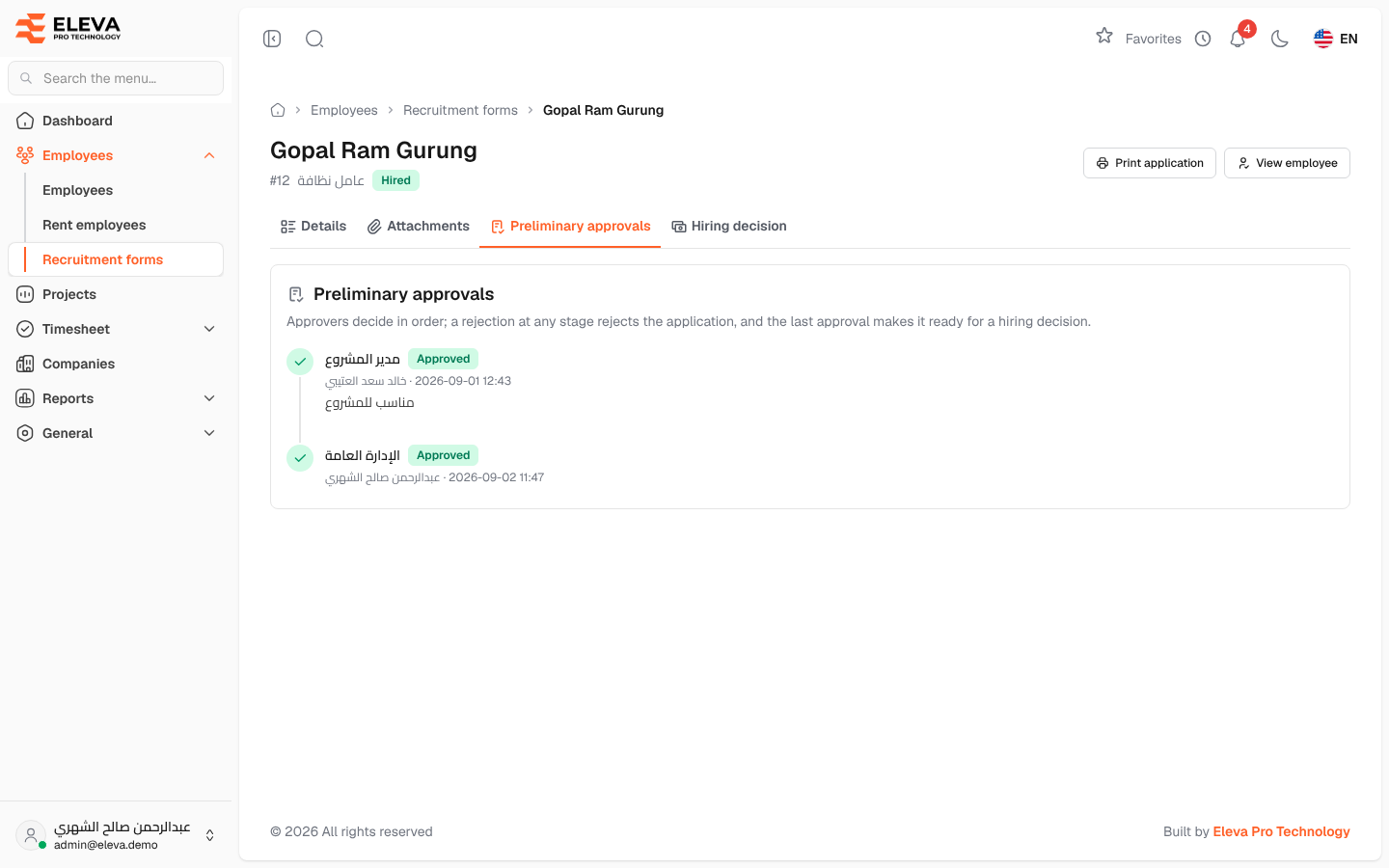
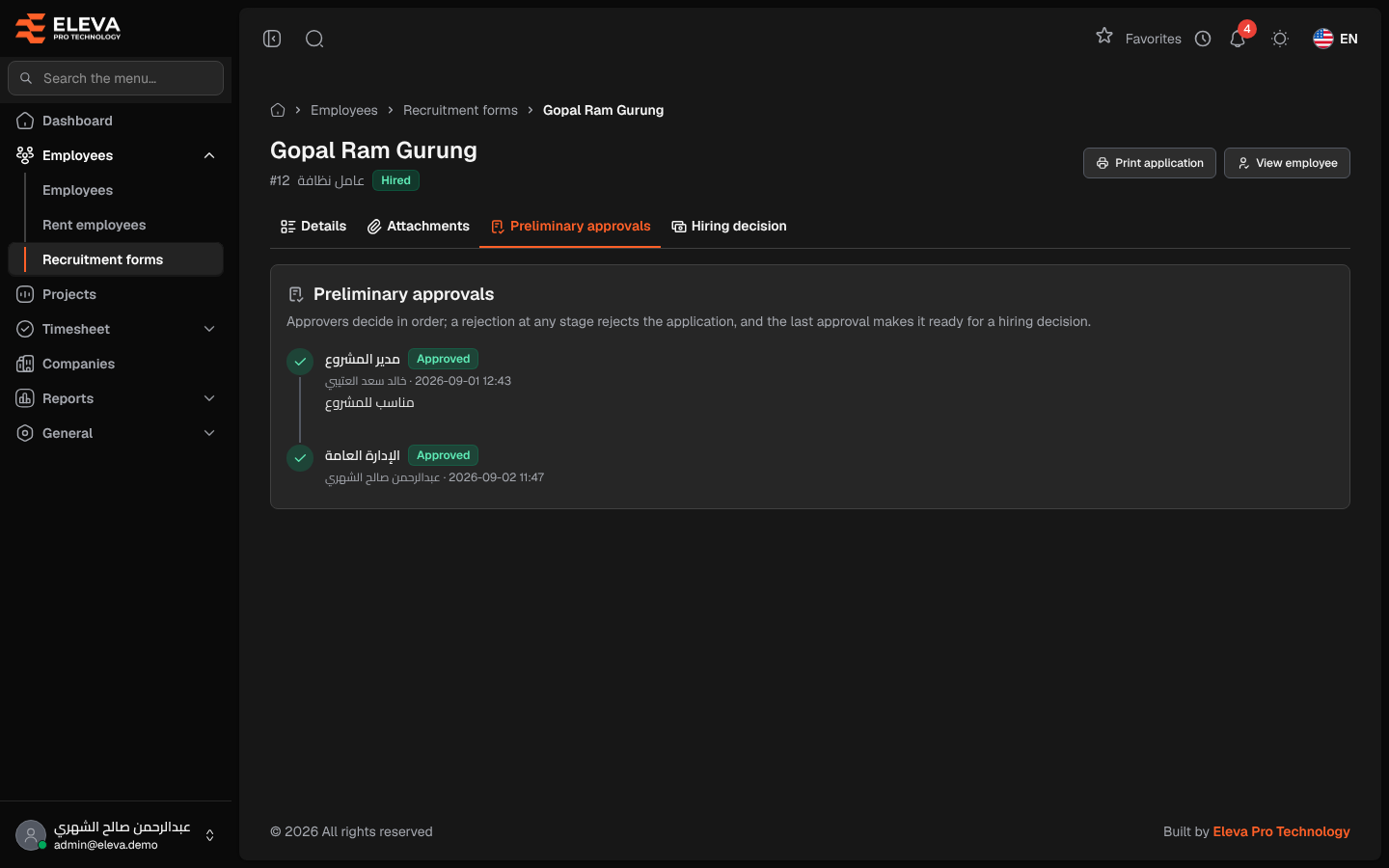
Before a hiring decision is made, a new application goes through a chain of preliminary approvals. Human Resources sets up the stages and chooses one approver for each; the approvers then decide in order.
From the side menu, open Employees › Recruitment forms, open an application and click the Preliminary approvals tab.
What’s on this screen
Section titled “What’s on this screen”- The stages in order, each with its name, the approver, the decision (Awaiting decision, Approved or Rejected), the date and any notes.
- A banner showing who the chain is waiting for, or Waiting for your decision at when it is your turn.
- Approve and Reject — shown only to the approver of the current stage.
- Set up stages — shown when no stages exist yet.
How to set up the stages
Section titled “How to set up the stages”- On a Pending application with no stages, click Set up stages.
- Four default stages are offered: Employee, Direct Manager, Department Manager and HR Department. For each Stage, check the Stage name and choose the Approver.
- Use Add a stage, the trash icon or Default stages to change the list.
- Click Start approvals. The first approver is notified.
How to approve or reject
Section titled “How to approve or reject”- Open the application when it is your turn.
- Click Approve or Reject.
- Add Notes if needed (for a rejection, the reason) and confirm.
- Approvers decide in order; only the approver of the current stage can act.
- Each stage needs a different approver, and you cannot choose yourself. Supervisors cannot be approvers.
- After each approval the next approver is notified.
- A rejection at any stage rejects the application and closes the remaining stages.
- The last approval changes the status to Reviewed, and the Hiring decision tab appears.
Required permission
Section titled “Required permission”Setting up stages needs Recruitment forms › Edit. Deciding a stage needs Recruitment forms › Approve.