

Projects
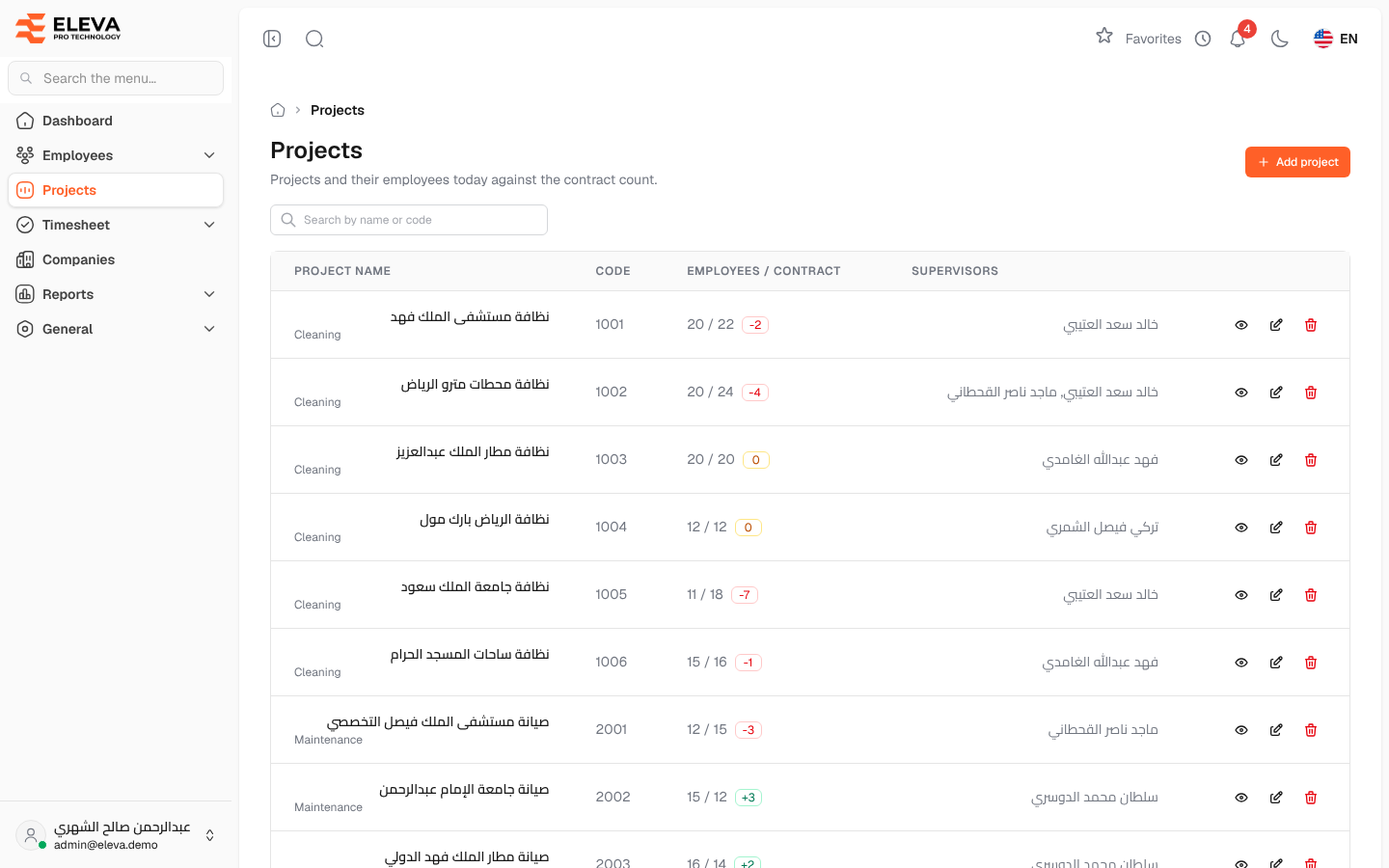
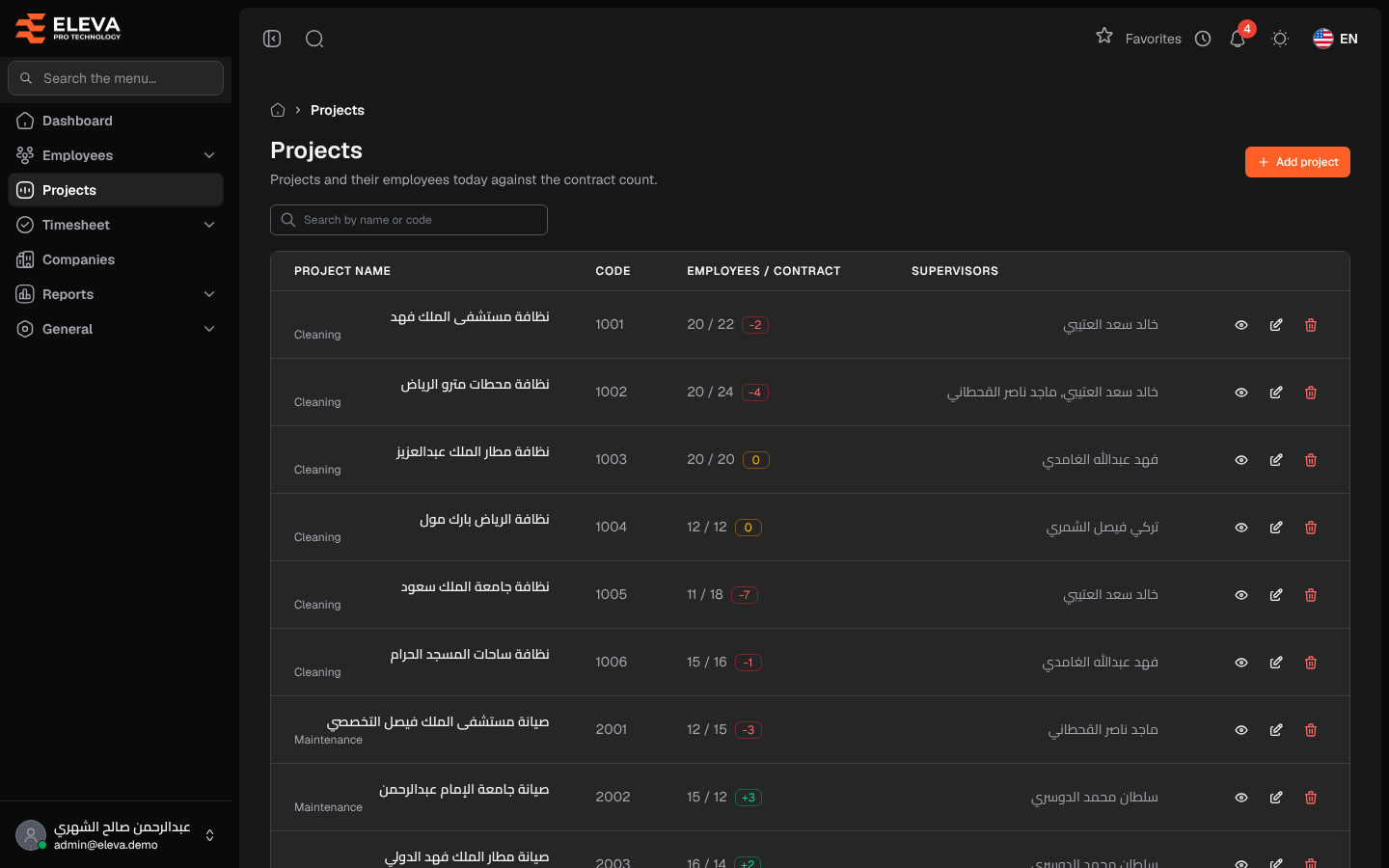
The Projects screen lists the projects your employees work on, and compares the number of employees on each project today with the number agreed in the contract. Use it to find a project, see at a glance which projects are over or under their contract count, and open, edit or delete a project.
From the side menu, open Projects.
What’s on this screen
Section titled “What’s on this screen”- Add project — opens the form to create a new project.
- Search by name or code — finds a project by its name, its code or the name of one of its supervisors.
- The projects table, with page controls at the bottom.
Columns
Section titled “Columns”- Project name — the project’s name, with its work type underneath: Cleaning when the code starts with 1, Maintenance when it starts with 2, otherwise Other.
- Code — the project code.
- Employees / contract — active employees on the project today, then the contract count, followed by the difference: green with a plus sign when the project has more employees than the contract, red with a minus sign when it has fewer, and amber when it matches exactly.
- Supervisors — the supervisors linked to the project.
- Action icons — View, Edit project and Delete.
How to work with a project
Section titled “How to work with a project”- Click a row, or the eye icon, to open the project page with its employees, supervisors and details.
- Click the pencil icon to edit the project’s name, code or contract count.
- Click the trash icon to delete the project, then confirm in the Delete project window.
Required permissions
Section titled “Required permissions”- Projects — View to open the screen.
- Projects — Create, Edit or Delete to see the matching button or icon.