

Notifications center
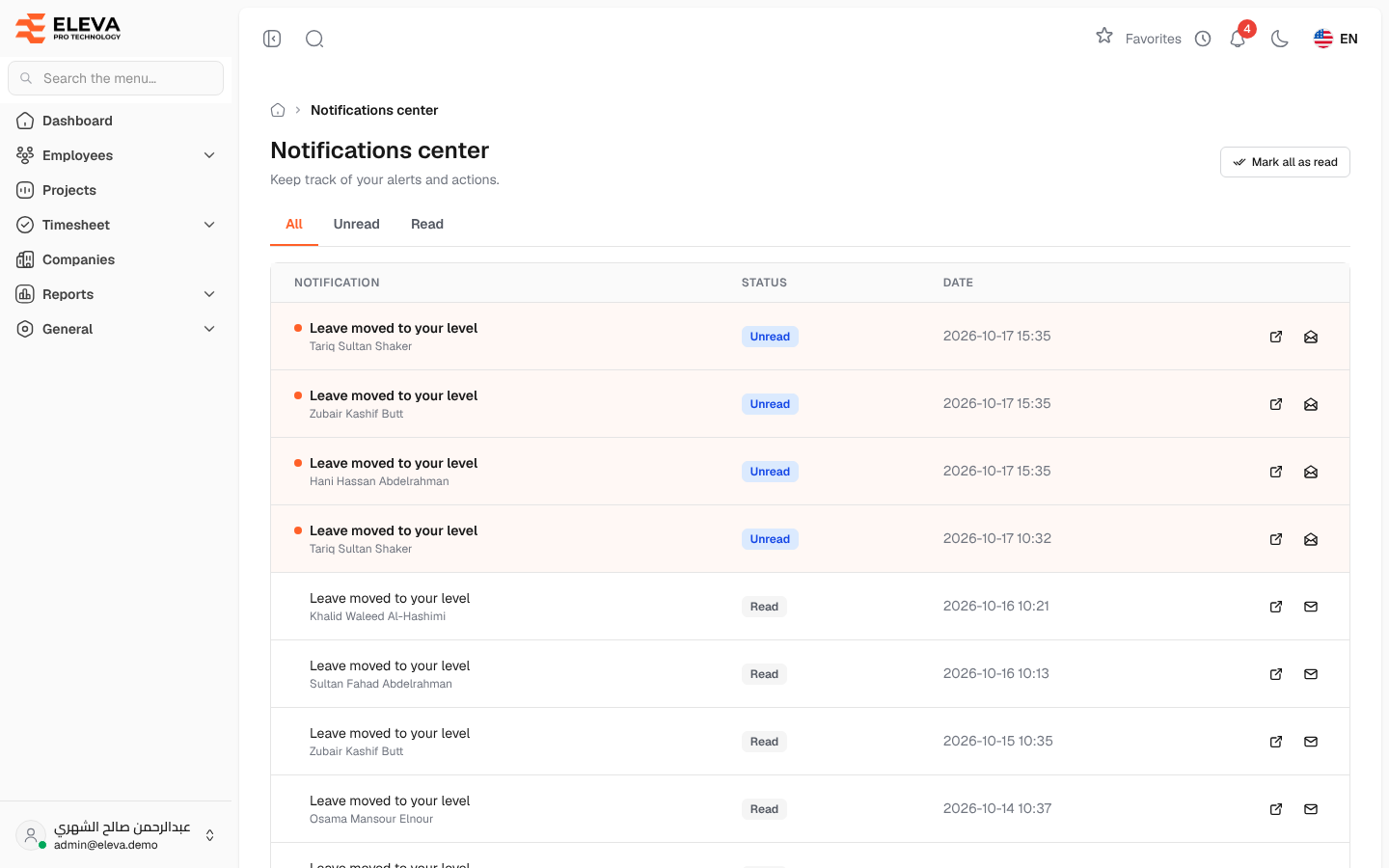
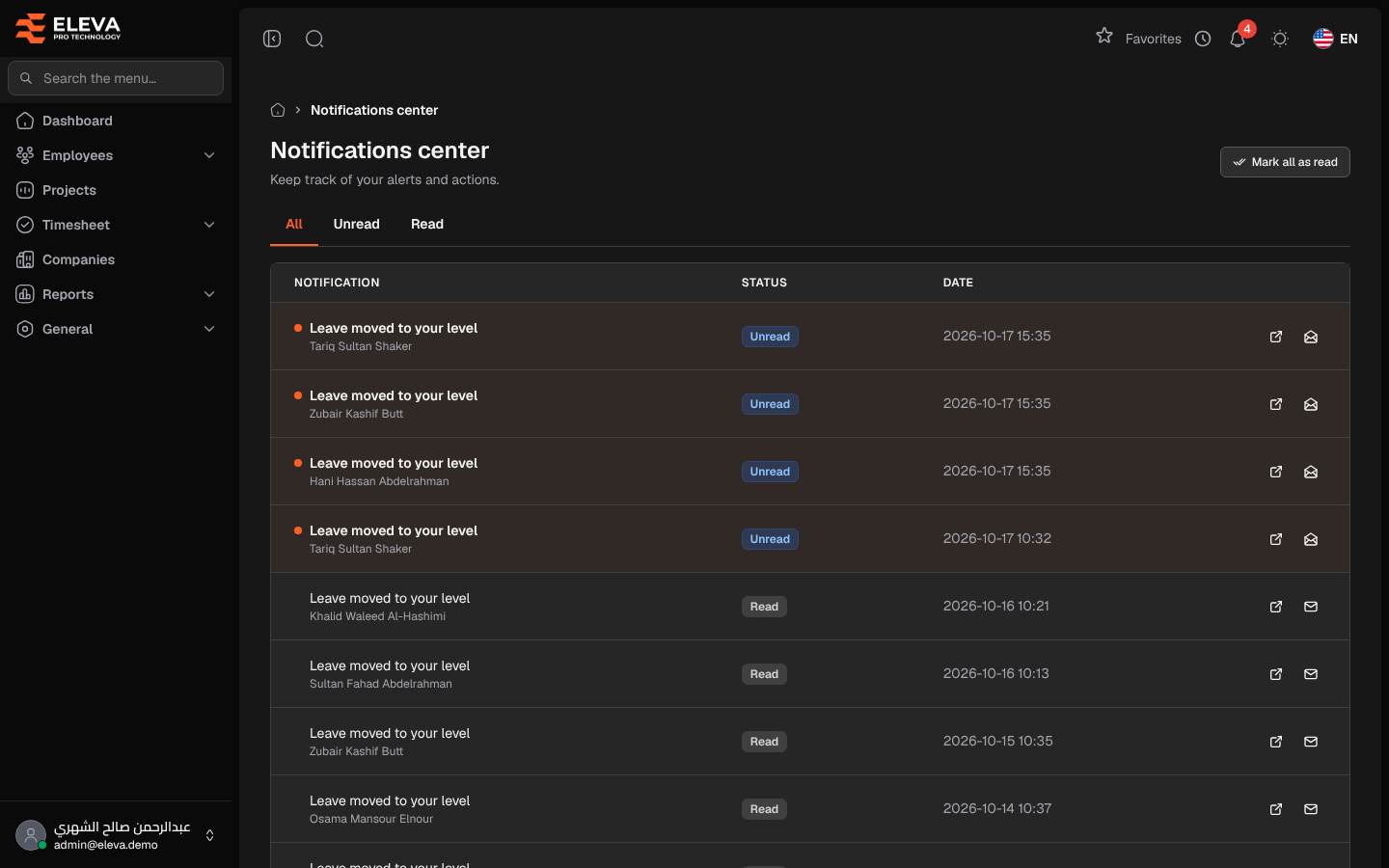
The notifications center lists every notification sent to you, newest first, so you can catch up on anything you missed. Notifications tell you, for example, that a leave request is waiting for your approval, that a decision was taken on a leave request, or that a new recruitment application was submitted.
To open it, click the bell icon at the top of the screen, then View all notifications at the bottom of the list. The red badge on the bell shows how many notifications you have not read yet. Employees in the employee portal have the same bell and page.
What’s on this screen
Section titled “What’s on this screen”- All, Unread and Read: tabs that filter the list.
- Mark all as read: marks every notification as read at once.
- The list, 20 notifications per page. Unread ones are highlighted and marked with a dot.
Columns
Section titled “Columns”- Notification: the title and a short description.
- Status: Unread or Read.
- Date: when the notification was sent.
- Actions: Open, and Mark as read or Mark as unread.
When there is nothing to show, the page displays No notifications.
How to open a notification
Section titled “How to open a notification”- Click the notification row, or the Open icon at the end of the row.
- The notification is marked as read and the related screen opens, for example the leave request to approve.
How to manage what you have read
Section titled “How to manage what you have read”- To keep a notification as a reminder, click Mark as unread.
- To mark a single one as read without opening it, click Mark as read.
- To clear everything, click Mark all as read.
Required permissions
Section titled “Required permissions”- Notifications › View to open the page.
- Notifications › Edit to open notifications and mark them as read or unread.
Employees signed in to the employee portal always see and manage their own notifications.