

Dashboard
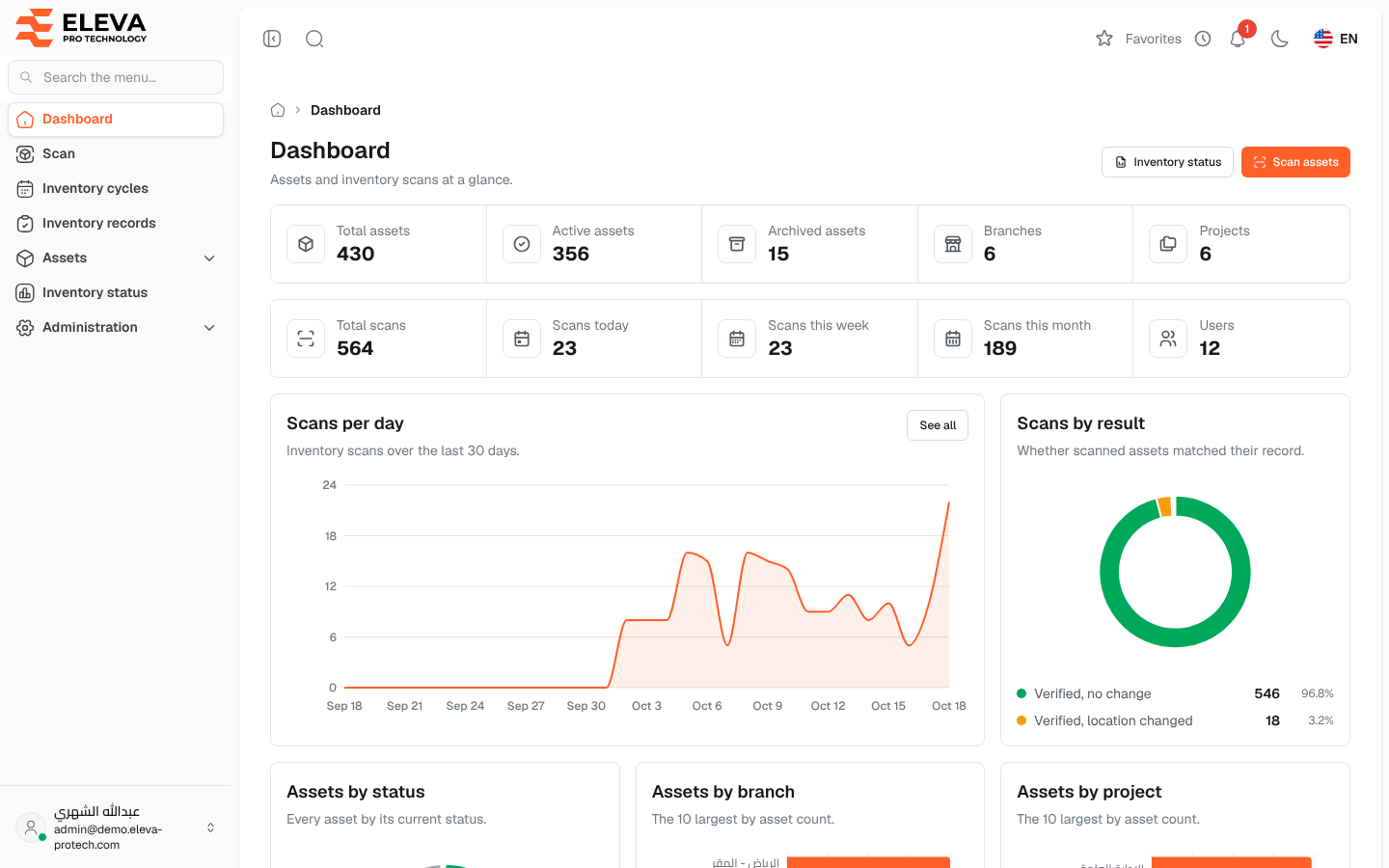
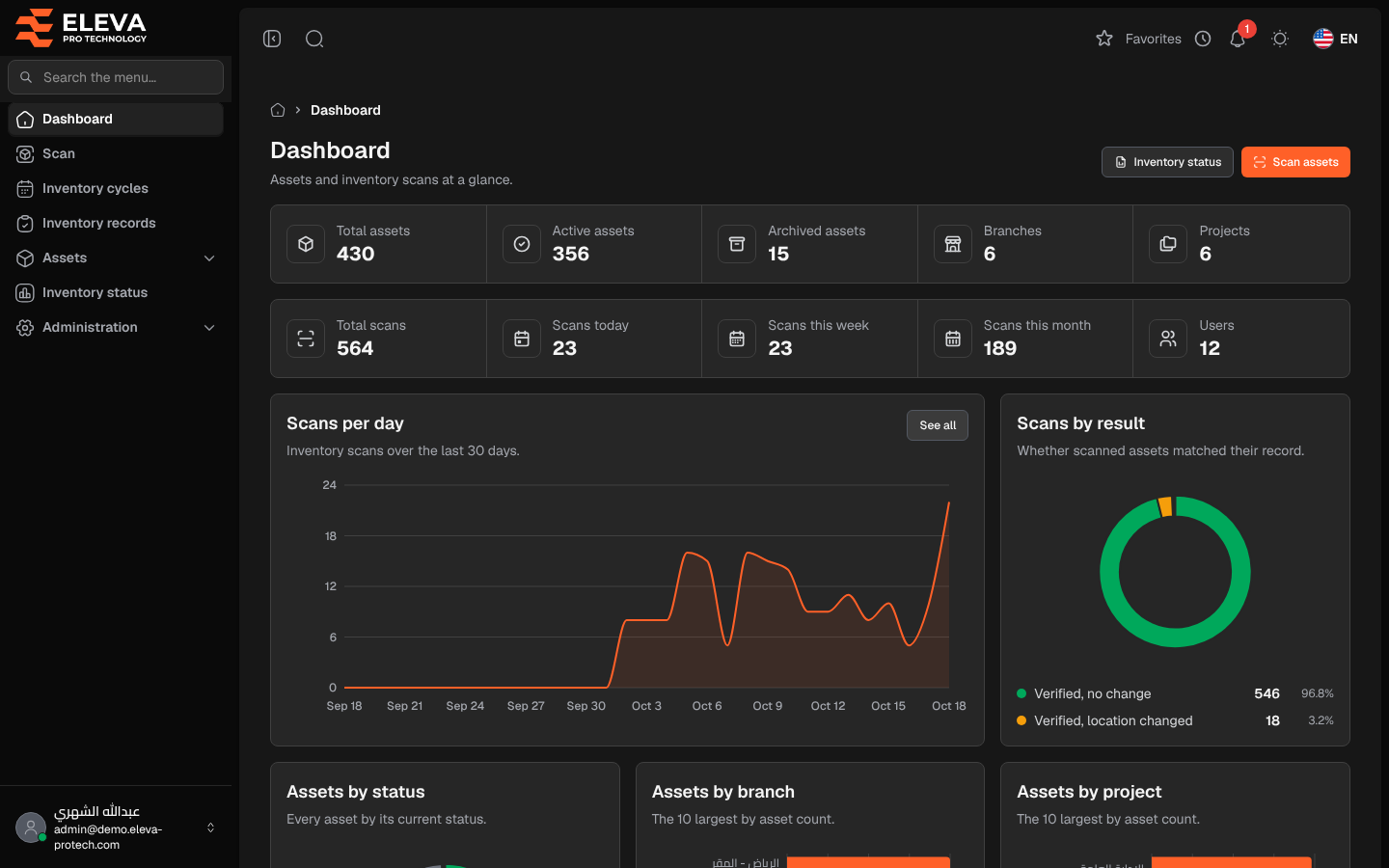
The dashboard is the home screen after you sign in. It gives an overview of the assets and of the inventory scans: how many assets you have and in what state, how many scans were made today, this week and this month, how the scans went over the last 30 days, and who scanned the most. To return to it, click Dashboard at the top of the side menu.
What’s on this screen
Section titled “What’s on this screen”At the top, two shortcuts:
- Inventory status: opens the Asset inventory status report.
- Scan assets: opens the Inventory scan screen.
The first two rows show key figures:
- Total assets, Active assets and Archived assets.
- Branches and Projects.
- Total scans, Scans today, Scans this week and Scans this month. The day and the week follow the time zone and the first day of the week set in Settings › Language & dates.
- Users.
Below them are the charts:
- Scans per day: inventory scans over the last 30 days, every day shown, zero included.
- Scans by result: how many scans found the asset where it was recorded (Verified, no change) and how many recorded a new place (Verified, location changed), with the share of each.
- Assets by status: the assets by their status, with the number and the share of each.
- Assets by branch and Assets by project: the 10 largest by asset count.
- Top scanners: the five users with the most scans.
- Recent scans: the 10 latest scans, with Asset, Scanned by, Result and Date.
Point at a bar, a slice or a day to see its exact number.
How to follow up from the dashboard
Section titled “How to follow up from the dashboard”- Click See all on Scans per day or Recent scans to open Inventory records.
- Click Inventory status to see which assets were not inventoried in a period.
- Click Scan assets to start scanning.
These links and buttons appear only if your role can open the target screen.
Required permission
Section titled “Required permission”Dashboard › View.