

Inventory records
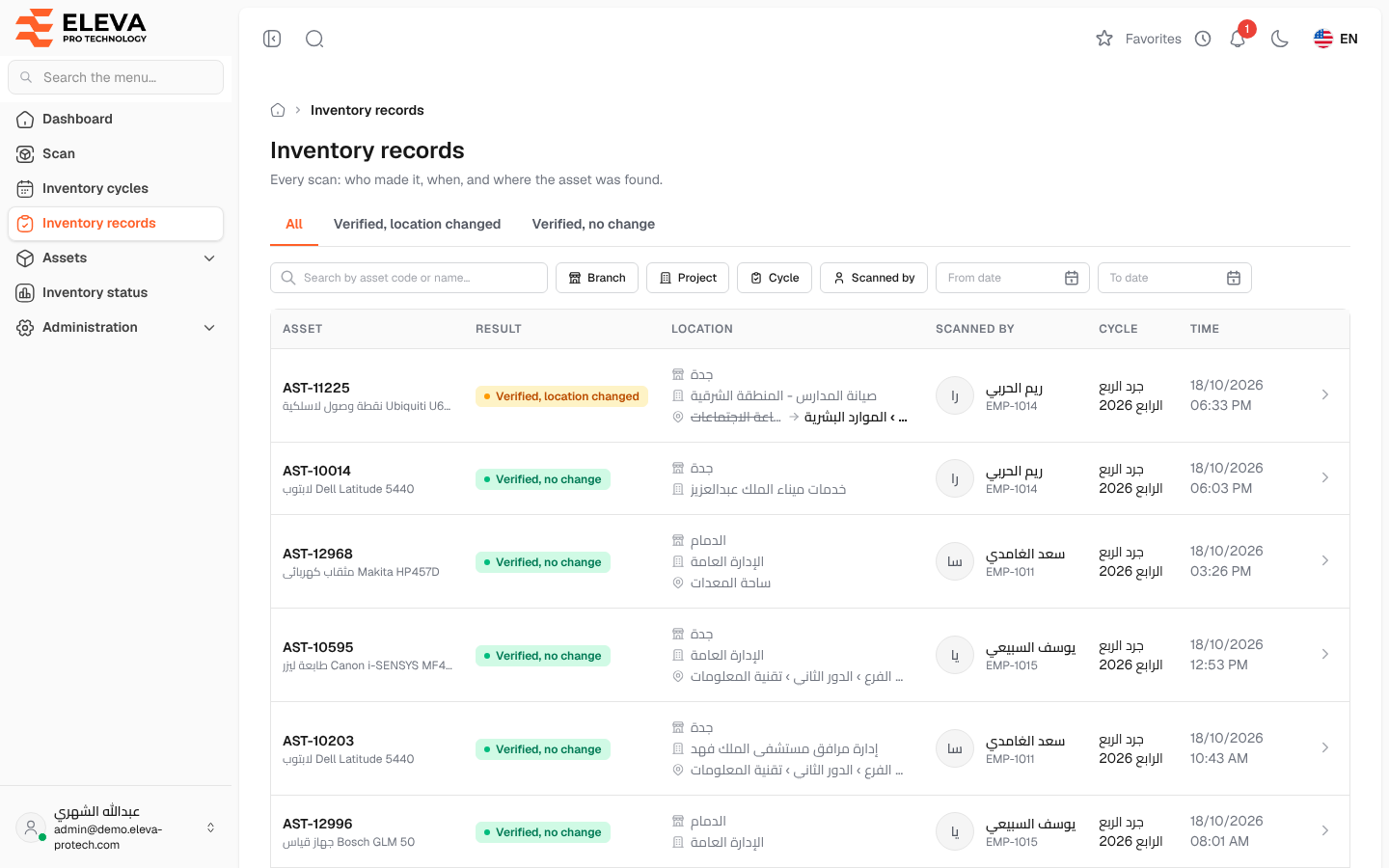
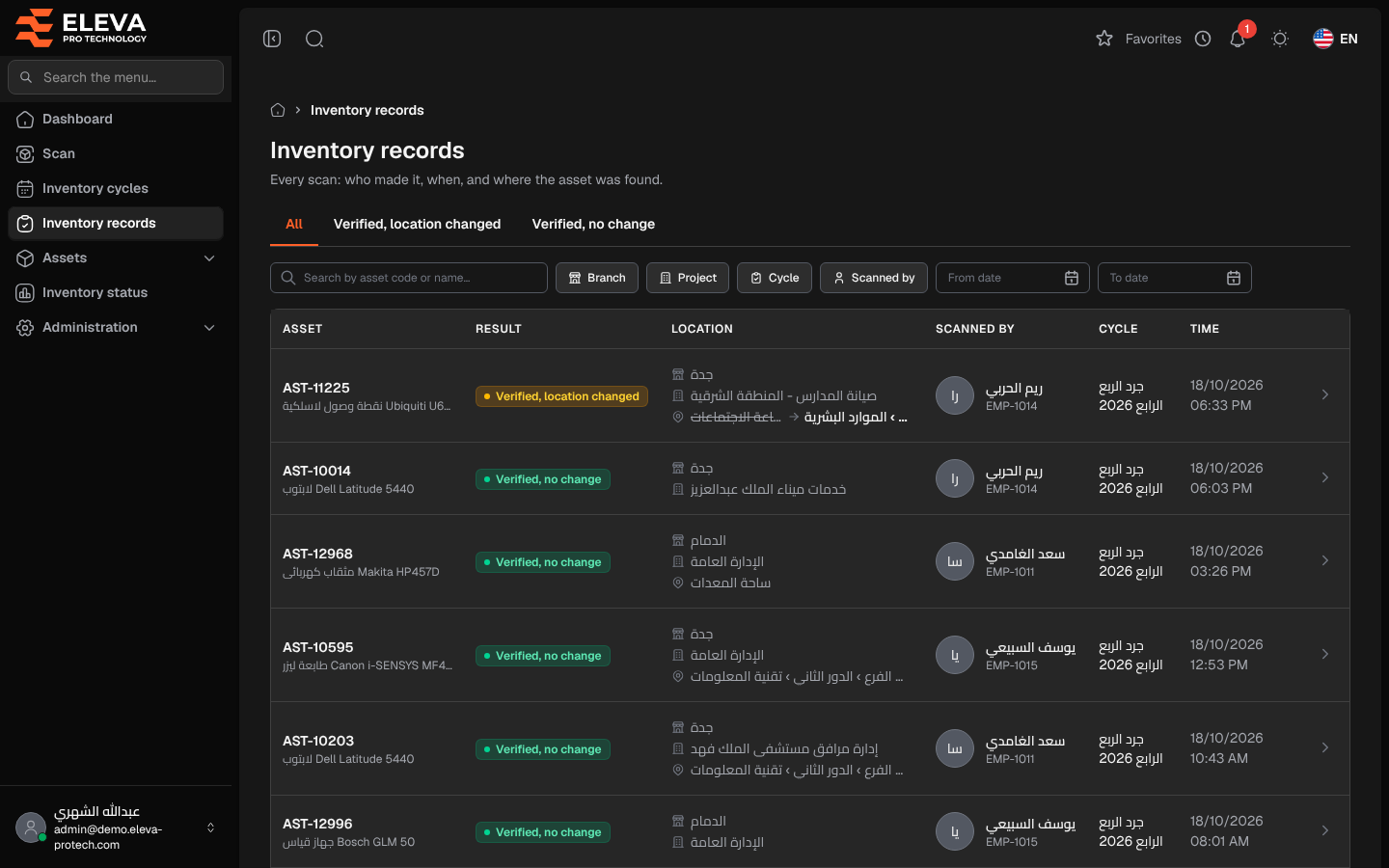
Every scan saved on the scan screen, online or synced later from a phone, becomes an inventory record: who scanned which asset, when, in which cycle, and where the asset was found. The Inventory records screen lists them all, newest first, so you can check the work of the field team, trace an asset’s moves or review a cycle’s scans.
From the side menu, open Inventory records.
What’s on this screen
Section titled “What’s on this screen”- All, Verified, location changed and Verified, no change: tabs that filter by result.
- Search by asset code or name…: finds the records of an asset.
- Filters: Branch and Project (where the asset was found), Cycle, Scanned by (the users who have scans), From date and To date.
- Reset filters: appears when a filter is set and removes all of them.
The list shows 15 records per page. The dates follow the time zone set in Settings › Language & dates.
Columns
Section titled “Columns”- Asset: the asset code and name.
- Result: Verified, no change when the asset was where it was recorded, or Verified, location changed when the scanner recorded another place.
- Location: the branch, the project and, when there is one, the location inside the branch. When the scan changed one of them, the old value is struck through and followed by the new one.
- Scanned by: the user’s name and employee code.
- Cycle: the inventory cycle the scan was recorded in, or No cycle.
- Time: the date and time of the scan.
How to find the scans of an asset
Section titled “How to find the scans of an asset”- From the side menu, open Inventory records.
- Type the asset code or name in the search box.
- Narrow the list with the tabs or the filters if needed.
- Click a row, or the arrow at the end of it, to open the record.
The tab, search and filters are kept in the page address, so you can bookmark or share a filtered list.
Required permission
Section titled “Required permission”Inventory records › View.