

Add a webhook
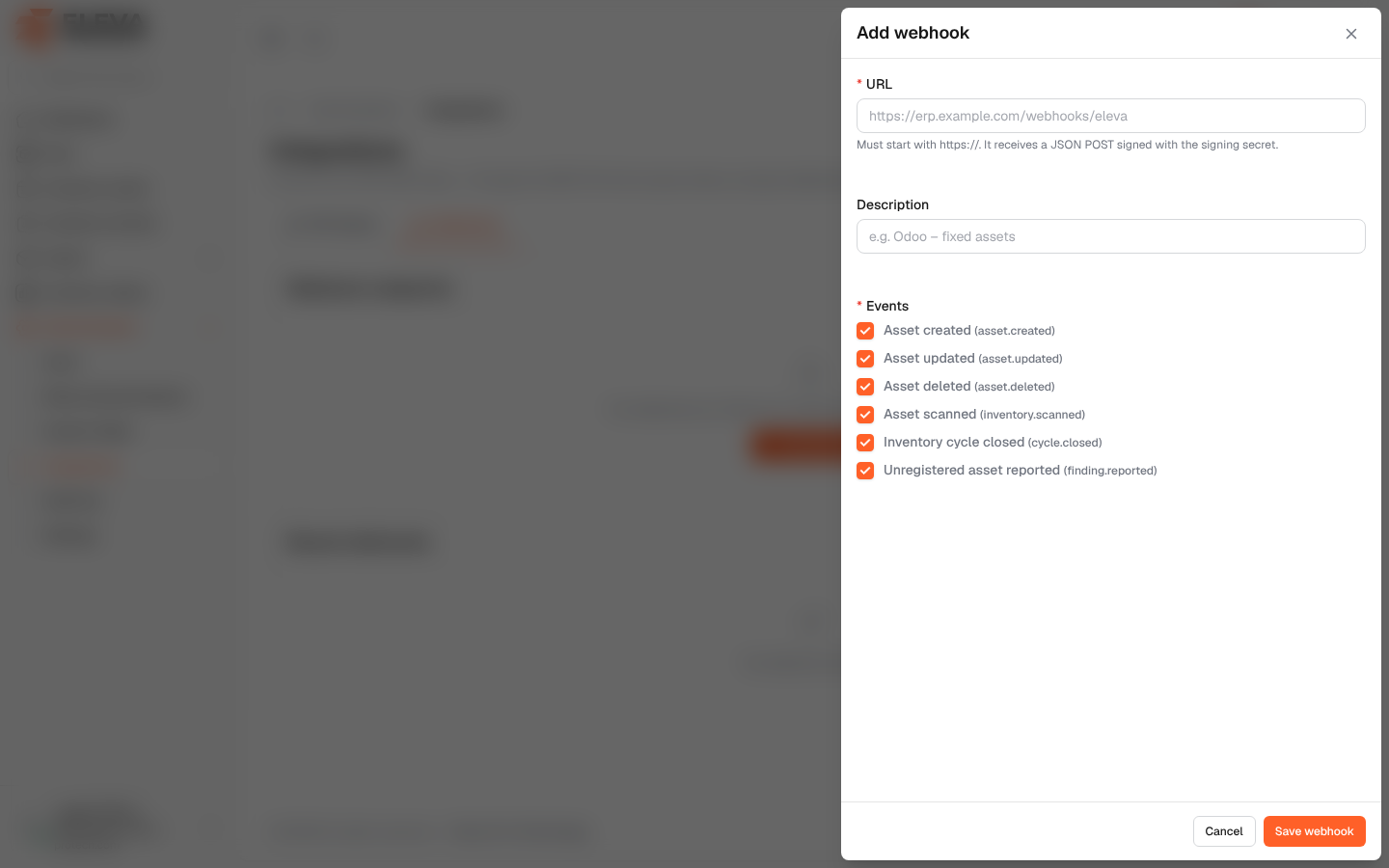
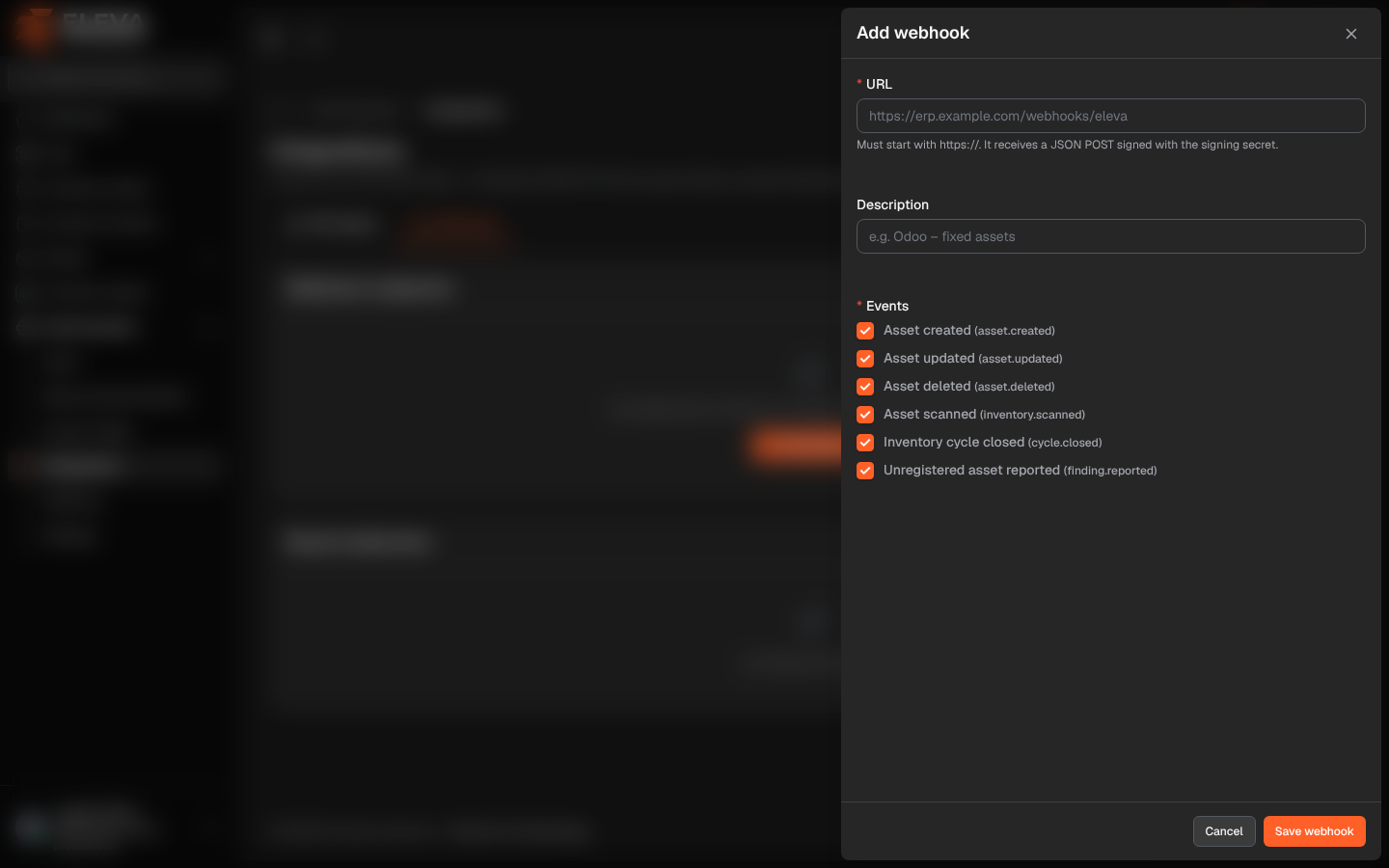
Add a webhook address for each system that must be told about changes as they happen. Each address chooses the events it receives, and each message it receives is signed, so the receiving system can check that it really comes from your installation.
From the side menu, open Administration › Integrations, click the Webhooks tab, then Add webhook. To edit an address, click its pencil icon.
Fields
Section titled “Fields”- URL (required): up to 2048 characters. Must start with https://. It receives a JSON POST signed with the signing secret. Addresses in an internal or private network are refused.
- Description: optional, up to 255 characters, for example e.g. Odoo – fixed assets.
- Events (required, at least one; all are ticked for a new address):
- Asset created (asset.created)
- Asset updated (asset.updated)
- Asset deleted (asset.deleted)
- Asset scanned (inventory.scanned)
- Inventory cycle closed (cycle.closed)
- Unregistered asset reported (finding.reported)
- Active (when editing): turns the address on or off.
How to add a webhook
Section titled “How to add a webhook”- Click Add webhook.
- Type the URL given by the receiving system, and a description.
- Clear the events it does not need.
- Click Save webhook.
- The message Webhook added. Save the signing secret now. appears, with a Signing secret card. Click Copy and set the secret in the receiving system (Copy it now and set it in the receiving system to verify signatures.).
- Click Send test event to check the connection.
Required permission
Section titled “Required permission”Integrations › Manage.