

Cycle progress
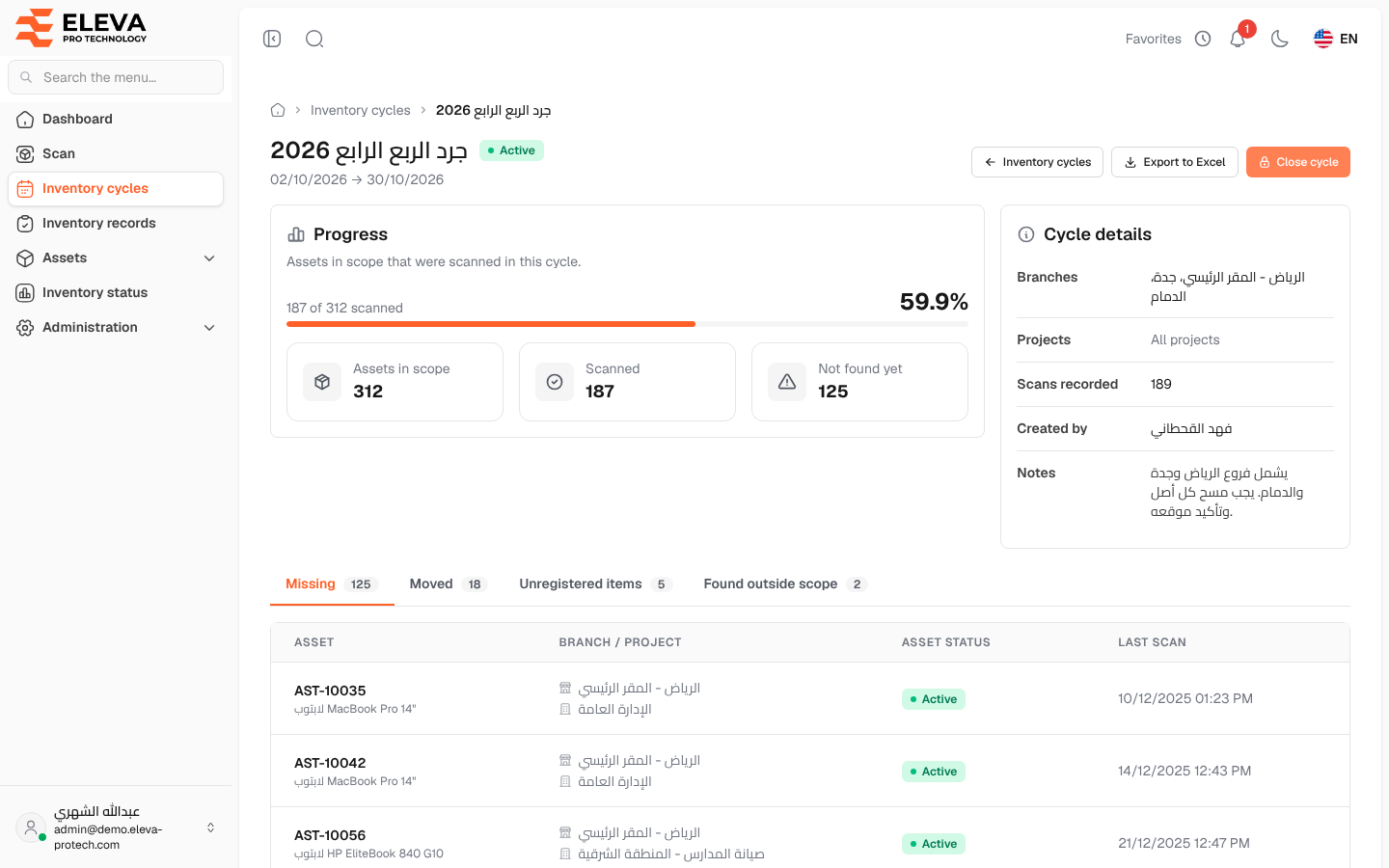
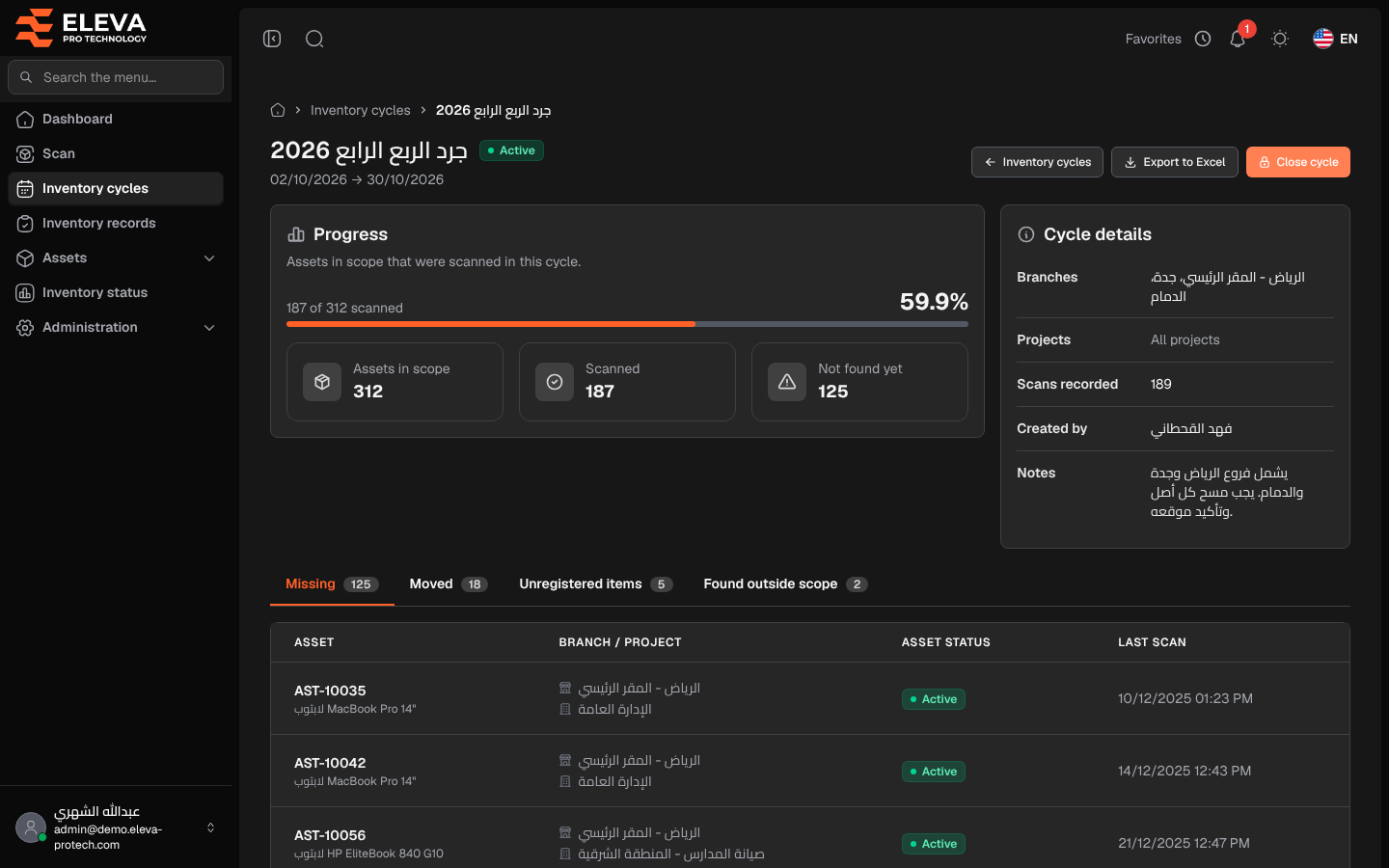
The cycle page shows how far the inventory has gone and what is still missing. Managers open it every day of a campaign to see the progress and to send the team to the assets not found yet; after closing, it holds the final report.
From the side menu, open Inventory cycles and click the cycle.
What’s on this screen
Section titled “What’s on this screen”At the top: the cycle’s name, its status and its period, and the buttons available to you:
- Inventory cycles: back to the list.
- Export to Excel: downloads the discrepancy report (see Discrepancy report).
- Start cycle: on a draft cycle.
- Close cycle: on an active cycle.
Progress (Assets in scope that were scanned in this cycle.):
- The percentage and … of … scanned, with a bar.
- Assets in scope: the assets expected in the cycle: those in its branches and projects that are active, in maintenance, damaged or missing.
- Scanned: the assets in scope scanned at least once in the cycle.
- Not found yet: the assets in scope not scanned in the cycle yet.
Cycle details: Branches, Projects, Scans recorded (every scan recorded in the cycle, including repeated scans and scans outside the scope), Created by, Closed (date, time and who closed it, for a closed cycle) and Notes.
Below, the discrepancy tabs: Missing, Moved, Unregistered items and Found outside scope, each with its count. The page opens on Missing. See Discrepancy report.
How to follow up a campaign
Section titled “How to follow up a campaign”- Open the cycle and check the percentage and Not found yet.
- On the Missing tab, use Branch / project and Last scan to plan where the team should look.
- Come back during the day: the figures include every scan saved so far, including scans sent later from phones that were offline.
Required permission
Section titled “Required permission”Inventory cycles › View.