

Create an inventory cycle
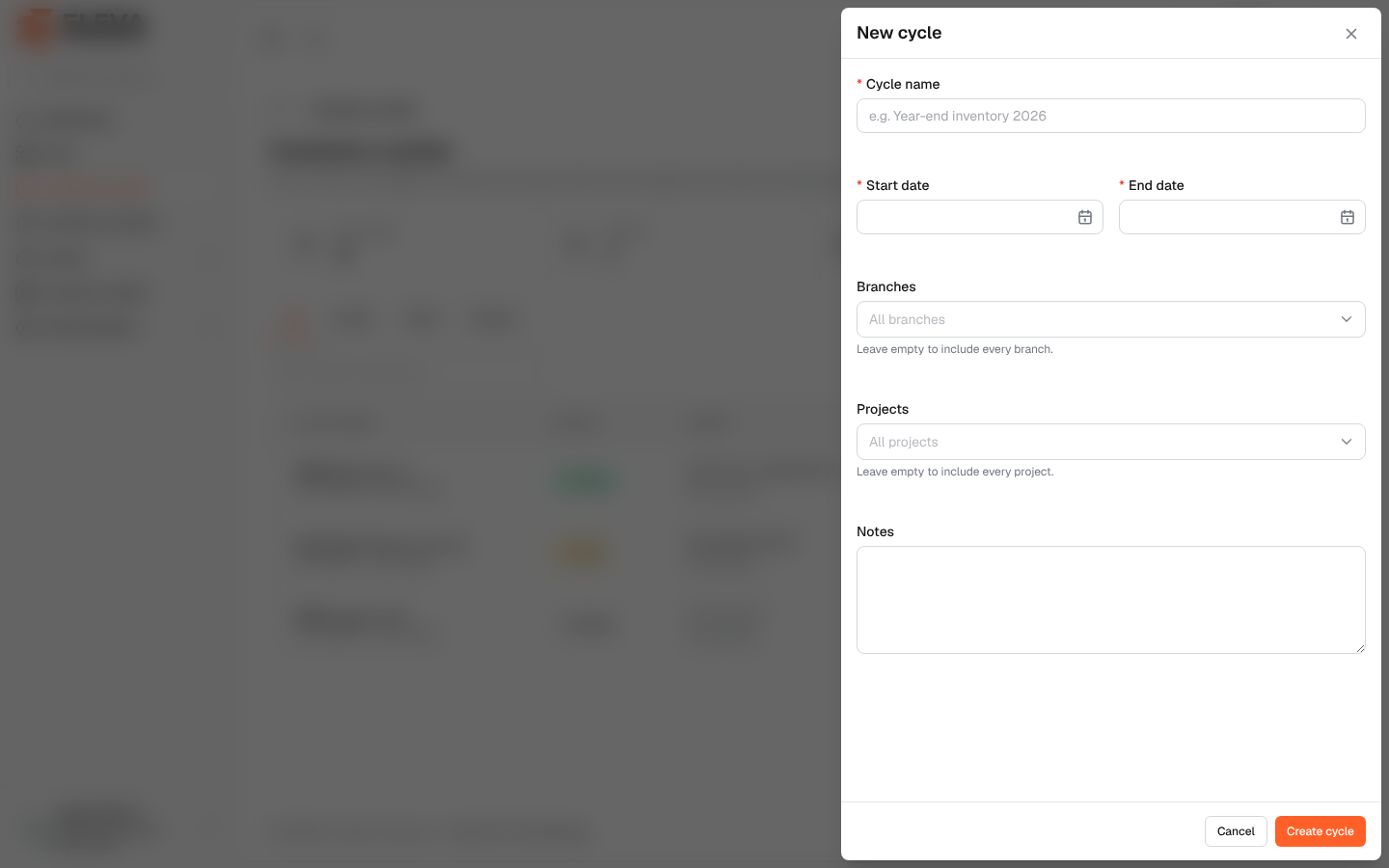
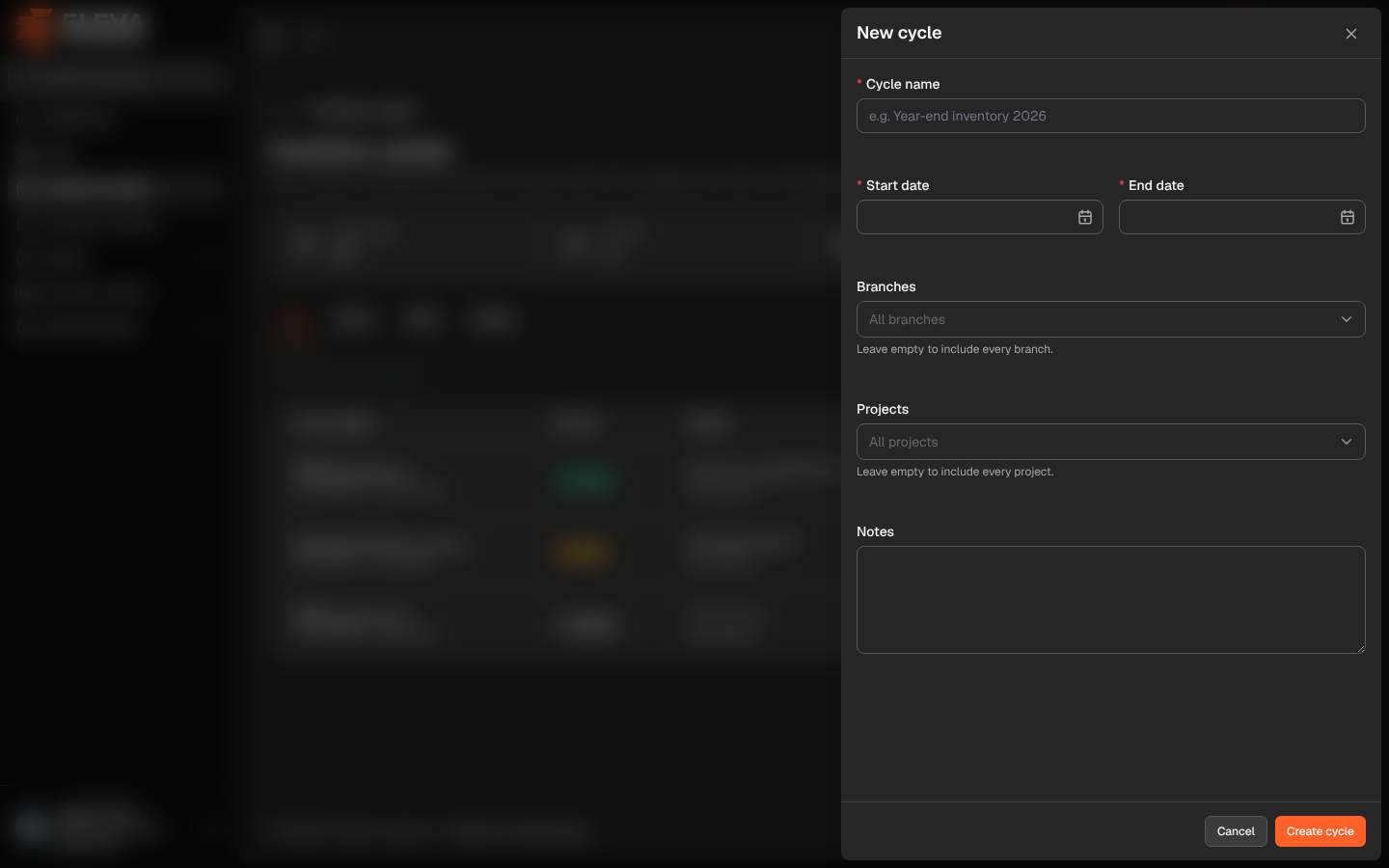
Create a cycle before an inventory campaign, such as a year-end inventory or a check of a few branches. The cycle defines the period and the scope: the branches and projects whose assets are expected to be scanned. A new cycle starts as a draft, so you can prepare it calmly and start it when the team is ready.
From the side menu, open Inventory cycles and click New cycle.
Fields
Section titled “Fields”- Cycle name (required): up to 255 characters, for example e.g. Year-end inventory 2026.
- Start date (required).
- End date (required): on or after the start date.
- Branches: the branches included in the cycle. Leave empty to include every branch (All branches).
- Projects: the projects included in the cycle. Leave empty to include every project (All projects).
- Notes: optional, up to 2000 characters, for example instructions to the team.
An asset is in the scope when its branch is one of the cycle’s branches and its project is one of the cycle’s projects. Assets that are disposed of or archived are never expected.
How to create a cycle
Section titled “How to create a cycle”- From the side menu, open Inventory cycles.
- Click New cycle.
- Fill in the name and the period, and choose the branches and projects, or leave them empty.
- Click Create cycle, or Cancel to close without saving.
- The new cycle’s page opens with the message Inventory cycle created. Its status is Draft.
When you are ready, click Start cycle on its page. See Start a cycle.
Editing a cycle
Section titled “Editing a cycle”Click the pencil icon in the list. The form is the same, titled Edit cycle …; click Save. A draft or an active cycle can be edited; a closed cycle cannot (A closed cycle cannot be changed.).
Required permission
Section titled “Required permission”Inventory cycles › Add to create; Inventory cycles › Edit to edit.