

Users
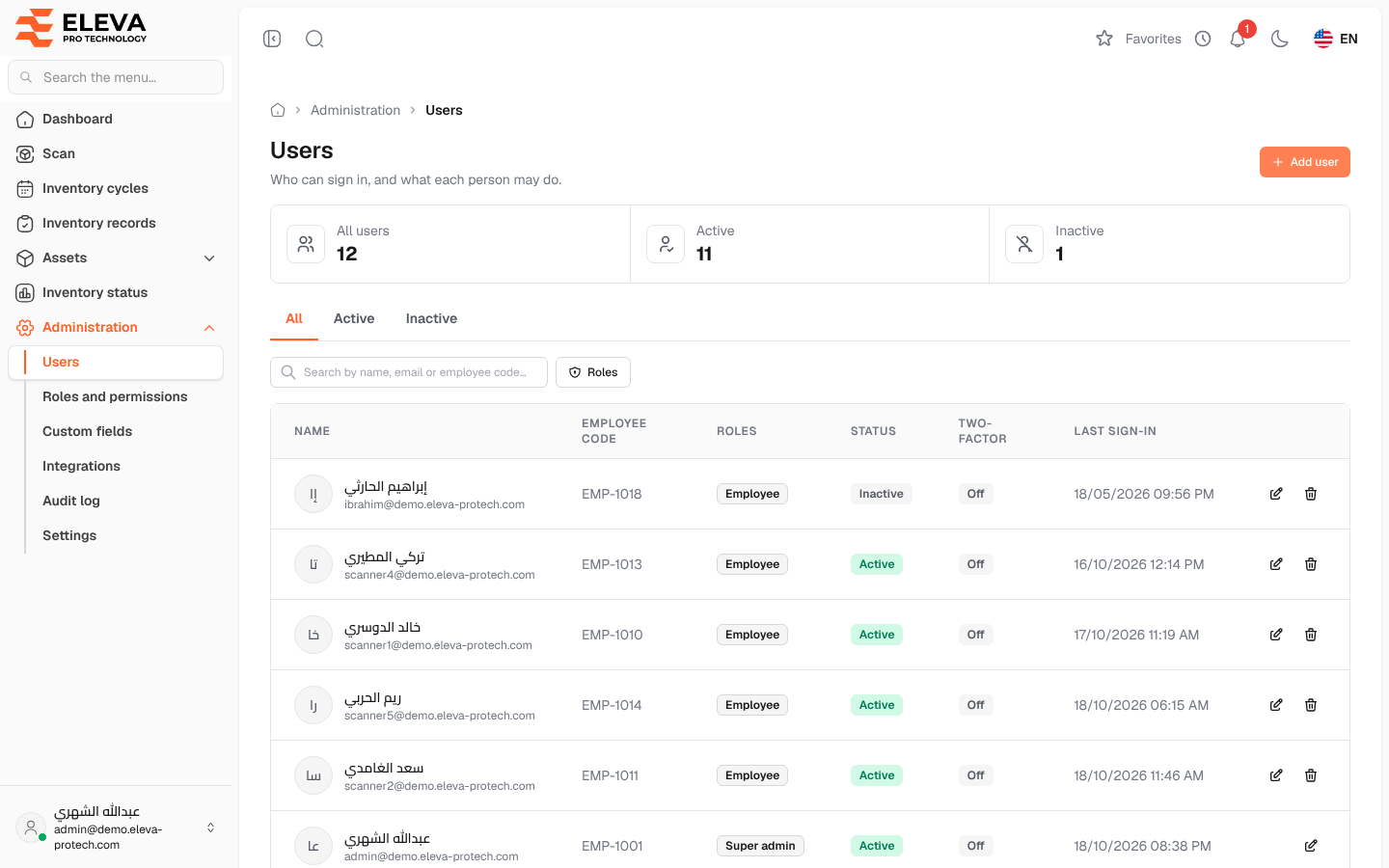
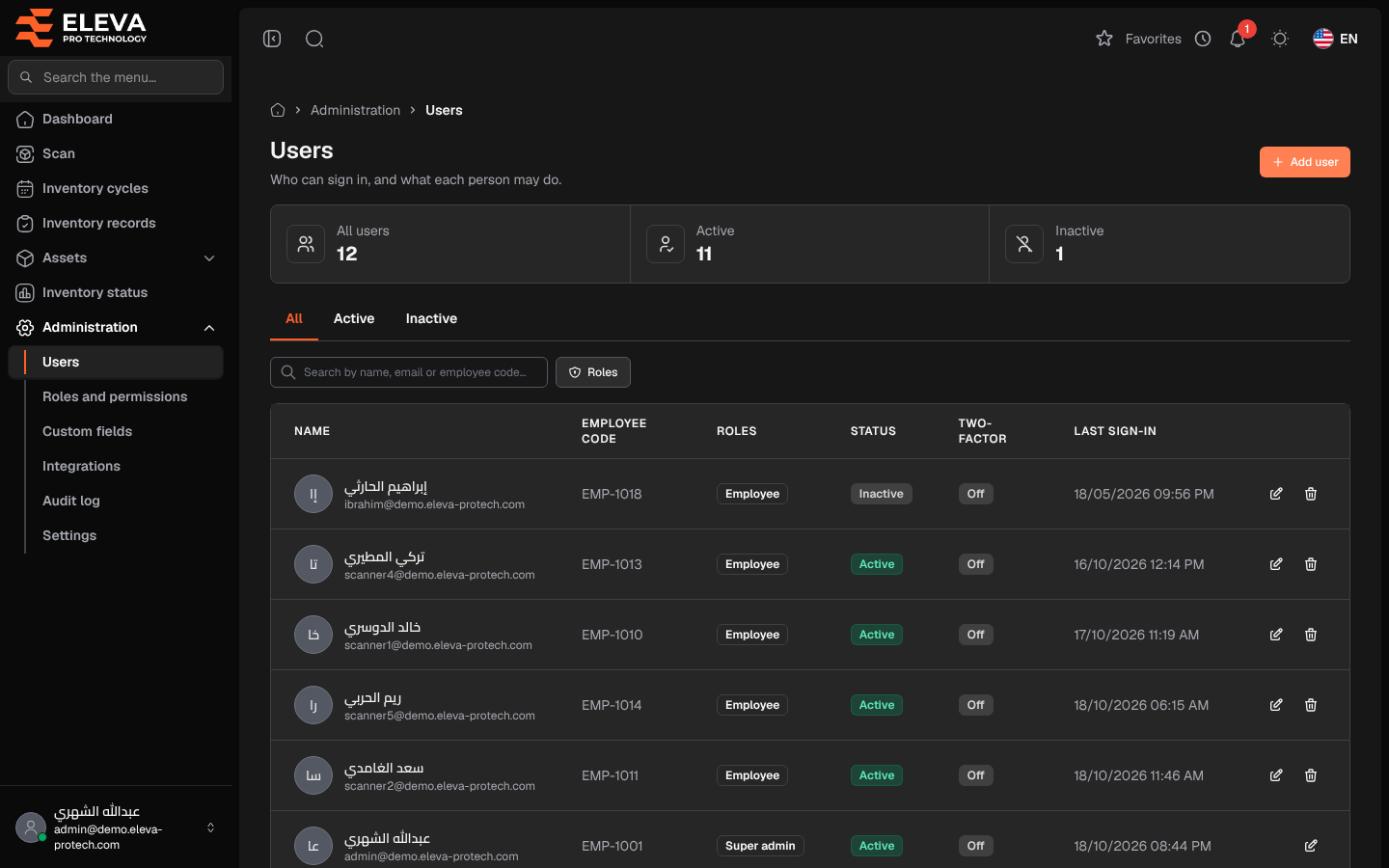
The Users screen lists everyone who can sign in to the system, with their roles, their status and their last sign-in (Who can sign in, and what each person may do.). Administrators use it to add accounts for new staff and field scanners, change their roles, deactivate those who leave and reset two-factor authentication for someone who lost their phone.
From the side menu, open Administration › Users.
What’s on this screen
Section titled “What’s on this screen”- Add user: opens the new user form (see Add or edit a user).
- Figures: All users, Active and Inactive.
- All, Active and Inactive: tabs that filter by status.
- Search by name, email or employee code… and the Roles filter.
Columns
Section titled “Columns”- Name: with the user’s e-mail below.
- Employee code.
- Roles: the roles the user holds.
- Status: Active or Inactive.
- Two-factor: On or Off.
- Last sign-in: the date and time, or Never.
- Actions: Edit, Reset two-factor (when two-factor authentication is on) and Delete.
How to deactivate a user
Section titled “How to deactivate a user”- Click the user’s row or pencil icon.
- Turn Active off and click Save user.
An inactive user cannot sign in (An inactive user can’t sign in; their records are kept.) and is signed out at their next action. Turn Active back on to let them in again. You cannot deactivate your own account.
How to reset two-factor authentication
Section titled “How to reset two-factor authentication”- Click Reset two-factor in the user’s row.
- Confirm with Reset two-factor.
- The user signs in with their password only and can set two-factor authentication up again from their profile.
Use this when the user has lost their phone. You cannot reset your own two-factor authentication here; do it from your profile.
How to delete a user
Section titled “How to delete a user”- Click the bin icon in the user’s row.
- Confirm with Delete (This can’t be undone.). The message User deleted successfully. appears.
Required permissions
Section titled “Required permissions”- Users › View to open the screen.
- Users › Add, Edit and Delete for Add user, editing (including Reset two-factor) and deleting.