

Add or edit an asset
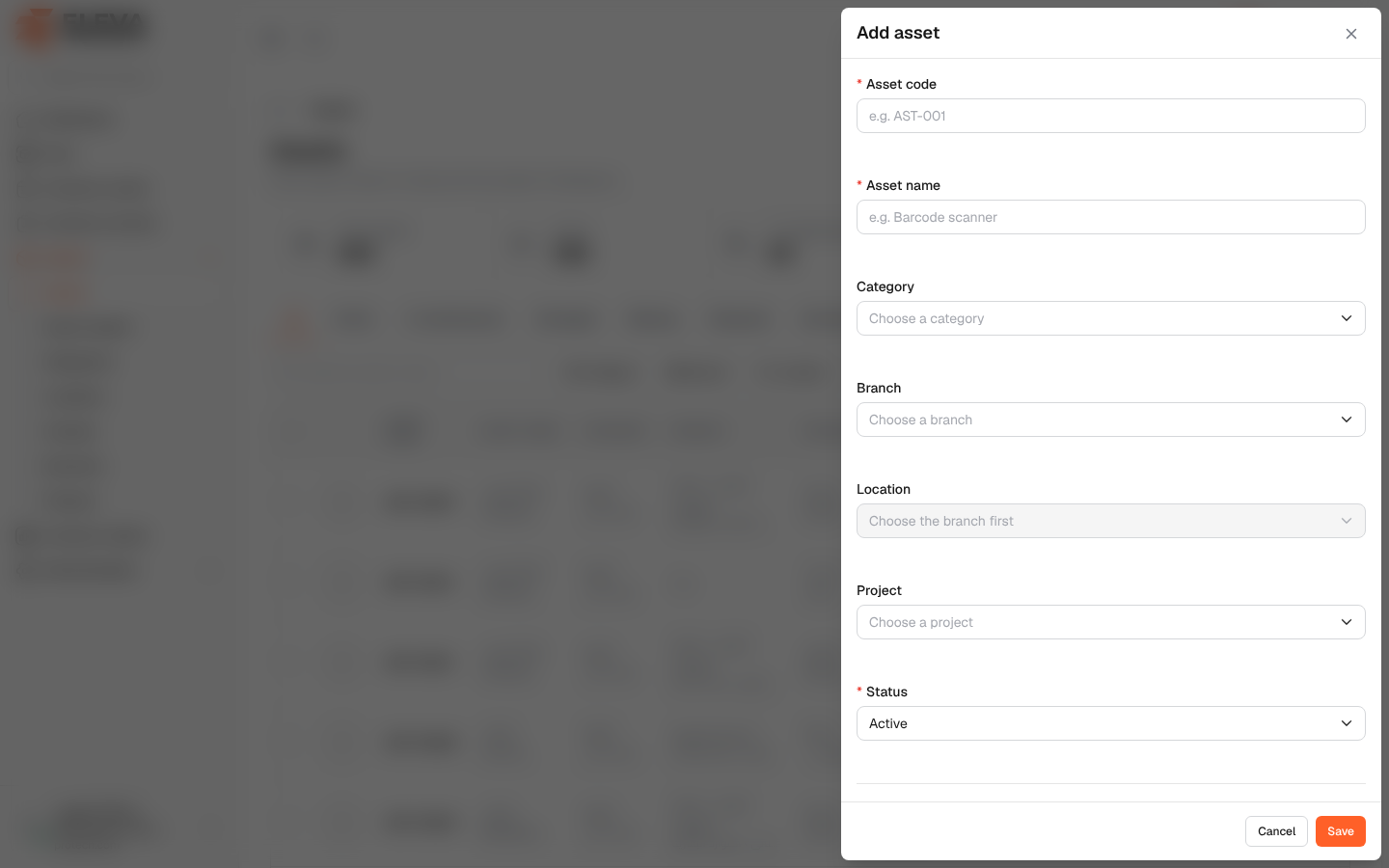
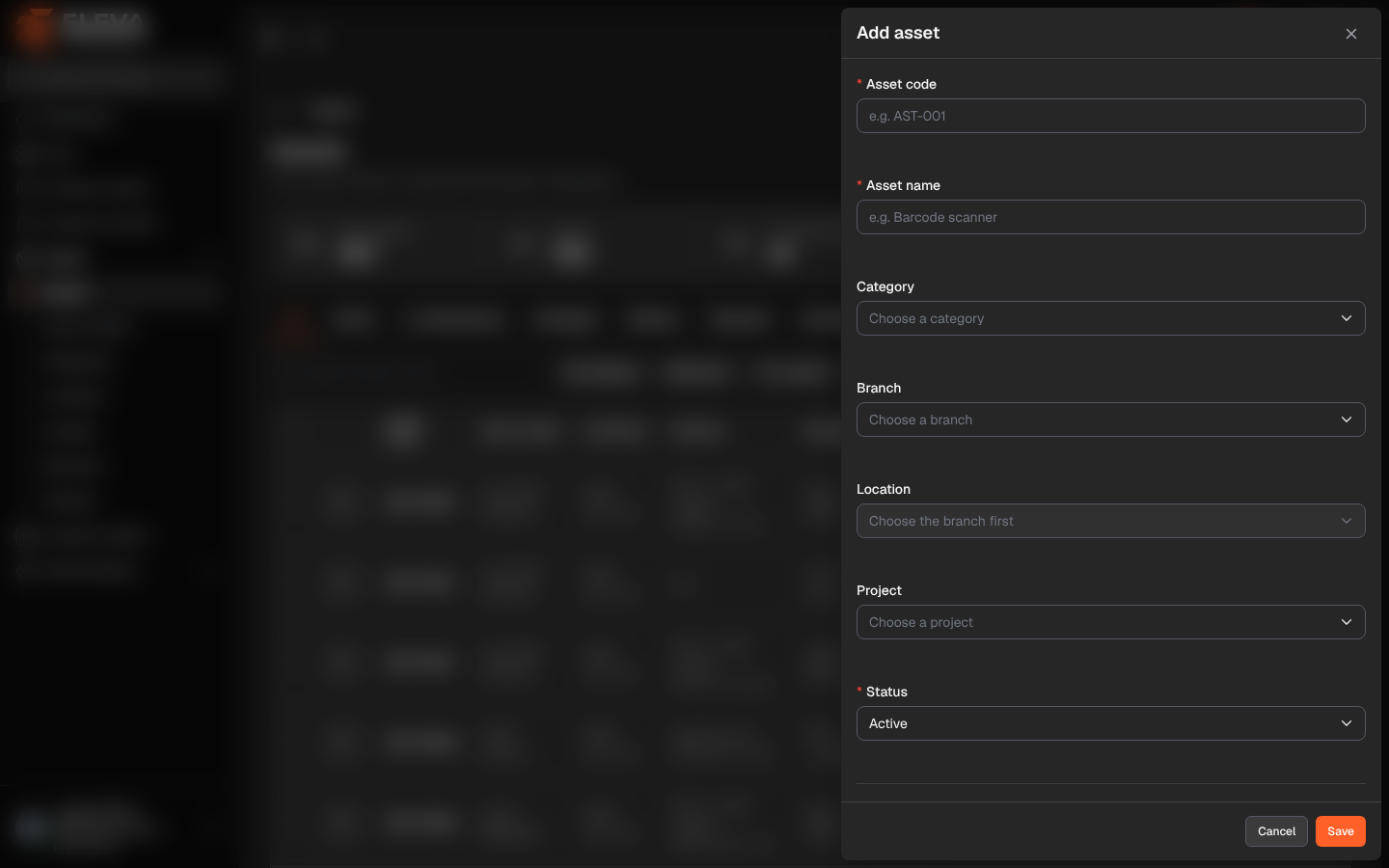
Add an asset when the organisation acquires something it wants to track and inventory. The code you give is the one printed on its label and scanned in the field. You can also set where the asset is kept, its category, its status, a photo and any custom fields your administrator added.
From the side menu, open Assets › Assets and click Add asset. To edit an asset, click its row or its pencil icon.
Fields
Section titled “Fields”- Asset code (required): up to 50 characters, unique (for example e.g. AST-001). A code that belongs to an asset in the trash cannot be reused until that asset is restored or deleted permanently.
- Asset name (required): up to 255 characters (for example e.g. Barcode scanner).
- Category: optional.
- Branch: optional.
- Location: a location of the chosen branch (Choose the branch first). Optional.
- Project: optional.
- Status (required): Active by default, or In maintenance, Damaged, Missing, Disposed or Archived.
- Custodian (when editing): who holds the asset, or Not in anyone’s custody, with Hand over or Return.
- More details: the custom fields set in Administration › Custom fields, such as a serial number or a purchase date. Fields marked as required must be filled in.
- Photo: Choose photo, Replace or Remove. JPG, PNG or WEBP, up to 4 MB. The photo is uploaded when you save.
How to add an asset
Section titled “How to add an asset”- From the side menu, open Assets › Assets.
- Click Add asset.
- Fill in the code and the name, and the other fields you need.
- Click Save, or Cancel to close without saving.
- The message Asset created successfully. appears and the asset is in the list.
How to edit an asset
Section titled “How to edit an asset”- Click the asset’s row or pencil icon. The form opens with the title Edit ….
- Change the fields and click Save. The message Asset updated successfully. appears.
Required permission
Section titled “Required permission”Assets › Add to add; Assets › Edit to edit. Handing over and returning need Custody › Assign.