

Roles and permissions
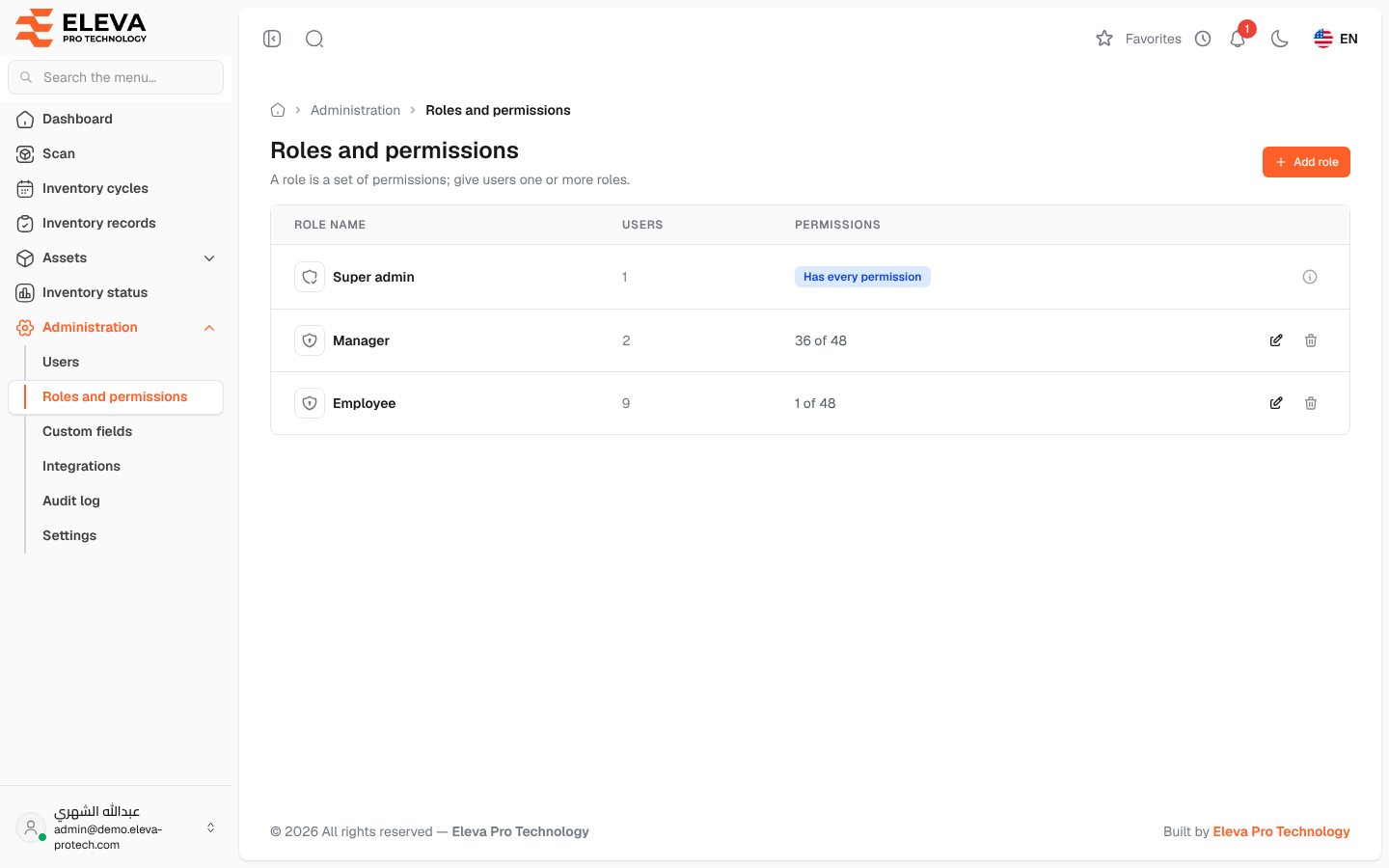
A role is a named set of permissions, and every user gets one or more roles (A role is a set of permissions; give users one or more roles.). The menu, the buttons and the screens each user sees follow the permissions of their roles. The Roles and permissions screen lists the roles with the number of users and permissions of each.
From the side menu, open Administration › Roles and permissions.
The built-in roles
Section titled “The built-in roles”- Super admin: Has every permission, including those added in future versions. It cannot be changed or deleted (The super admin role holds every permission and can’t be changed or deleted.).
- Manager: the dashboard, scanning, inventory records and cycles, assets, categories, locations, custody, branches, projects, reports, and viewing users.
- Employee: scanning only. Field employees with this role go straight to the scan screen after signing in.
The permissions of the Manager and Employee roles can be changed, but not their names; you can add your own roles.
Columns
Section titled “Columns”- Role name.
- Users: how many users hold the role.
- Permissions: … of … permissions, or Has every permission for the super admin.
- Actions: the pencil icon edits the role, the bin icon deletes it. On the super admin row, an information icon explains that it cannot be changed.
How to delete a role
Section titled “How to delete a role”- Click the bin icon in the role’s row.
- Confirm with Delete (The role is removed for good.). The message Role deleted successfully. appears.
Required permissions
Section titled “Required permissions”- Roles and permissions › View to open the screen.
- Roles and permissions › Add, Edit and Delete to add, edit and delete roles.