

Print labels
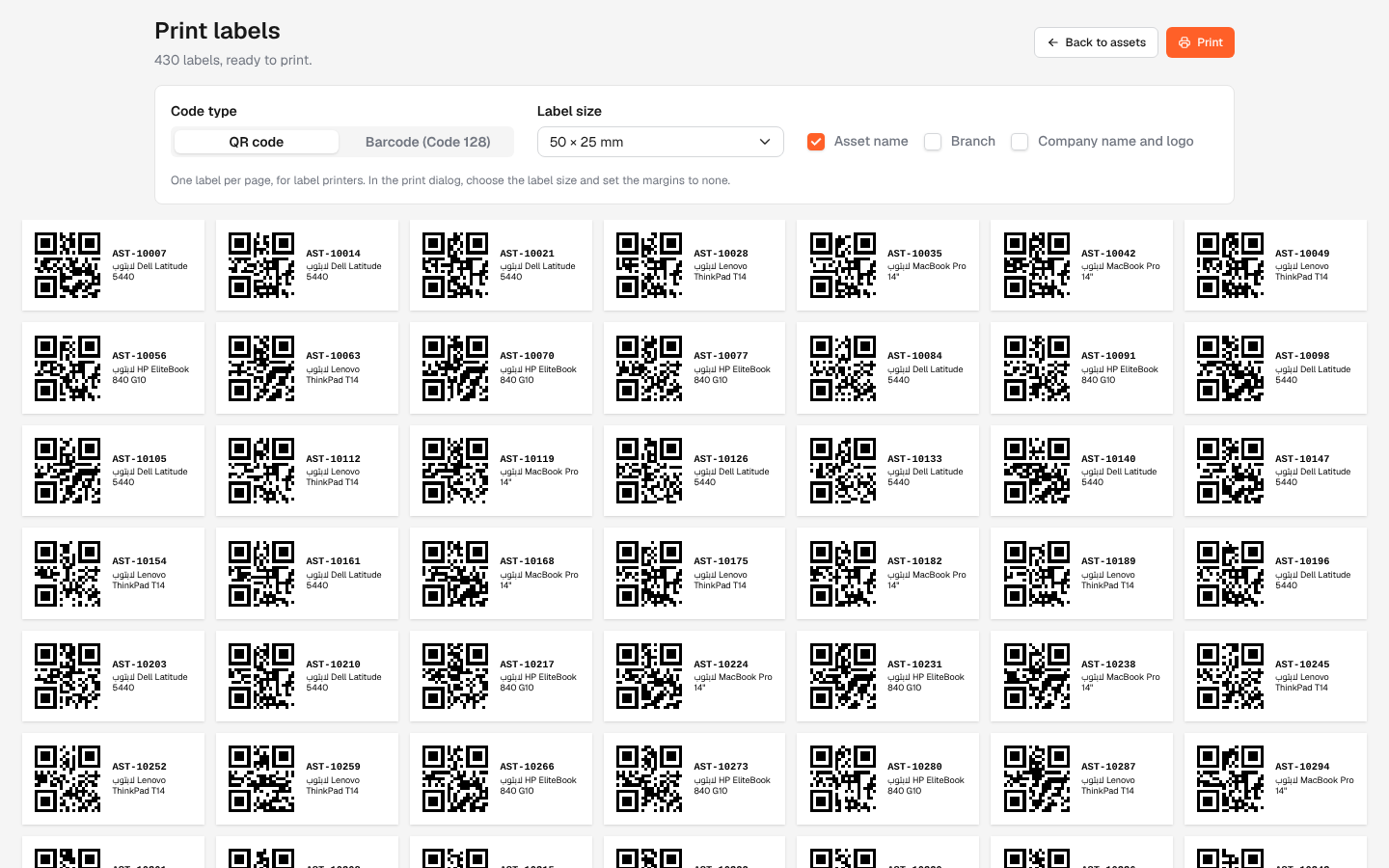
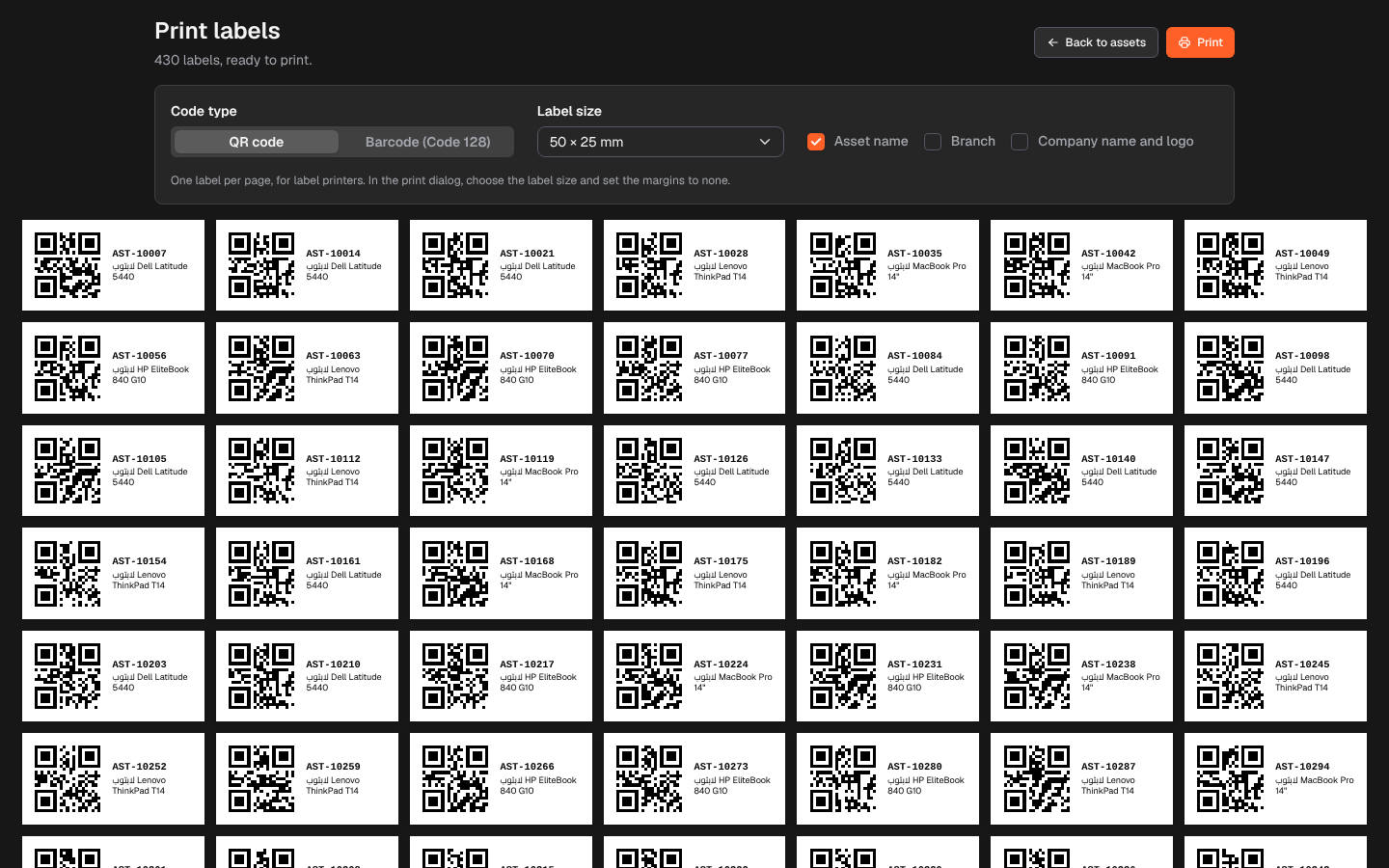
Each asset needs a label that can be scanned in the field. The label page prints a QR code or a Code 128 barcode holding exactly the asset code, with the asset name, its branch or your company name and logo if you want, on a label printer or on A4 label sheets.
From the side menu, open Assets › Assets, then:
- click Print labels at the top to print the labels of every asset in the list as filtered (tab, filters and search), or
- tick the assets you want and click Print labels in the bar above the list.
What’s on this screen
Section titled “What’s on this screen”- … labels, ready to print., with Back to assets and Print.
- Code type: QR code or Barcode (Code 128).
- Label size: 50 × 25 mm, 70 × 35 mm, 100 × 50 mm (one label per page, for label printers), A4 sheet, 3 × 8 (24 labels) or A4 sheet, 3 × 7 (21 labels).
- What to print on the label: Asset name, Branch, and Company name and logo.
- A hint for the print dialog, and the preview of the labels.
How to print labels
Section titled “How to print labels”- Choose the Code type and the Label size, and tick what to show.
- Check the preview.
- Click Print.
- In the print dialog:
- for a label printer, choose the label size and set the margins to none;
- for A4 sheets, set the scale to 100% and the margins to none.
Your choices are remembered in this browser for the next time.
Limits
Section titled “Limits”- At most 1000 labels are prepared at once. When more assets match, the page says Only the first 1000 of … matching assets are shown. Narrow the filters to print the rest.
- Some codes cannot be written as Code 128; such a label shows This code can’t be written as Code 128; use a QR code.
Required permission
Section titled “Required permission”Assets › Print.