

Inventory scan
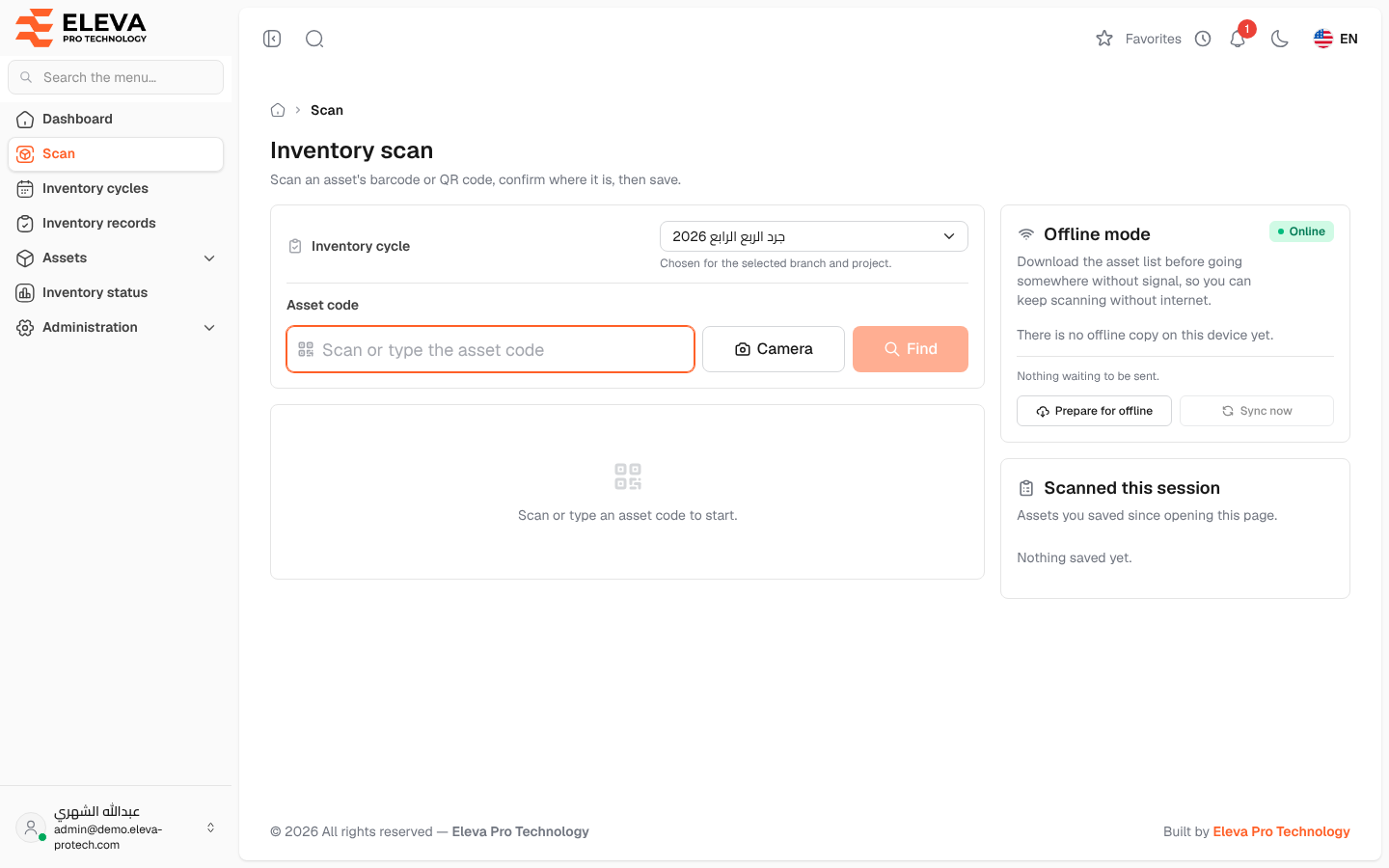
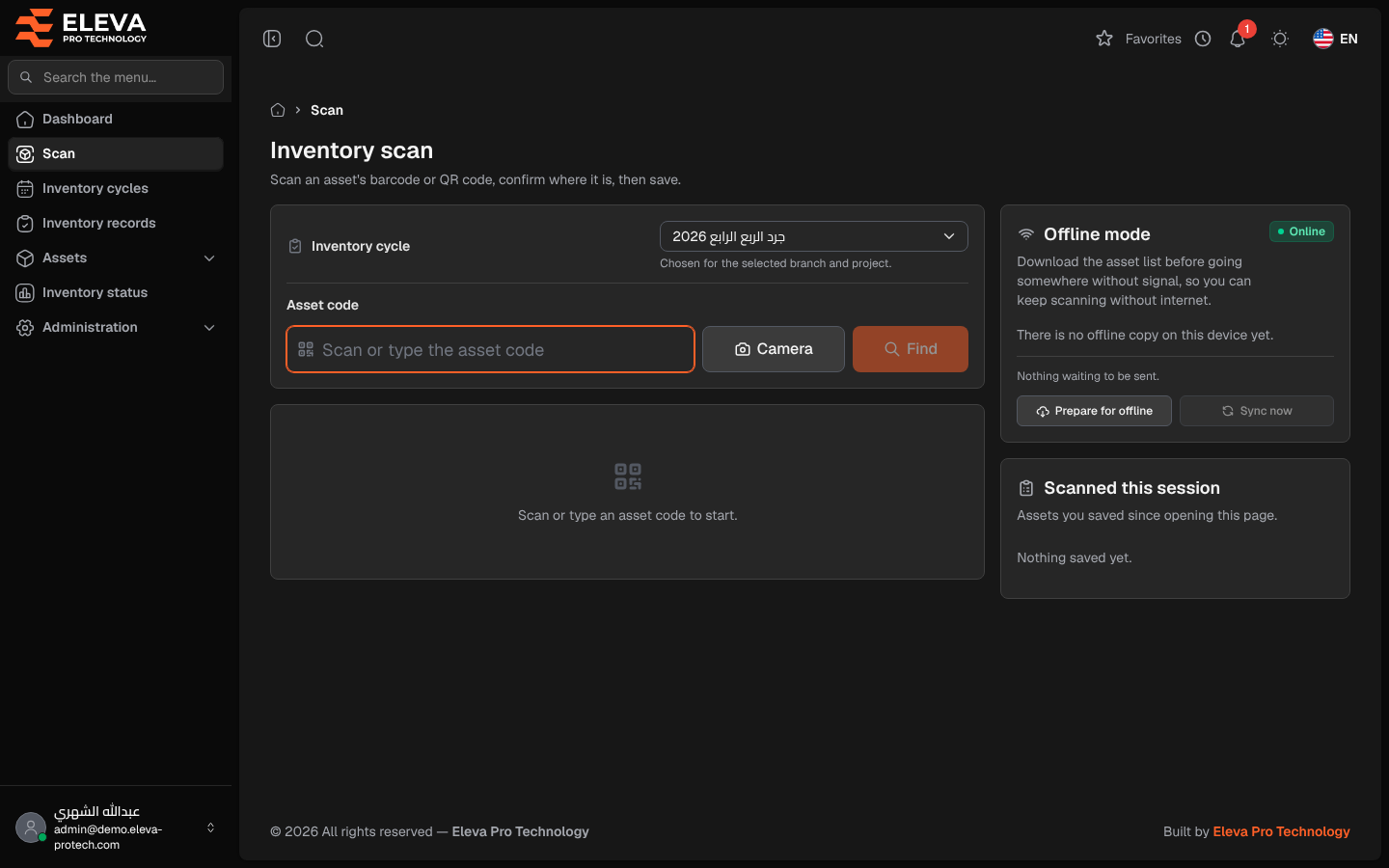
The scan screen is where the inventory is done. An employee in the field scans an asset’s barcode or QR code with the phone camera, with a handheld barcode scanner, or types the code; the system shows the asset and where it is recorded, the employee confirms or corrects its branch, project and location, and saves. Each save is an inventory record, counted in the inventory cycle that is running.
From the side menu, open Scan. Employees whose role only allows scanning reach this screen directly after signing in.
What’s on this screen
Section titled “What’s on this screen”- Inventory cycle: appears when at least one inventory cycle is active. It shows the cycle the scans are recorded in (see Choosing the inventory cycle below).
- Asset code: the field where the code is scanned or typed (Scan or type the asset code). It is ready to receive a code as soon as the page opens.
- Camera: opens the phone or computer camera to read a barcode or a QR code. While it is open the button becomes Stop camera.
- Find: looks up the code you typed.
- Offline mode: prepares the device to keep scanning without internet (see Scanning offline).
- Scanned this session: the assets you saved since you opened the page, newest first, with their result.
Until a code is entered, the screen shows Scan or type an asset code to start.
How to scan an asset
Section titled “How to scan an asset”- Read the code in one of these ways:
- Click Camera and point the camera at the barcode or QR code (Point the camera at the barcode or QR code.). The code is read by itself and the camera closes.
- With a handheld barcode scanner, scan the label: the scanner types the code into Asset code and starts the search.
- Type the code in Asset code and click Find or press Enter.
- The asset appears with its current branch, project and location. Check them against where the asset actually is.
- Confirm or correct the place, then save. See Confirm location and save.
- Click Scan another, or simply scan the next code: the field is ready again after each save.
Choosing the inventory cycle
Section titled “Choosing the inventory cycle”When cycles are active, the scan is recorded in one of them:
- If only one active cycle covers the branch and project of the asset, it is chosen for you (Chosen for the selected branch and project.).
- If none or several match, the field says No single cycle matches; pick one or record outside any cycle. Pick the cycle, or No cycle.
- Once you pick a cycle yourself, Your choice stays for the next scans.
If the code is not found
Section titled “If the code is not found”- Asset not found. Please check the code and try again.: no asset with this exact code is in use. Assets that are disposed of, archived or in the trash cannot be scanned. Check the code; if the item is really on site but not in the system, click Report as unregistered item (see Report an unregistered item).
- The search did not go through. Check your connection and try again.: the connection failed. Try again, or work offline.
If the camera does not open
Section titled “If the camera does not open”- Camera access is blocked. Allow the camera for this site in your browser settings, or type the code.
- No camera was found on this device. Type the code instead.
- The camera only works over a secure (HTTPS) connection. Type the code instead.
- The camera could not start. Type the code instead.
Required permission
Section titled “Required permission”Inventory scanning › Scan.