

Discrepancy report
The discrepancy report is the result of an inventory cycle: what the system expected and did not find, what was found somewhere else, what was found but is not in the system, and what was found although it belongs outside the cycle’s scope. It is shown on the cycle page in four tabs, and can be downloaded as an Excel file.
From the side menu, open Inventory cycles, click the cycle, then click a tab under the cycle details.
The tabs
Section titled “The tabs”Each tab shows its count and 15 rows per page.
Missing: assets in scope not scanned in this cycle.
- Asset: code and name.
- Branch / project: where the asset is recorded.
- Asset status.
- Last scan: the last time the asset was scanned, in any cycle, or Never scanned.
When every asset was found, the tab shows Every asset in scope has been scanned.
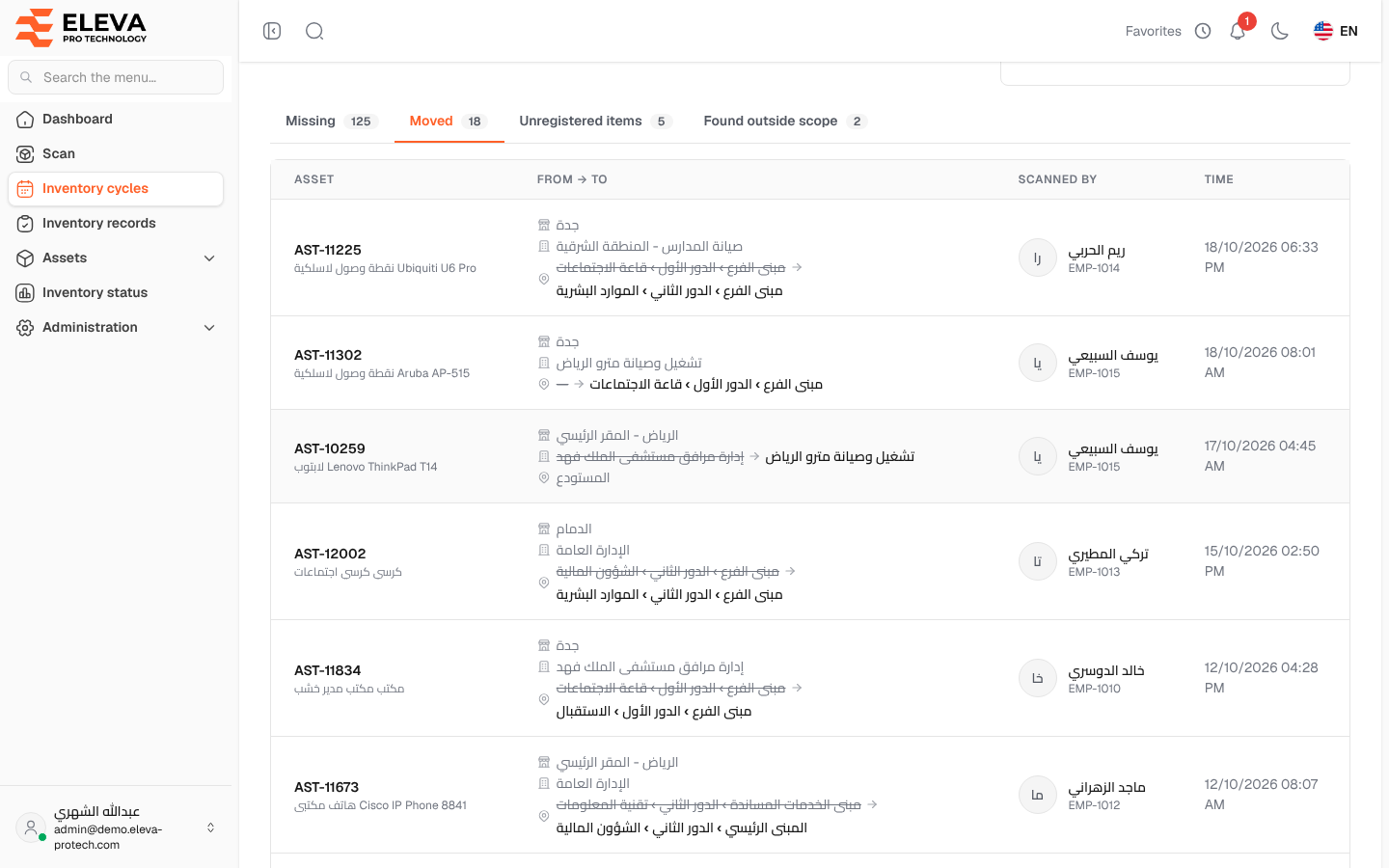
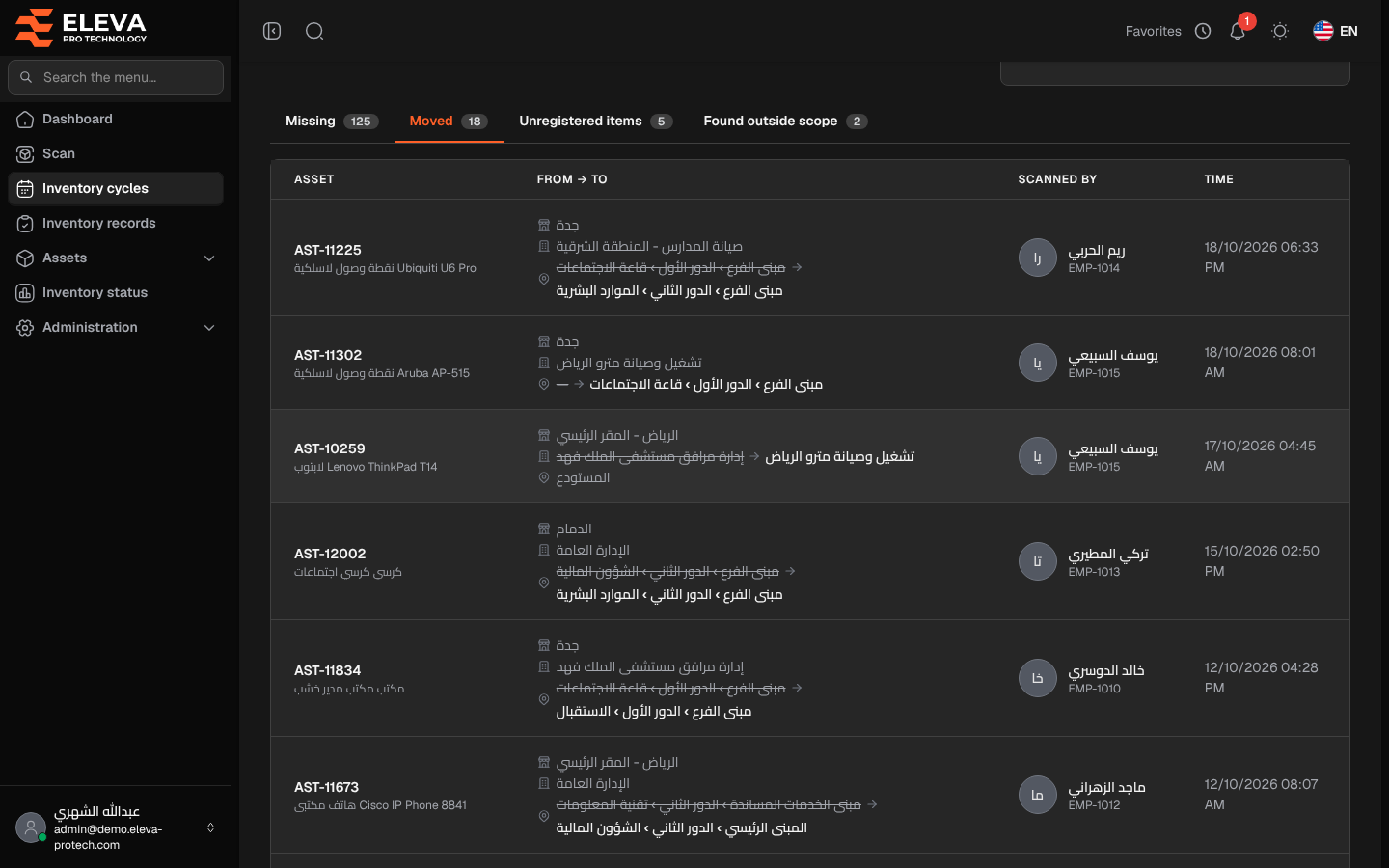
Moved: scans in this cycle that changed the asset’s branch, project or location.
- Asset.
- From → to: the old place struck through and the new one.
- Scanned by and Time.
Unregistered items: items reported on site that are not in the system.
- Item: the description, the code on the item and the notes.
- Branch / project: where it was found.
- Found by and Time.
- Registration: Not registered yet, or the asset that was registered later with the same code.
Found outside scope: assets scanned in this cycle whose recorded place was outside the cycle’s scope.
- Asset.
- Registered at: where the asset was recorded before the scan.
- Found at: where it was found.
- Scanned by and Time.
How to open the scan behind a row
Section titled “How to open the scan behind a row”On the Moved and Found outside scope tabs, click a row to open its inventory record (see Inventory record details).
How to export the report
Section titled “How to export the report”- Click Export to Excel at the top of the cycle page.
- The file has five sheets: Summary, Missing, Moved, Unregistered and Outside scope.
Required permission
Section titled “Required permission”Inventory cycles › View. Opening the scan behind a row also needs Inventory records › View.