

Confirm location and save
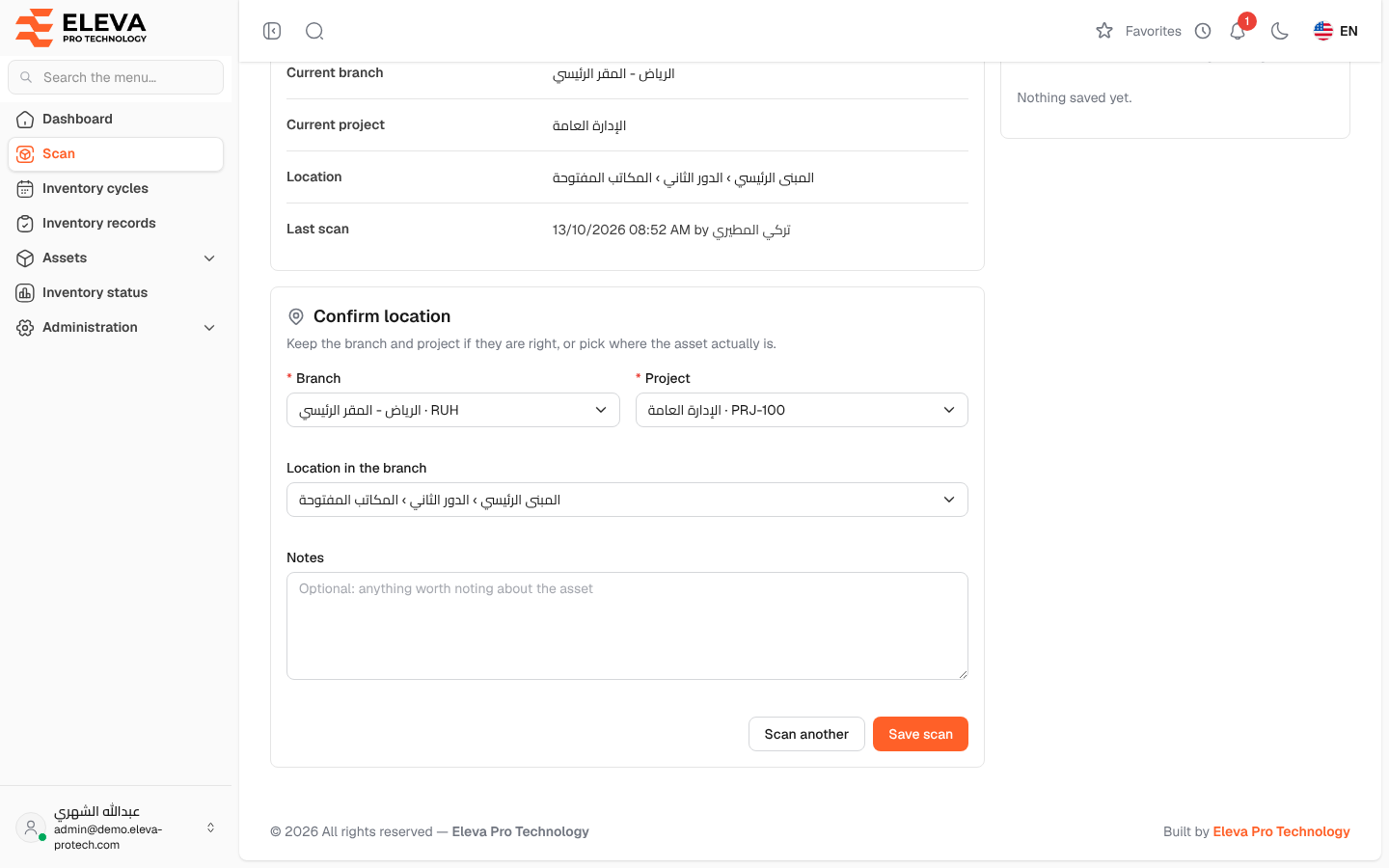
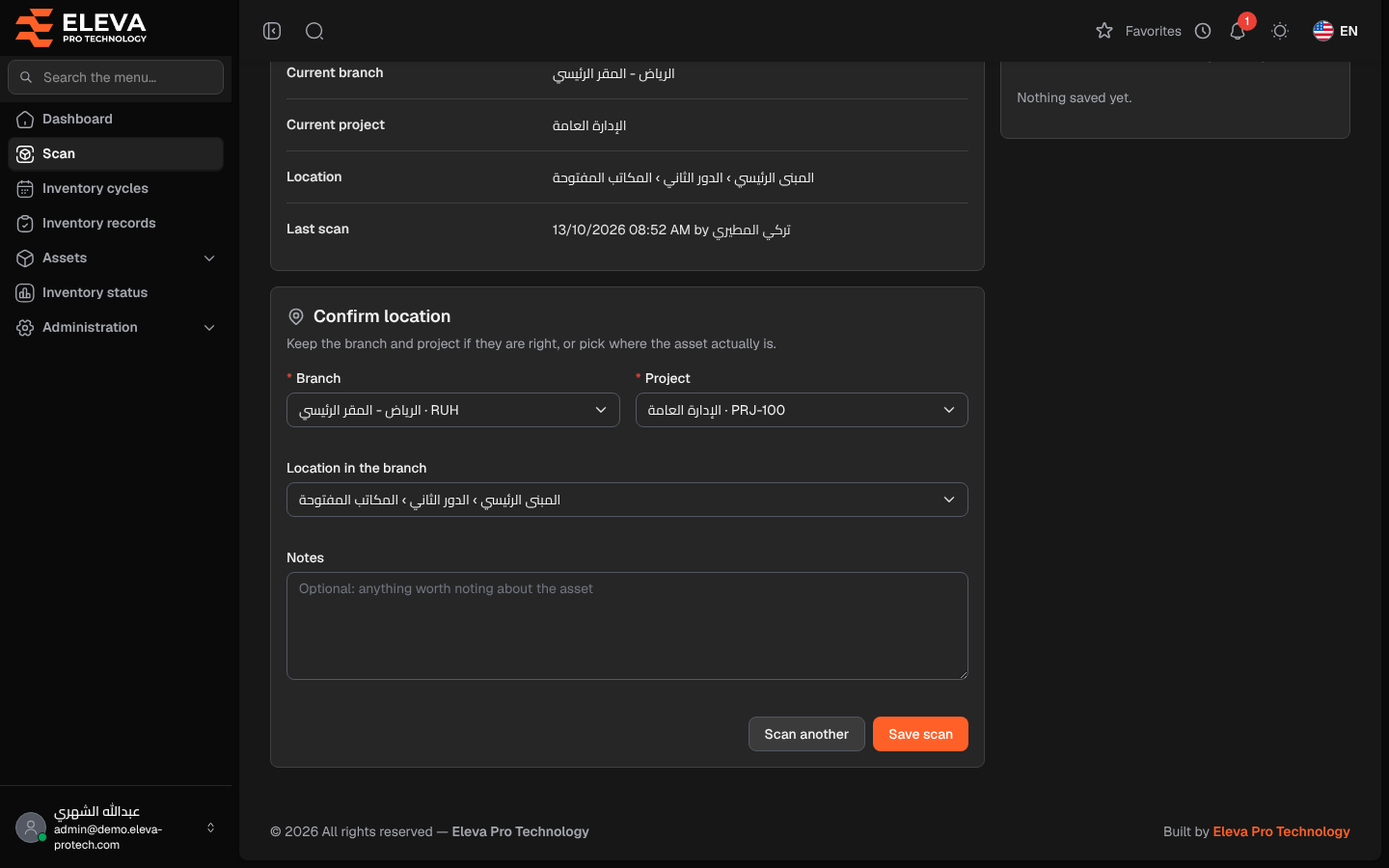
Once a code is found, the scan screen shows the asset and asks you to confirm where it is. If the asset is where the system says, you save it as is; if it was moved, you choose its real branch, project and location, and saving records the scan and moves the asset in one step.
From the side menu, open Scan, then scan or type an asset code.
What’s on this screen
Section titled “What’s on this screen”The asset card shows the asset’s name and a tag that changes as you edit the place: Location confirmed when nothing changes, Will move when the branch, project or location will change. Below it:
- Code, Current branch and Current project.
- Location: the asset’s place inside the branch (for example building › floor › room), when it has one. When you choose another location, the old one is shown struck through with an arrow to the new one.
- Last scan: when and by whom the asset was last scanned, or Never scanned.
The Confirm location section (Keep the branch and project if they are right, or pick where the asset actually is.) holds the fields below.
Fields
Section titled “Fields”- Branch (required): filled with the asset’s current branch.
- Project (required): filled with the asset’s current project.
- Location in the branch: appears when the chosen branch has locations. Optional (Optional: where did you find it?). It lists only the locations of the chosen branch.
- Notes: optional, up to 1000 characters (Optional: anything worth noting about the asset).
How to confirm and save
Section titled “How to confirm and save”- Check the branch, project and location against where the asset actually is.
- If they are right, leave them as they are and click Save scan.
- If the asset was moved, choose the new Branch, Project and, if needed, Location in the branch. The button becomes Save and move; click it.
- The message Inventory record saved successfully. appears, the asset joins Scanned this session, and the field is ready for the next code.
To leave the asset without saving, click Scan another.
What saving does
Section titled “What saving does”- An inventory record is created with the result Verified, no change or Verified, location changed, the person who scanned and the time.
- When the place changed, the asset’s branch, project and location are updated at once.
- If you do not choose a location, the asset keeps its location while it stays in the same branch; if you move it to another branch, its location is cleared.
Warnings on the form
Section titled “Warnings on the form”- This asset was marked as missing. Saving the scan makes it active again.: the asset was not found in a previous cycle. Scanning it proves it exists, so its status returns to Active.
- This place is outside the scope of “…”; the asset will be listed as found outside scope.: the chosen cycle does not cover this branch or project. The scan is still saved and appears in the cycle’s Found outside scope tab.
Required permission
Section titled “Required permission”Inventory scanning › Scan.