

General
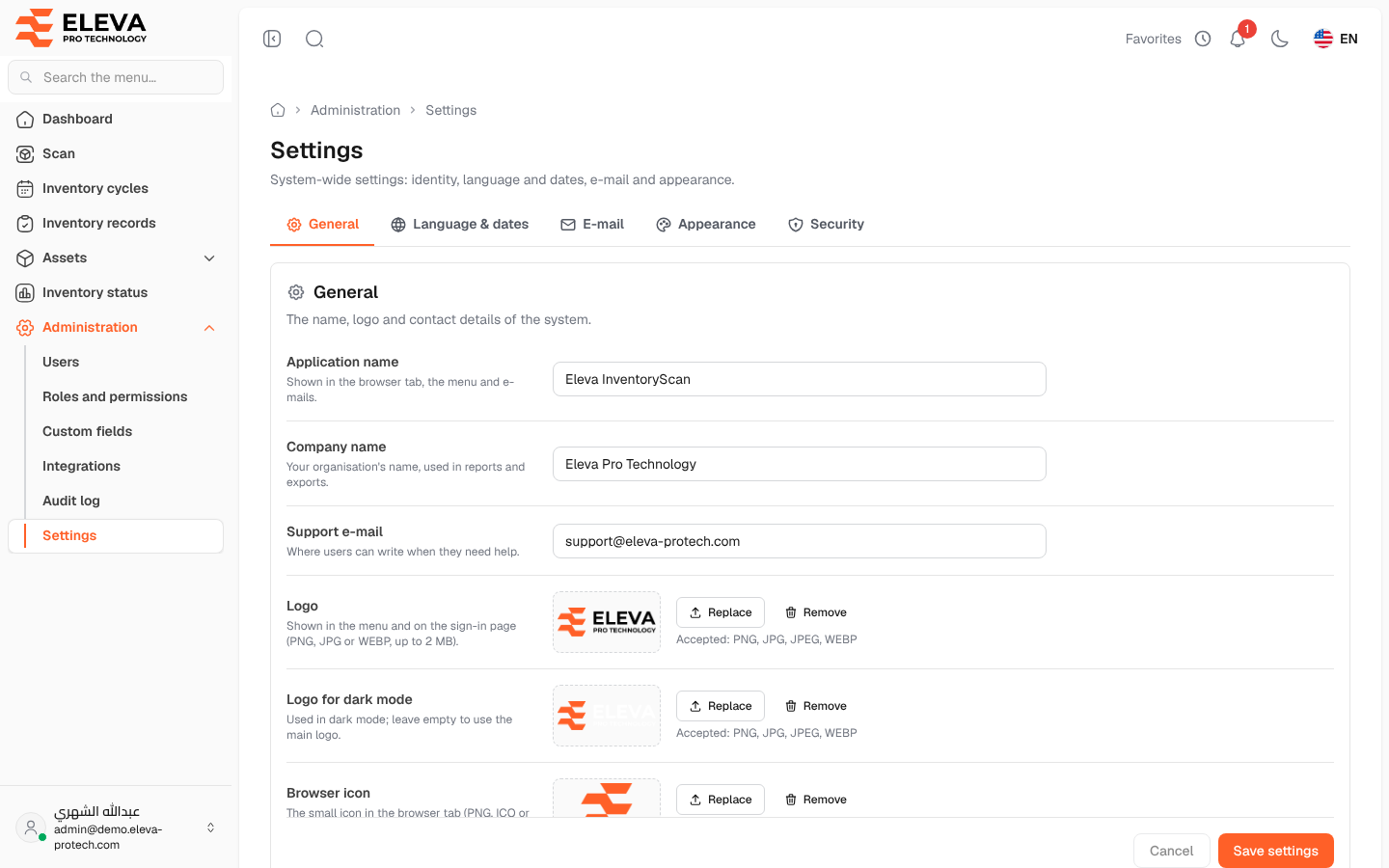
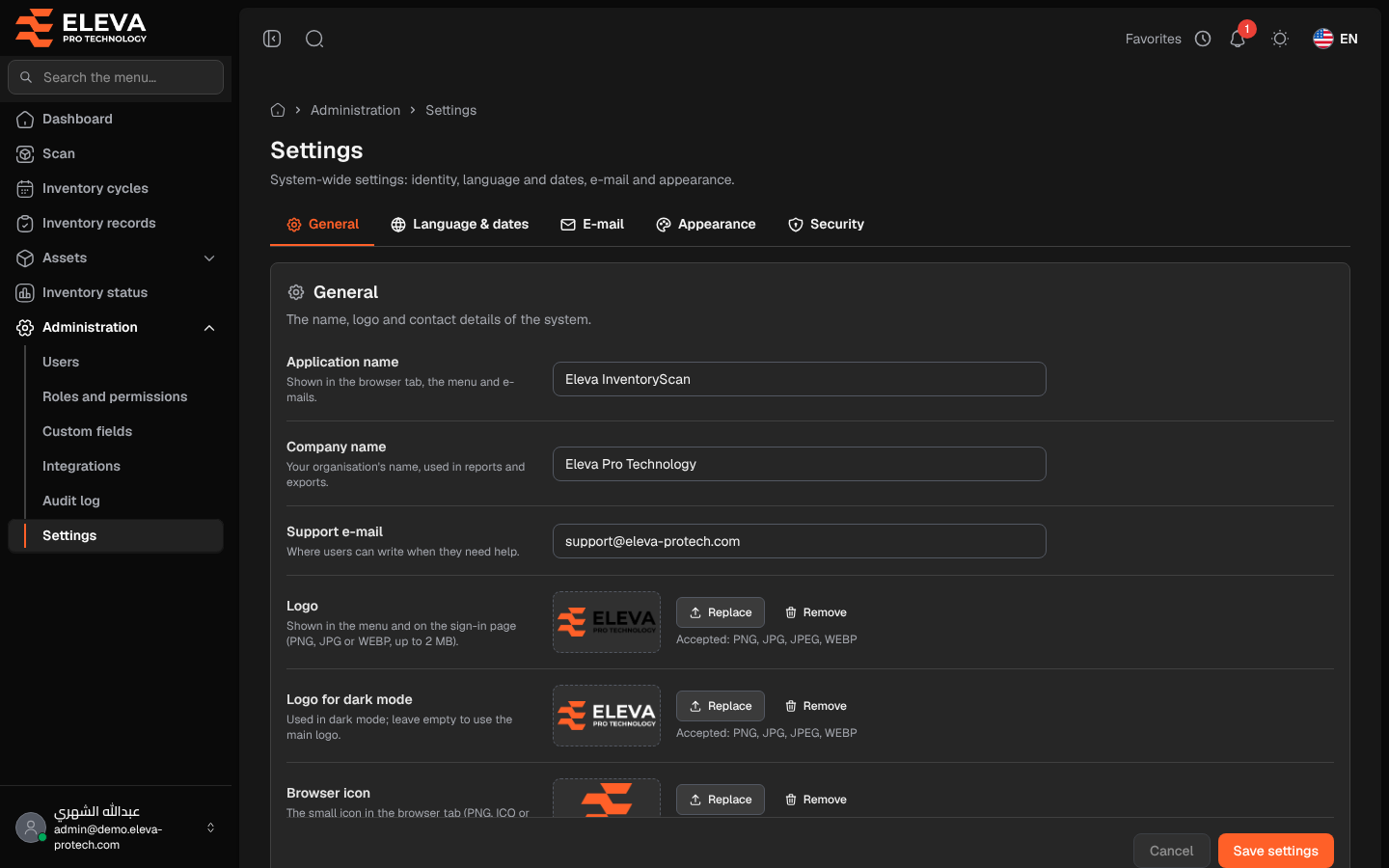
The General tab sets the identity of the system: its name, your company’s name, the support e-mail, and the logos (The name, logo and contact details of the system.).
From the side menu, open Administration › Settings; General is the first tab. Each tab of the settings screen is saved on its own.
Fields
Section titled “Fields”- Application name (required): up to 100 characters. Shown in the browser tab, the menu and e-mails.
- Company name: up to 150 characters. Your organisation’s name, used in reports and exports. It is also printed on asset labels and on the custody receipt.
- Support e-mail: a valid address. Where users can write when they need help.
- Logo: Shown in the menu and on the sign-in page (PNG, JPG or WEBP, up to 2 MB). It is also printed on labels and custody receipts.
- Logo for dark mode: Used in dark mode; leave empty to use the main logo. PNG, JPG or WEBP, up to 2 MB.
- Browser icon: The small icon in the browser tab (PNG, ICO or WEBP, up to 512 KB).
How to change the name or a logo
Section titled “How to change the name or a logo”- Change the text fields you need.
- For an image, click Choose image (or Replace) and pick a file; the line under it says … will be uploaded when you save. To remove an image, click Remove.
- Click Save settings. To discard your edits, click Cancel.
- The message Settings saved. appears.
Required permissions
Section titled “Required permissions”Settings › View to open the settings; Settings › Edit to change them. A user with view only sees You can view these settings but not change them. and the fields are locked.