

Add or edit a custom field
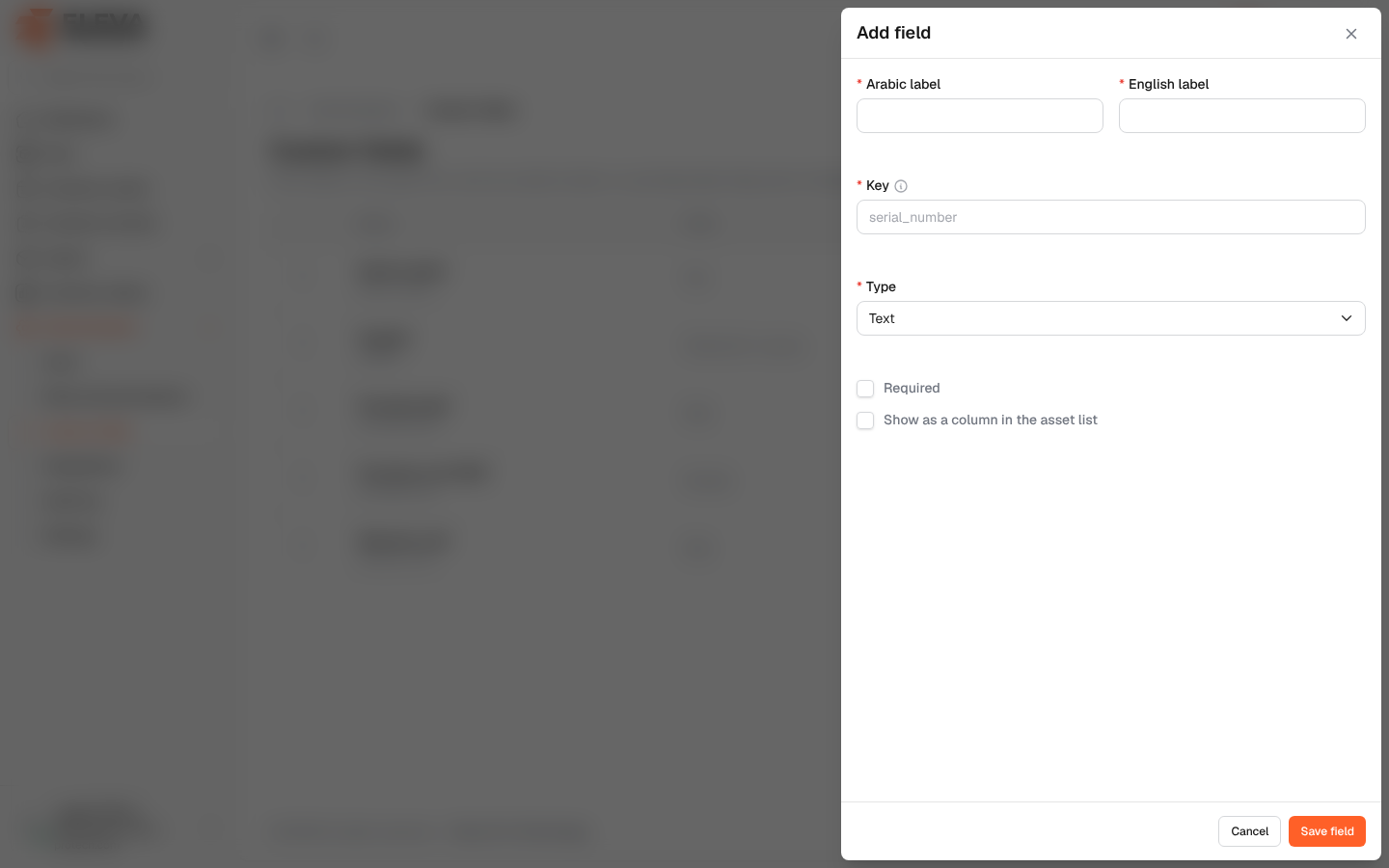
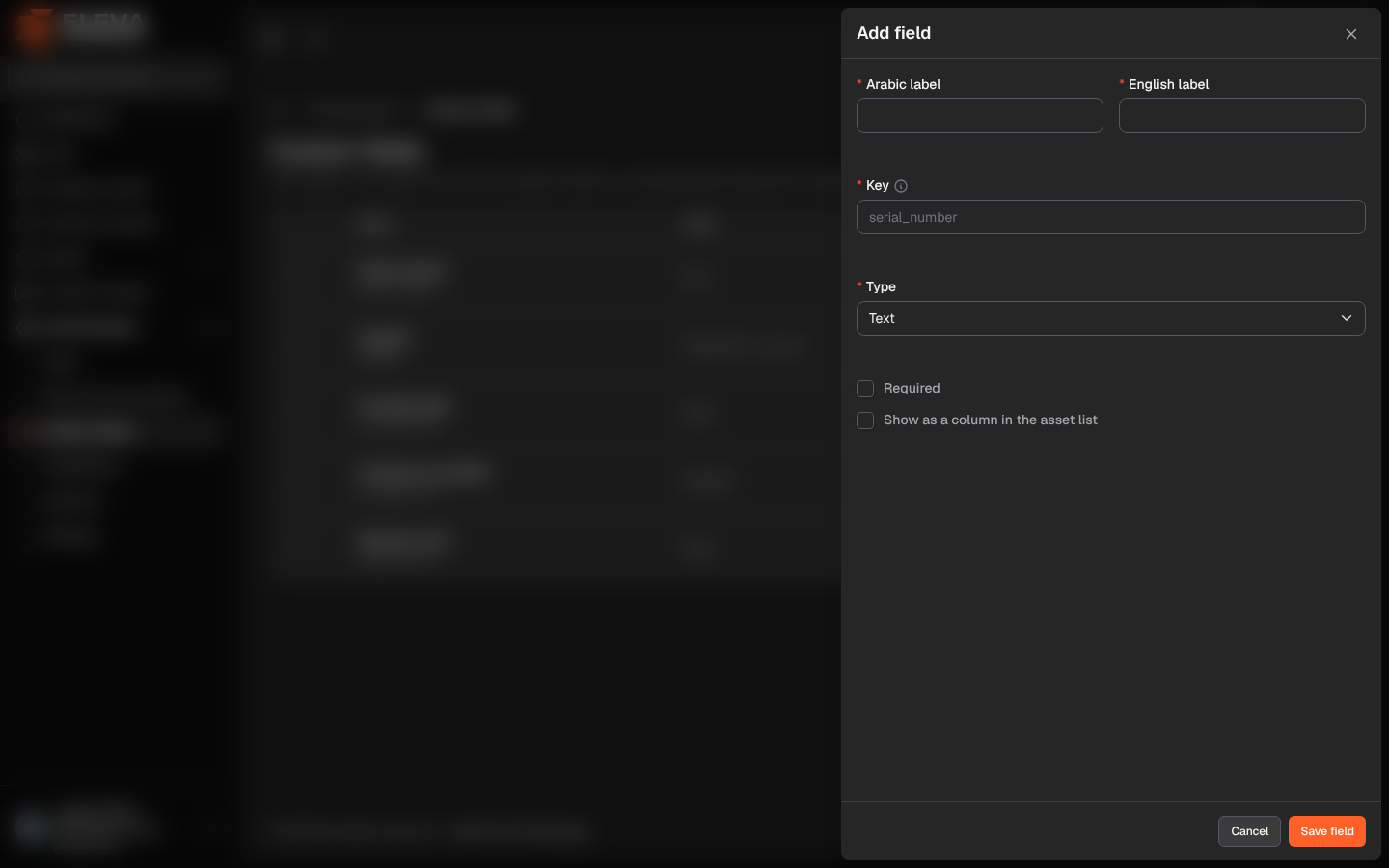
Add a custom field when your organisation needs to record something about every asset that the standard fields do not cover. Each field has a label in Arabic and in English, a fixed key used by imports, a type, and options that decide whether it is required and shown in the asset list.
From the side menu, open Administration › Custom fields and click Add field. To edit a field, click its pencil icon.
Fields
Section titled “Fields”- Arabic label and English label (required): the name shown on the asset form and in the list, in each language. Up to 255 characters.
- Key (required for a new field): a fixed English identifier, for example serial_number. It starts with a lowercase English letter and holds only lowercase letters, digits and , up to 50 characters, and must be unique. Imports use it as the column **cf<key>**. The key does not change once the field is added.
- Type (required): Text, Number, Date, Choice list or Yes / No.
- Options (required for Choice list): type an option and press Enter, or click Add a value. Up to 100 options; duplicates are removed.
- Required: the field must be filled in when an asset is saved.
- Show as a column in the asset list.
How to add a custom field
Section titled “How to add a custom field”- Click Add field.
- Fill in the two labels and the key, and choose the type.
- For a choice list, add its options.
- Tick Required and Show as a column in the asset list if needed.
- Click Save field, or Cancel.
- The message The field was added. appears, and the field is now on the asset form under More details.
To edit a field, click its pencil icon, change it and click Save field (The field was updated.).
Required permission
Section titled “Required permission”Custom fields › Manage.