

Start a cycle
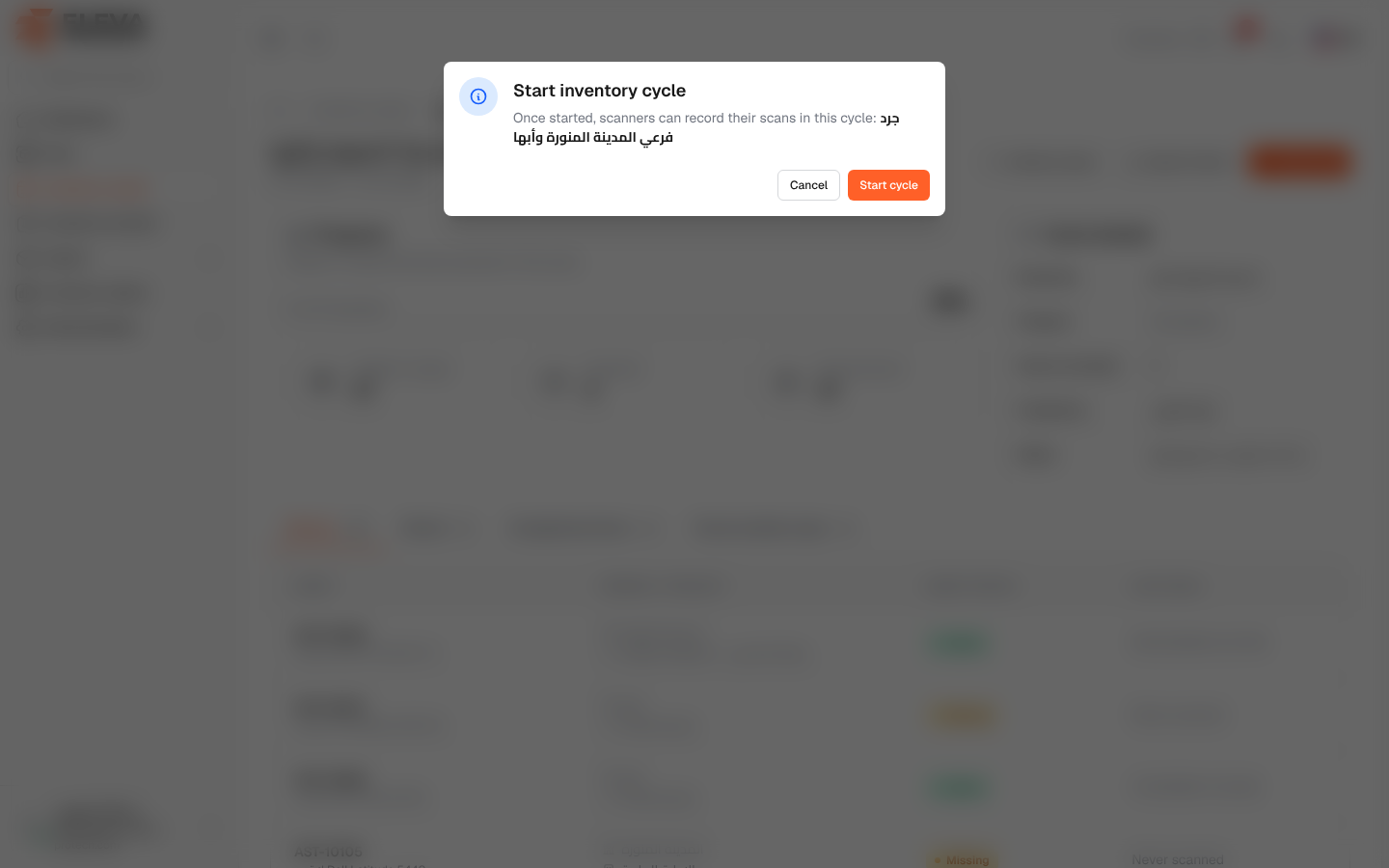
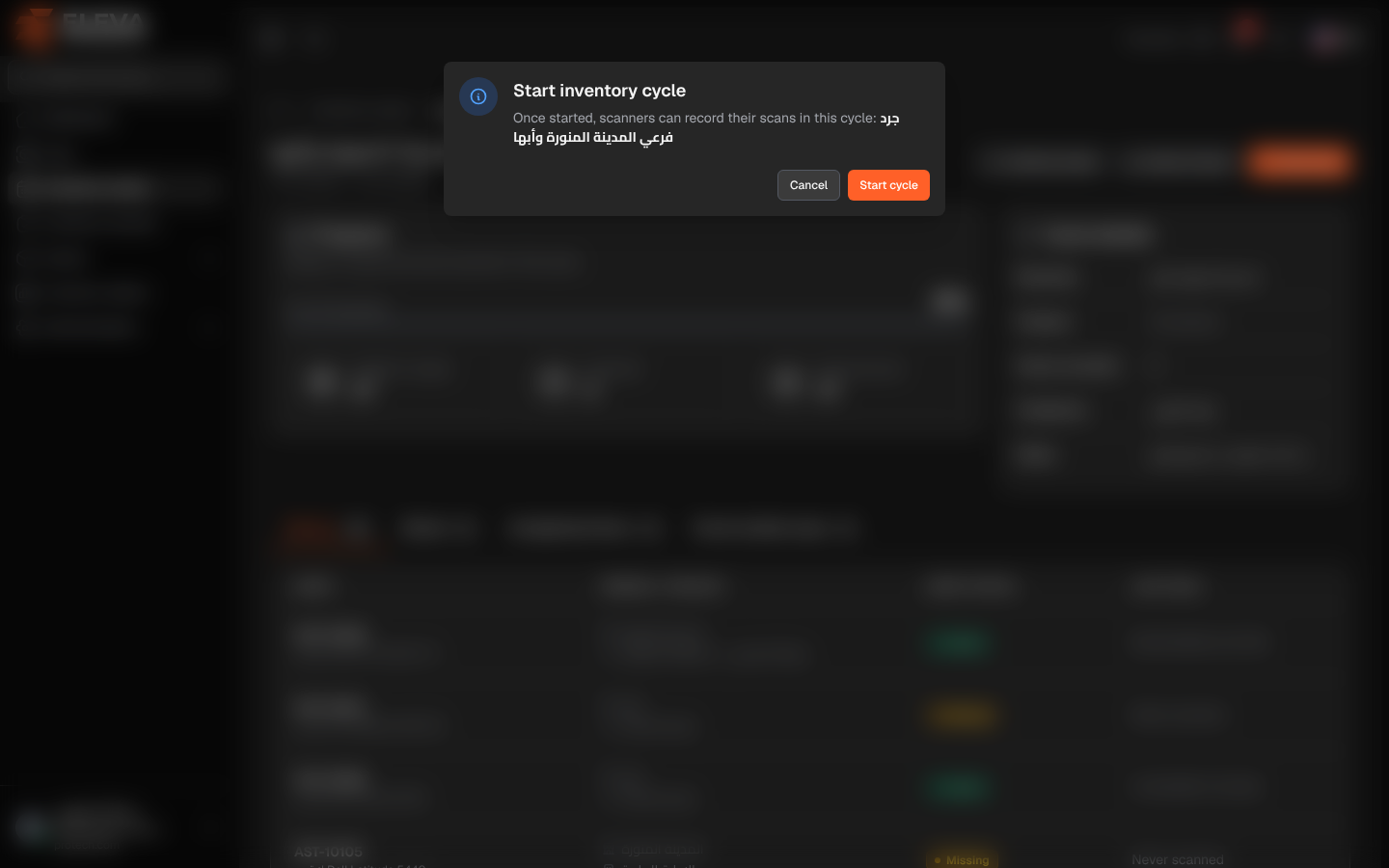
Starting a cycle moves it from Draft to Active: from that moment, the scan screen offers it to the scanners and every scan recorded in it counts towards its progress. Start the cycle when the team is ready to begin the inventory.
From the side menu, open Inventory cycles, click the draft cycle, then click Start cycle.
How to start a cycle
Section titled “How to start a cycle”- Open the draft cycle.
- Check its period, branches and projects under Cycle details.
- Click Start cycle.
- The Start inventory cycle window asks for confirmation (Once started, scanners can record their scans in this cycle: followed by the cycle’s name). Click Start cycle, or Cancel.
- The message Inventory cycle started. Scans can now be recorded in it. appears and the status becomes Active.
What changes on the scan screen
Section titled “What changes on the scan screen”- The Inventory cycle field appears on the scan screen. When only one active cycle covers the asset’s branch and project, it is chosen automatically.
- When several cycles are active at the same time, the scanner picks the cycle when no single one matches the place.
Required permission
Section titled “Required permission”Inventory cycles › Edit.