

Import assets
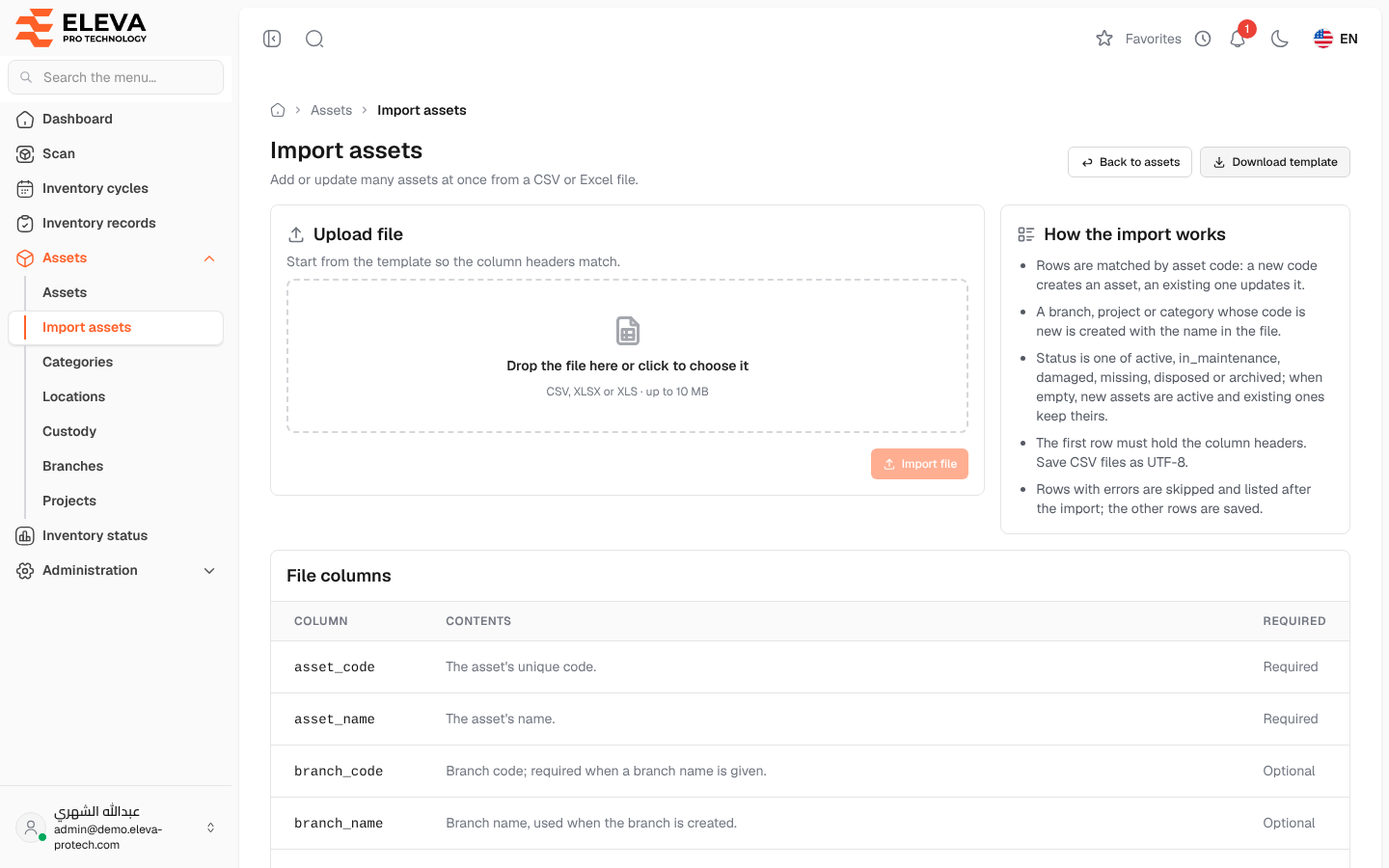
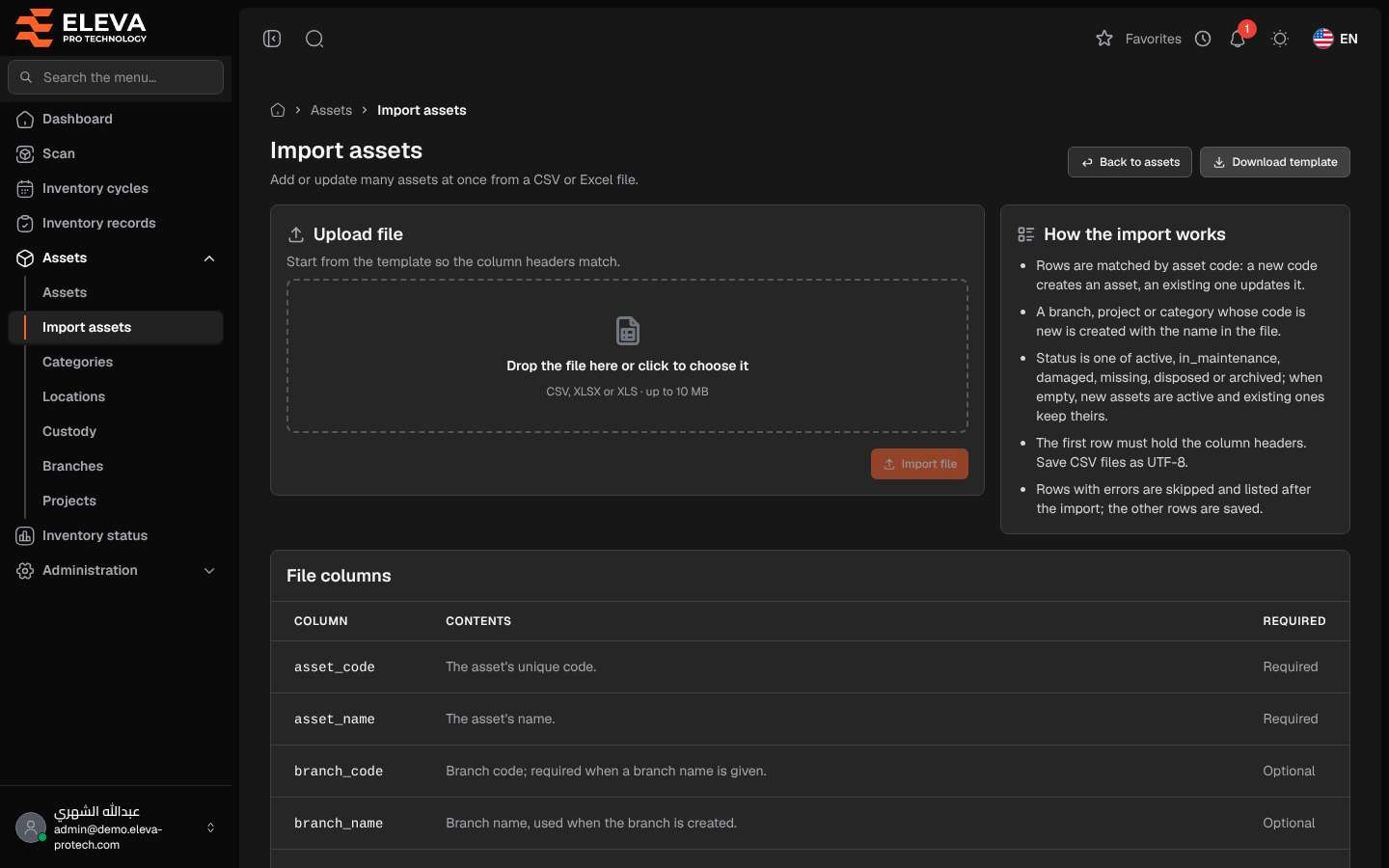
Use the import to add or update many assets at once from a CSV or Excel file, for example when you start with the system or after a large purchase. Rows are matched by asset code: a new code creates an asset, an existing one updates it.
From the side menu, open Assets › Import assets, or click Import on the Assets screen.
What’s on this screen
Section titled “What’s on this screen”- Back to assets and Download template: the template has the column headers the import expects.
- Upload file: drop the file in the box or click to choose it (CSV, XLSX or XLS · up to 10 MB), then click Import file. Any other file type is refused with The file must be a CSV, XLSX or XLS file.
- How the import works: the rules below.
- File columns: every column with its meaning and whether it is Required or Optional.
File columns
Section titled “File columns”- asset_code (required): the asset’s unique code.
- asset_name (required): the asset’s name.
- branch_code and branch_name: the branch. The code is required when a name is given; a new code creates the branch with that name.
- location_code: the code of a location in the row’s branch. The location must already exist; it is not created from the file.
- project_code and project_name: the project, in the same way as the branch.
- category_code and category_name: the category, in the same way.
- status: one of active, in_maintenance, damaged, missing, disposed or archived. When empty, new assets are active and existing ones keep their status.
- cf_<key>: one column per custom field, named cf_ followed by the field’s key. A column missing from the file keeps the current value; an empty cell clears it.
How to import assets
Section titled “How to import assets”- Click Download template and fill it in, keeping the header row. Save CSV files as UTF-8.
- Drop the file in the Upload file box, or click it to choose the file.
- Click Import file.
- A message gives the result, for example Import completed successfully. Created: 40, Updated: 12, Skipped: 2.
- If rows were skipped, a table … rows were skipped lists each Row with its Errors. Correct those rows and import them again.
- The first row must hold the column headers.
- Rows with errors are skipped and listed after the import; the other rows are saved.
- A branch, project or category whose code is new is created with the name in the file.
Required permission
Section titled “Required permission”Assets › Import.