

Custody
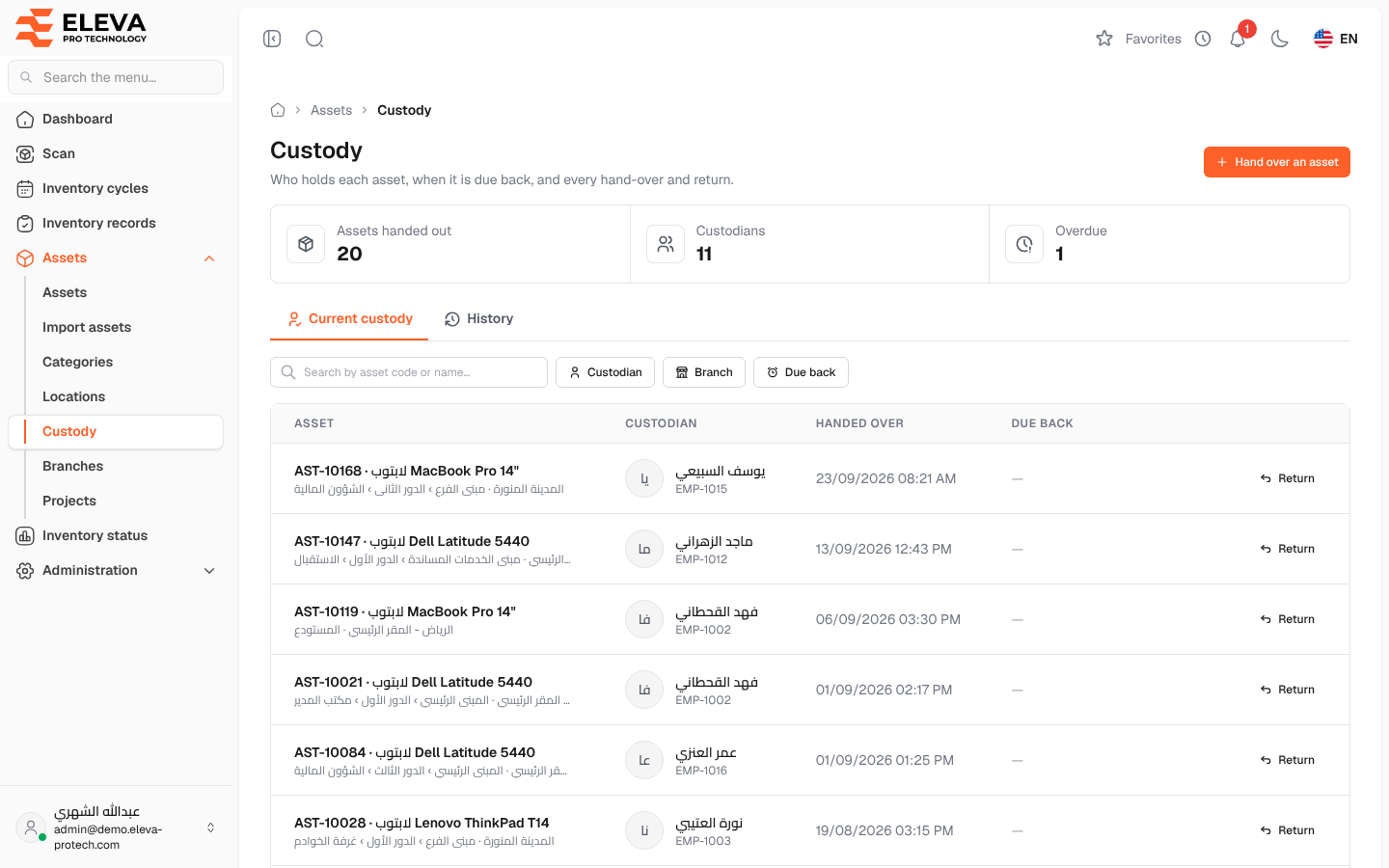
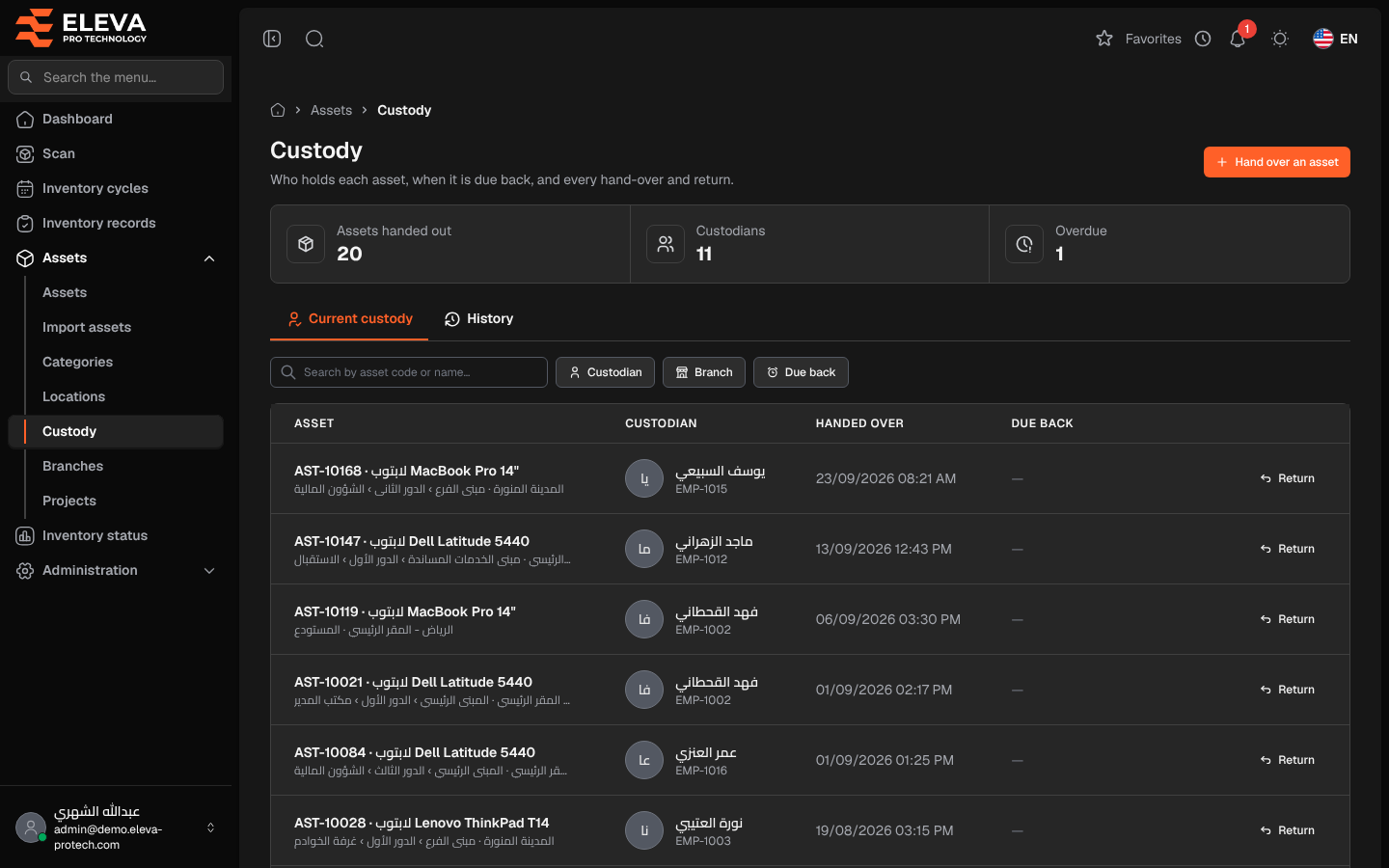
Custody tracks which employee holds which asset: a laptop given to an engineer, a tool lent to a technician. The Custody screen shows who holds each asset now, when it is due back, and every hand-over and return before (Who holds each asset, when it is due back, and every hand-over and return.). Asset managers use it to hand assets over, take them back and chase overdue returns.
From the side menu, open Assets › Custody. The screen opens on the Current custody tab.
What’s on this screen
Section titled “What’s on this screen”- Hand over an asset: opens the hand-over window (see Hand over and return).
- Figures: Assets handed out, Custodians (people holding at least one asset) and Overdue (assets whose due date has passed).
- Current custody and History: the assets held now, and every hand-over (see Custody history).
- Search by asset code or name….
- Filters: Custodian, Branch, and Due back with Overdue only.
The list shows 15 rows per page.
Columns
Section titled “Columns”- Asset: code and name, with the branch and location below.
- Custodian: name and employee code. Click it to open the custodian’s page.
- Handed over: the date and time of the hand-over.
- Due back: the expected return date; Overdue since … in red when it has passed; a dash when no date was set.
- Return: records the return of the asset.
When nobody holds any asset, the list shows No asset is in anyone’s custody.
How to follow up overdue assets
Section titled “How to follow up overdue assets”- Look at the Overdue figure.
- Open the Due back filter and choose Overdue only.
- Click a custodian to see everything they hold, then contact them or record the return.
Required permissions
Section titled “Required permissions”- Custody › View to open the screen and the custodian pages.
- Custody › Assign for Hand over an asset and Return.