

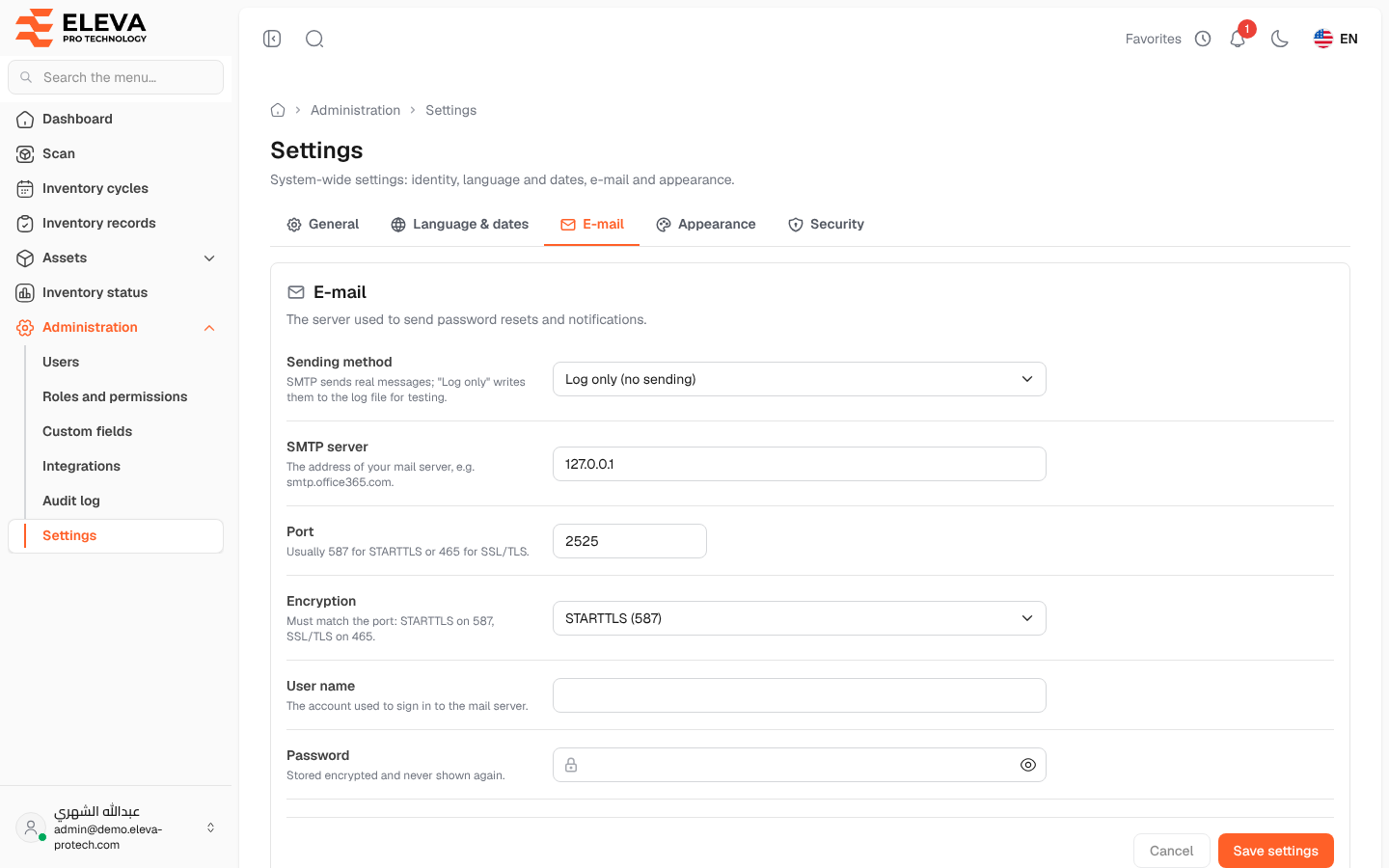
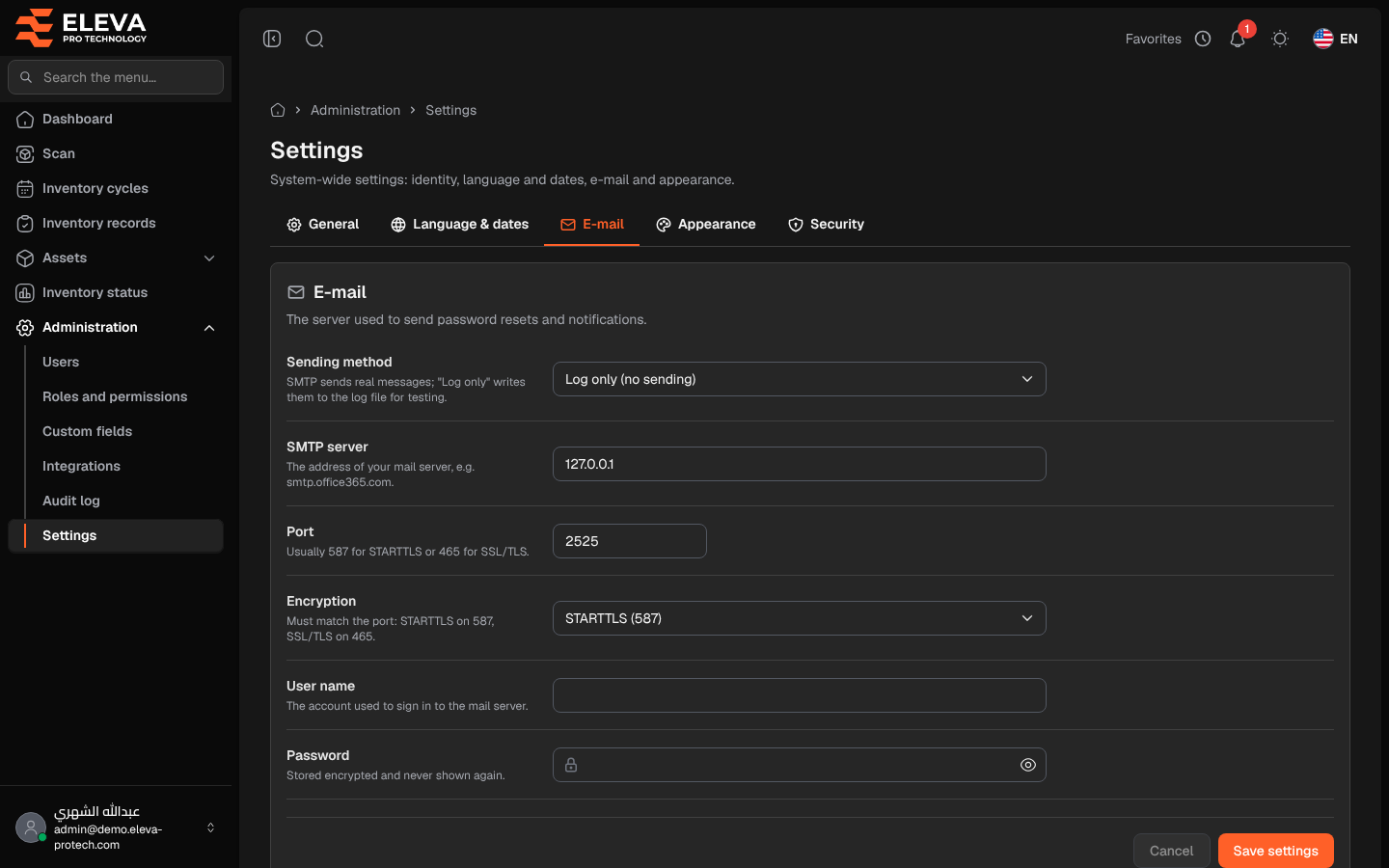
The E-mail tab sets the mail server the system uses to send password reset links and notifications, such as the closing of an inventory cycle (The server used to send password resets and notifications.). Below the settings, Send a test message checks that they work.
From the side menu, open Administration › Settings, then click the E-mail tab.
Fields
Section titled “Fields”- Sending method (required): SMTP sends real messages; Log only (no sending) writes them to the log file, for testing.
- SMTP server (required with SMTP): The address of your mail server, e.g. smtp.office365.com.
- Port (required with SMTP): from 1 to 65535. Usually 587 for STARTTLS or 465 for SSL/TLS.
- Encryption: STARTTLS (587) or SSL/TLS (465). Must match the port: STARTTLS on 587, SSL/TLS on 465.
- User name: The account used to sign in to the mail server.
- Password: Stored encrypted and never shown again. Once saved, the field shows Saved — leave empty to keep it.
- Sender address (required): The address messages are sent from.
- Sender name (required): The name recipients see as the sender.
How to set up the mail server
Section titled “How to set up the mail server”- Choose SMTP and fill in the server, port, encryption, user name and password given by your e-mail provider.
- Fill in the sender address and name.
- Click Save settings.
How to send a test message
Section titled “How to send a test message”- Save your changes first: the test uses the saved settings.
- Under Send a test message, type an address in Send to.
- Click Send test.
- The page shows A test message was sent to …., or The test message was not sent: … with the reason given by the server.
Required permissions
Section titled “Required permissions”Settings › View to open; Settings › Edit to save and to send a test message.