

Create an access token
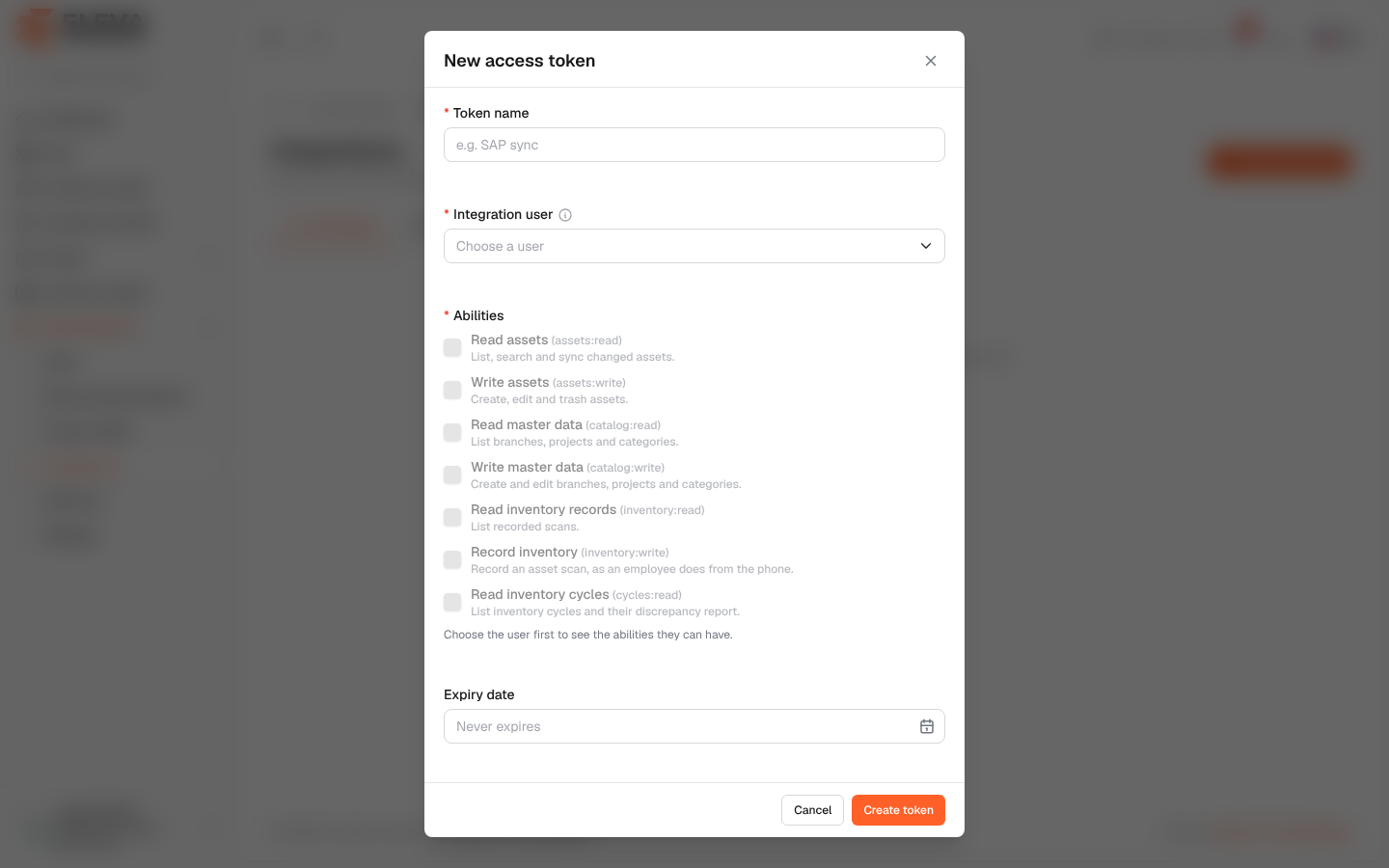
Create an access token for each system that must call the API, with only the abilities it needs. The token is shown once, right after it is created, to be copied into the other system.
From the side menu, open Administration › Integrations and click New access token on the API tokens tab.
Fields
Section titled “Fields”-
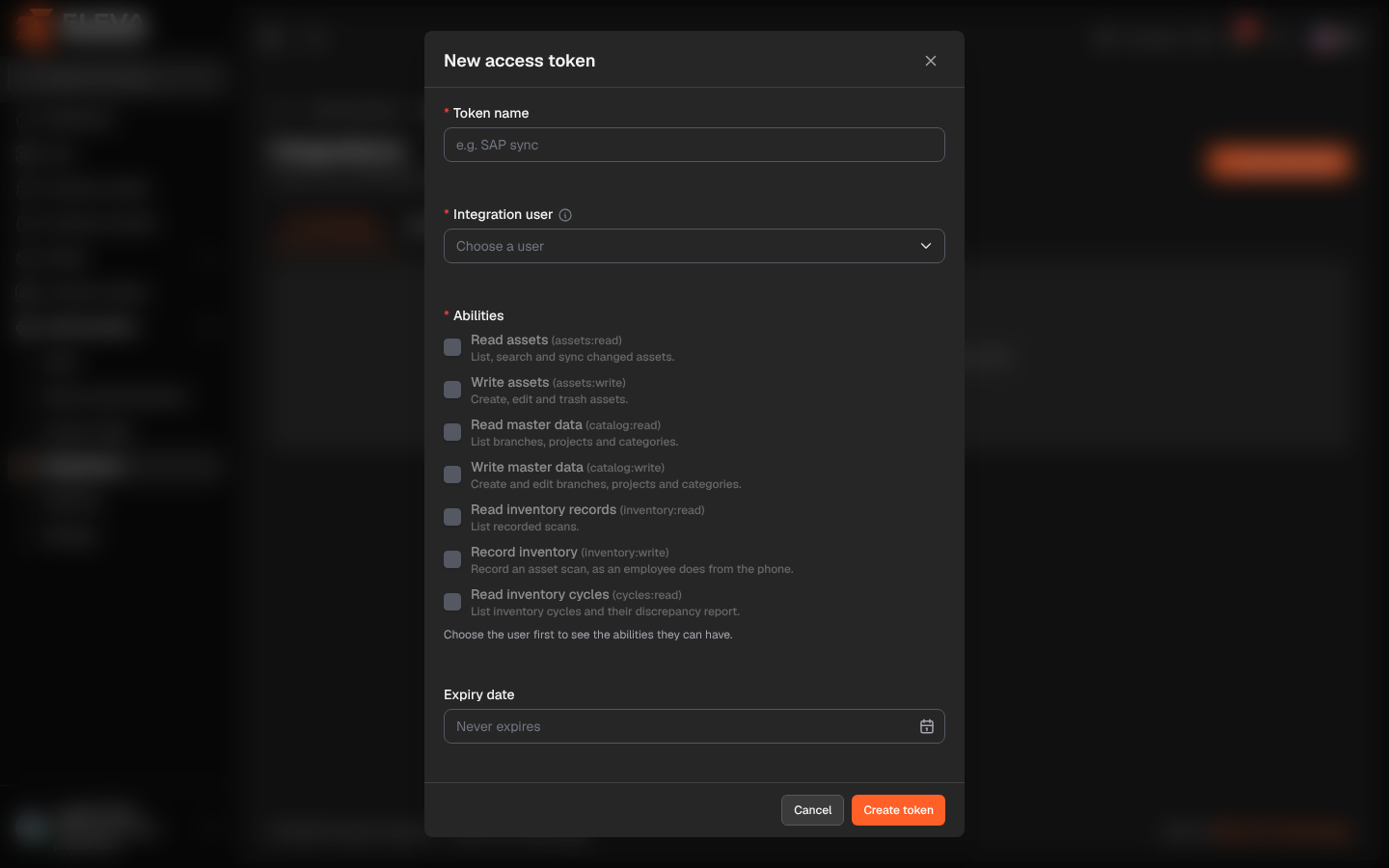
Token name (required): up to 100 characters, for example e.g. SAP sync.
-
Integration user (required): an active user (Choose a user). The token acts as this user and never goes beyond their permissions; if a permission is taken away, the token loses it at once. A dedicated integration user is best.
-
Abilities (required, at least one):
- Read assets (assets:read): list, search and sync changed assets.
- Write assets (assets:write): create, edit and trash assets.
- Read master data (catalog:read): list branches, projects and categories.
- Write master data (catalog:write): create and edit branches, projects and categories.
- Read inventory records (inventory:read): list recorded scans.
- Record inventory (inventory:write): record an asset scan, as an employee does from the phone.
- Read inventory cycles (cycles:read): list inventory cycles and their discrepancy report.
Choose the user first to see the abilities they can have. Abilities that are greyed out are not held by this user, or by you.
-
Expiry date: optional, after today. Empty means Never expires.
How to create a token
Section titled “How to create a token”- Click New access token.
- Fill in the name and choose the integration user.
- Tick the abilities the other system needs.
- Set an expiry date if the token must stop working by a date.
- Click Create token.
- A card Access token “…” shows the token. Click Copy and give it to the team setting up the other system (Send it with every request in the Authorization: Bearer header.).
Required permission
Section titled “Required permission”Integrations › Manage. You can only give abilities that both you and the integration user hold.