

Locations
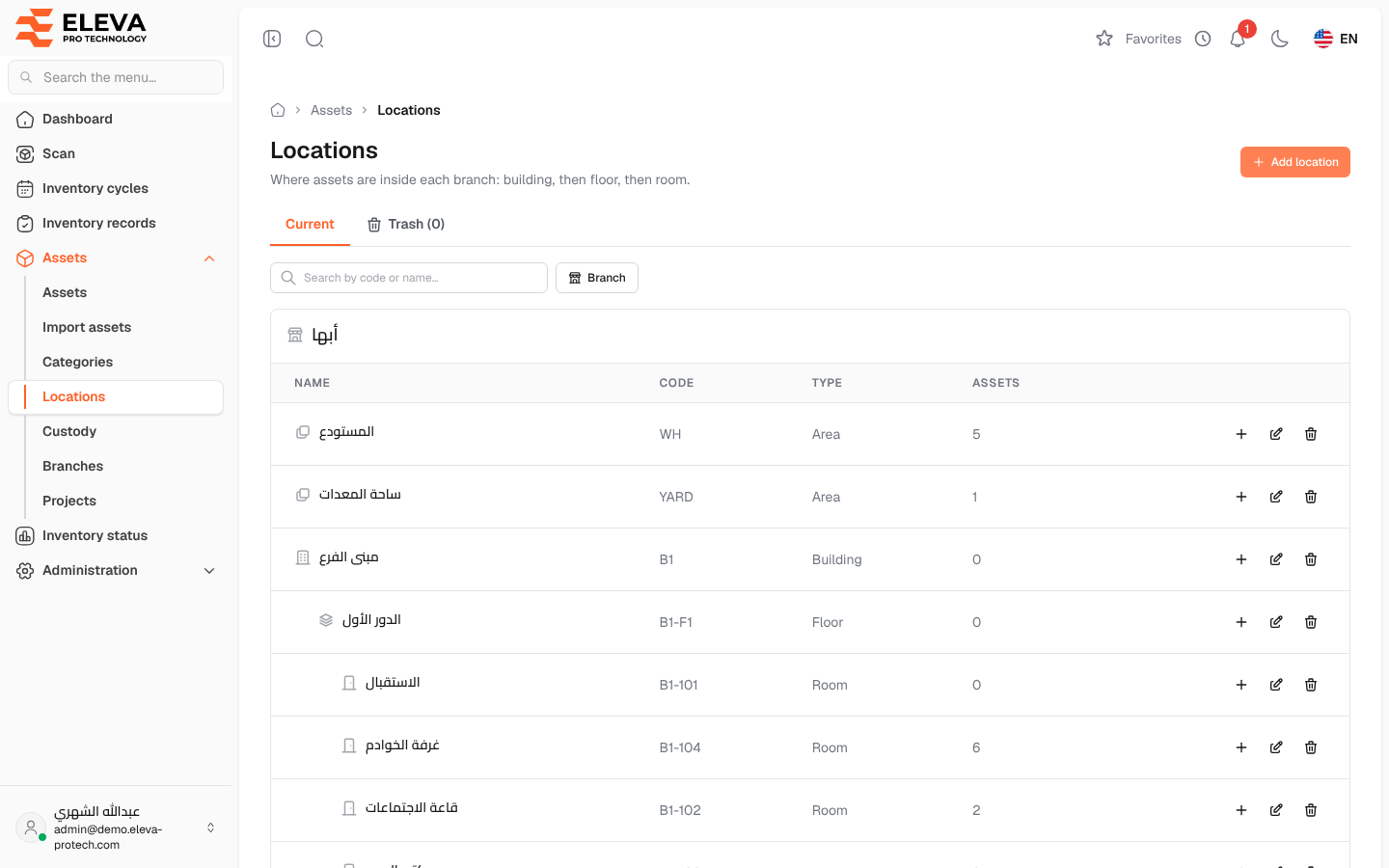
Locations say where an asset is inside its branch: a building, then a floor, then a room, or an area such as a warehouse or a yard (Where assets are inside each branch: building, then floor, then room.). They let the team find an asset quickly, and they appear on the asset form, the scan screen, the inventory records and the custody receipt, as a path such as Main building › Floor 2 › Room 204.
From the side menu, open Assets › Locations.
What’s on this screen
Section titled “What’s on this screen”- Add location: opens the form for a new location.
- Current and Trash: the locations in use, and those deleted, with their number.
- Search by code or name… and the Branch filter.
- One table per branch, with its locations as a tree: each location is indented under the one that holds it.
When you search, the list shows the matching locations with their full path and their branch.
Columns
Section titled “Columns”- Name: with an icon for its type, indented under its parent.
- Code.
- Type: Building, Floor, Room, Area or Other.
- Assets: how many assets are in this location.
- Actions: + (Add a location inside), the pencil icon to edit and the bin icon to delete.
Fields
Section titled “Fields”- Branch (required): the branch the location belongs to. A location’s branch does not change once it is added.
- Inside: the location that holds this one, from the same branch, or None (top level of the branch). A location cannot be inside itself or inside one of its own locations.
- Code (required): up to 50 characters, unique within the branch. Imports use it in the location_code column.
- Type (required): Building, Floor, Room, Area or Other.
- Name (required): up to 255 characters, for example e.g. Building A, Floor 2, Room 204.
How to build the locations of a branch
Section titled “How to build the locations of a branch”- Click Add location, choose the Branch, leave Inside empty, choose the type Building (or Area), fill in the code and the name, and click Save location.
- On the building’s row, click + to add a floor inside it: the branch and Inside are already filled in.
- On each floor, click + to add its rooms.
The message The location was added. confirms each one.
How to delete a location
Section titled “How to delete a location”- Click the bin icon and confirm with Move to trash.
- The location goes to the trash; its assets keep it and you can restore it.
Required permissions
Section titled “Required permissions”- Locations › View to open the screen.
- Locations › Add, Edit and Delete to add, edit, delete and restore locations.