

Dashboard
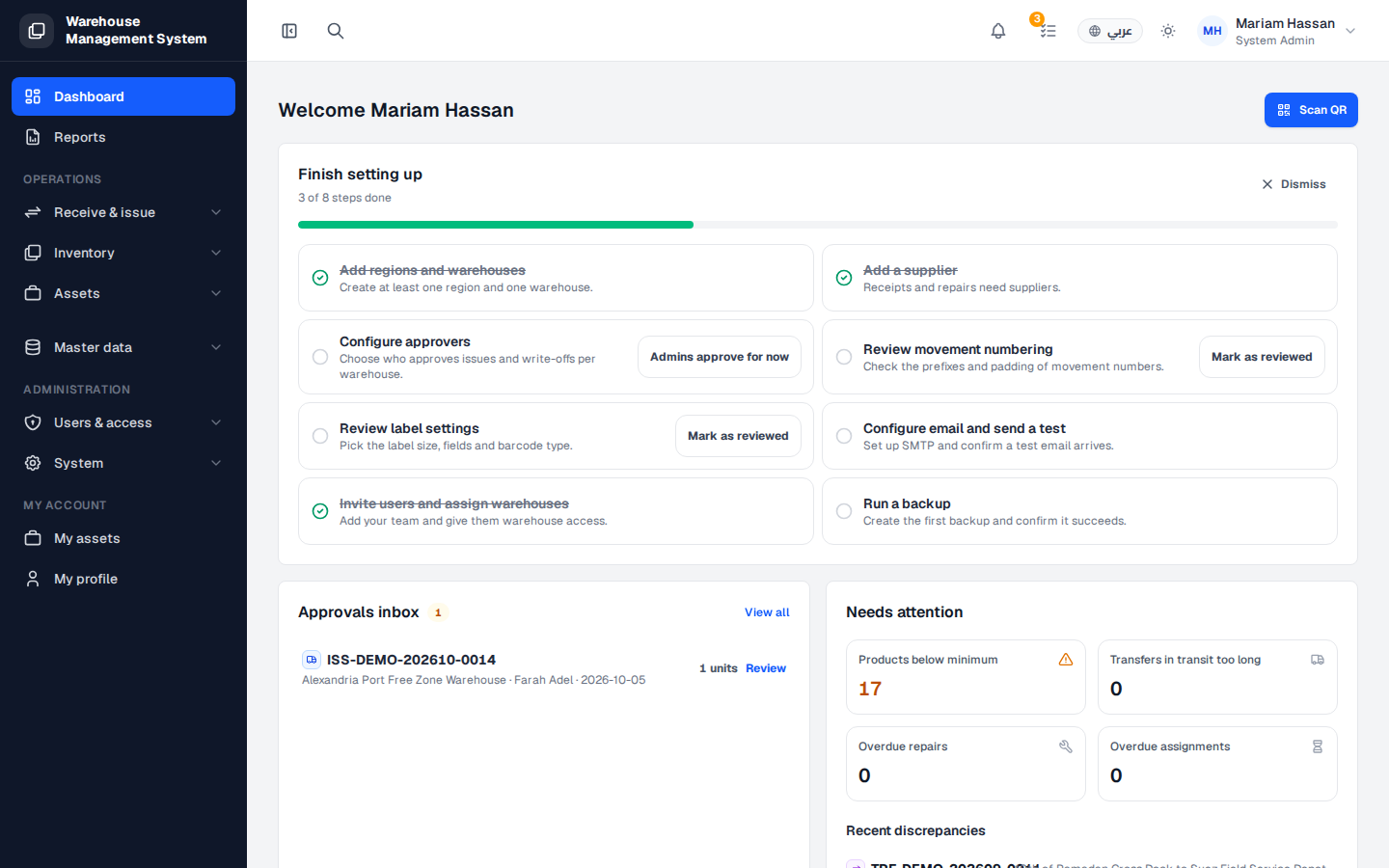
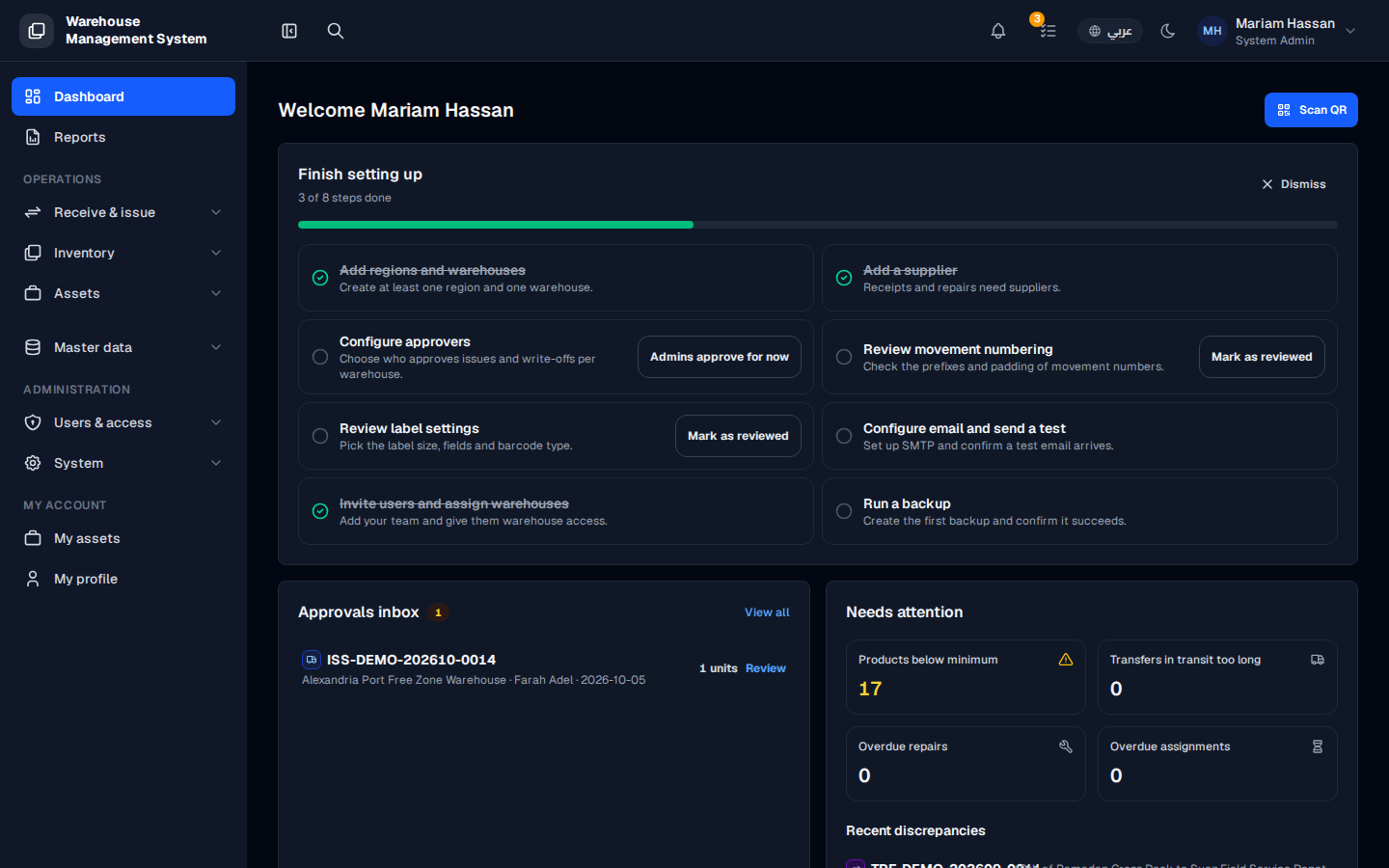
The dashboard is the home screen you see after signing in. It gives you a quick picture of what needs your action today: unfinished setup steps, pending approvals, stock alerts and recent activity. Return to it at any time by clicking Dashboard in the side menu.
What’s on this screen
Section titled “What’s on this screen”- Finish setting up: a checklist of setup steps (warehouses, suppliers, approvers, labels, email, backup) with a progress bar.
- Approvals inbox: requests waiting for your approval.
- Needs attention: counters for Products below minimum, Transfers in transit too long, Overdue repairs and Overdue assignments.
- System health: whether email, backups and the scheduler are working.
- Overview: total pieces, available, in transit, awaiting approval, and today’s activity.
- Stock age: pieces grouped by age (under 30 days, 30 to 90, 91 to 180, over 180).
- Stock by ownership: company-owned stock versus customer consignment.
- Stock by warehouse: how many pieces each warehouse holds.
- Recent movements: the latest 5 movements, such as issues, returns, repairs and write-offs.
- Scan QR: opens the scanner to look up an item by its code.
How to finish setting up
Section titled “How to finish setting up”- In Finish setting up, review the steps that are not yet ticked.
- Complete each step, or click Mark as reviewed where it is offered.
- Click Dismiss to hide the card for now.
How to review a pending approval
Section titled “How to review a pending approval”- In Approvals inbox, find the request.
- Click Review next to it, or View all to see every pending request.
How to find an item quickly
Section titled “How to find an item quickly”- Click the search icon at the top of the screen and type what you are looking for, or
- Click Scan QR and scan the item’s label.