

Choose a new password
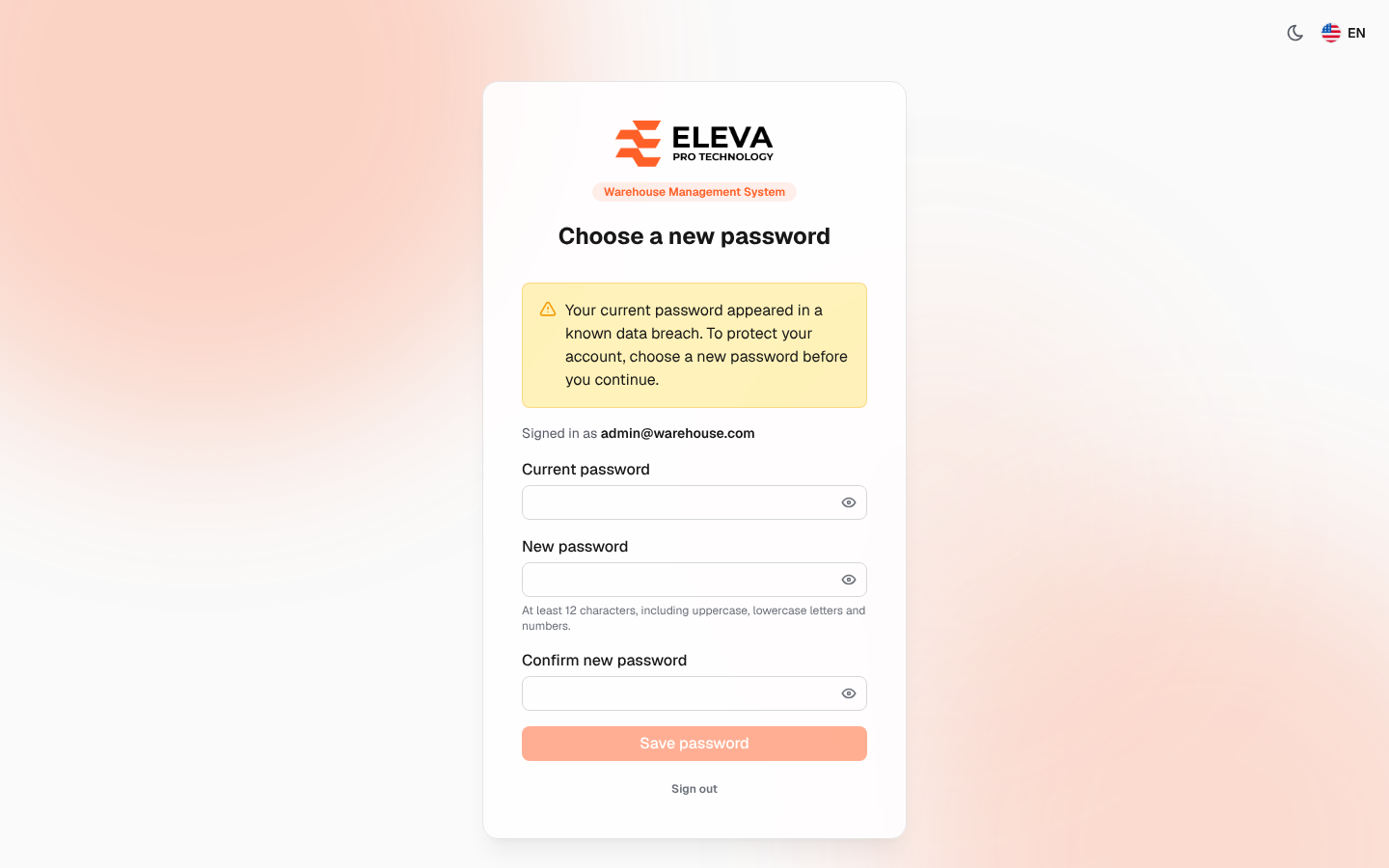
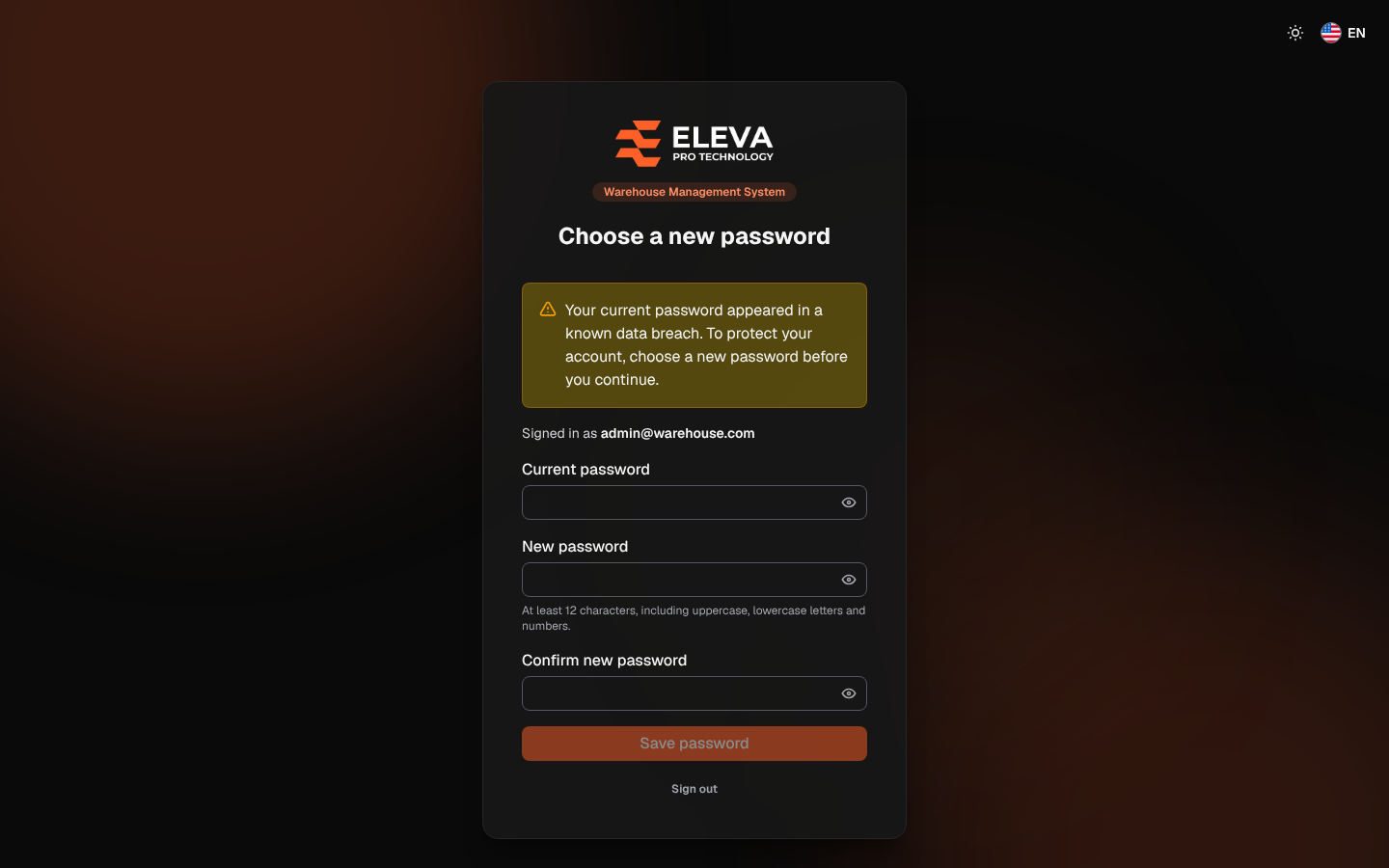
When you sign in, the system checks whether your password has appeared in a known data breach. Only a short, anonymous fragment of the password’s fingerprint is checked; the password itself never leaves the system. If the password is found, you are taken to Choose a new password and cannot open any other screen until you change it.
The warning reads: Your current password appeared in a known data breach. To protect your account, choose a new password before you continue.
How to choose a new password
Section titled “How to choose a new password”- Check that Signed in as shows your email.
- In Current password, type the password you just signed in with.
- In New password, type a new password. It must have at least 12 characters, including uppercase letters, lowercase letters and numbers, and must not be your current password or a password found in a breach.
- Type it again in Confirm new password.
- Click Save password. You continue to the screen you were opening.
If you do not want to change it now, click Sign out. You will see this screen again the next time you sign in.