

Print QR labels
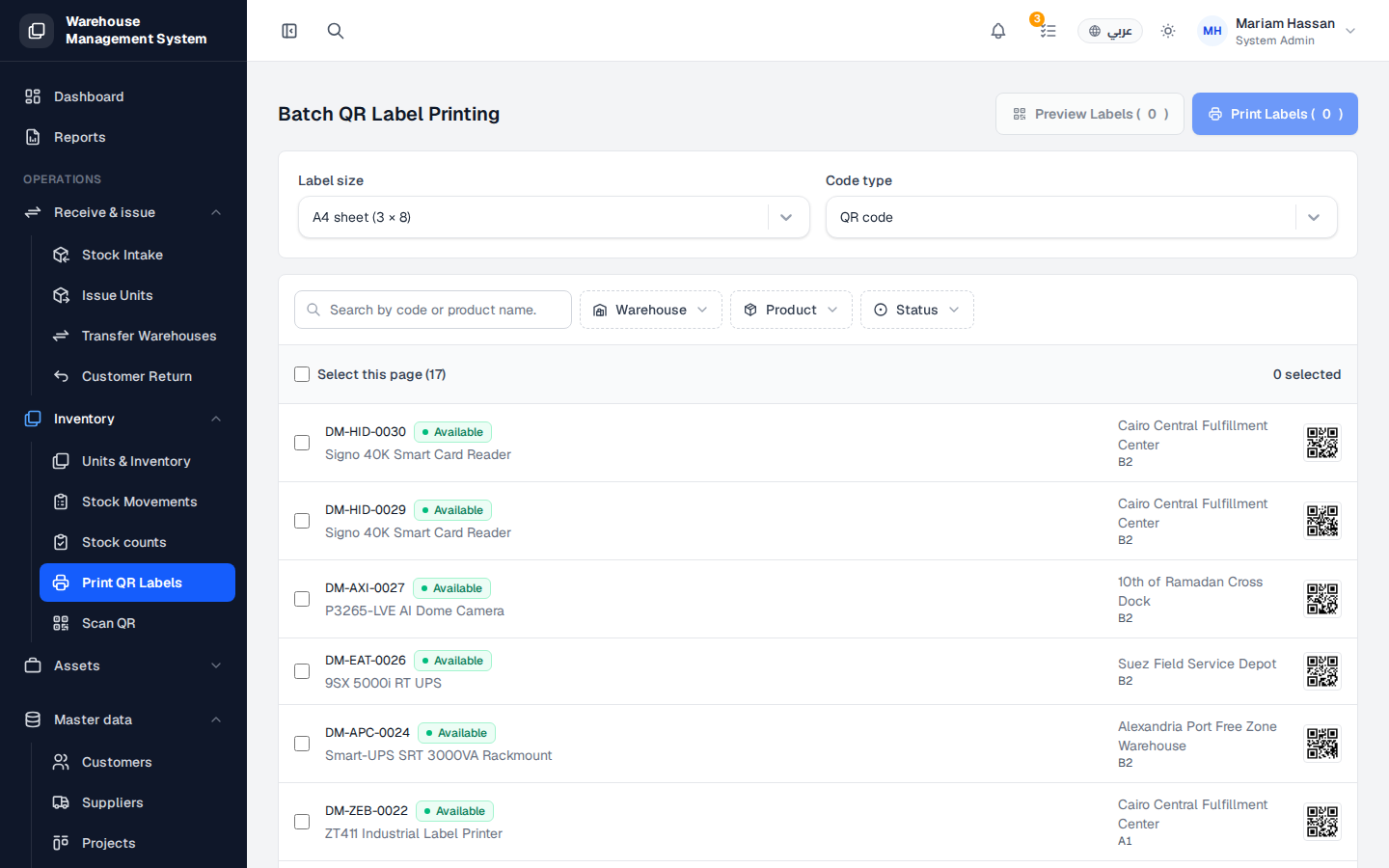
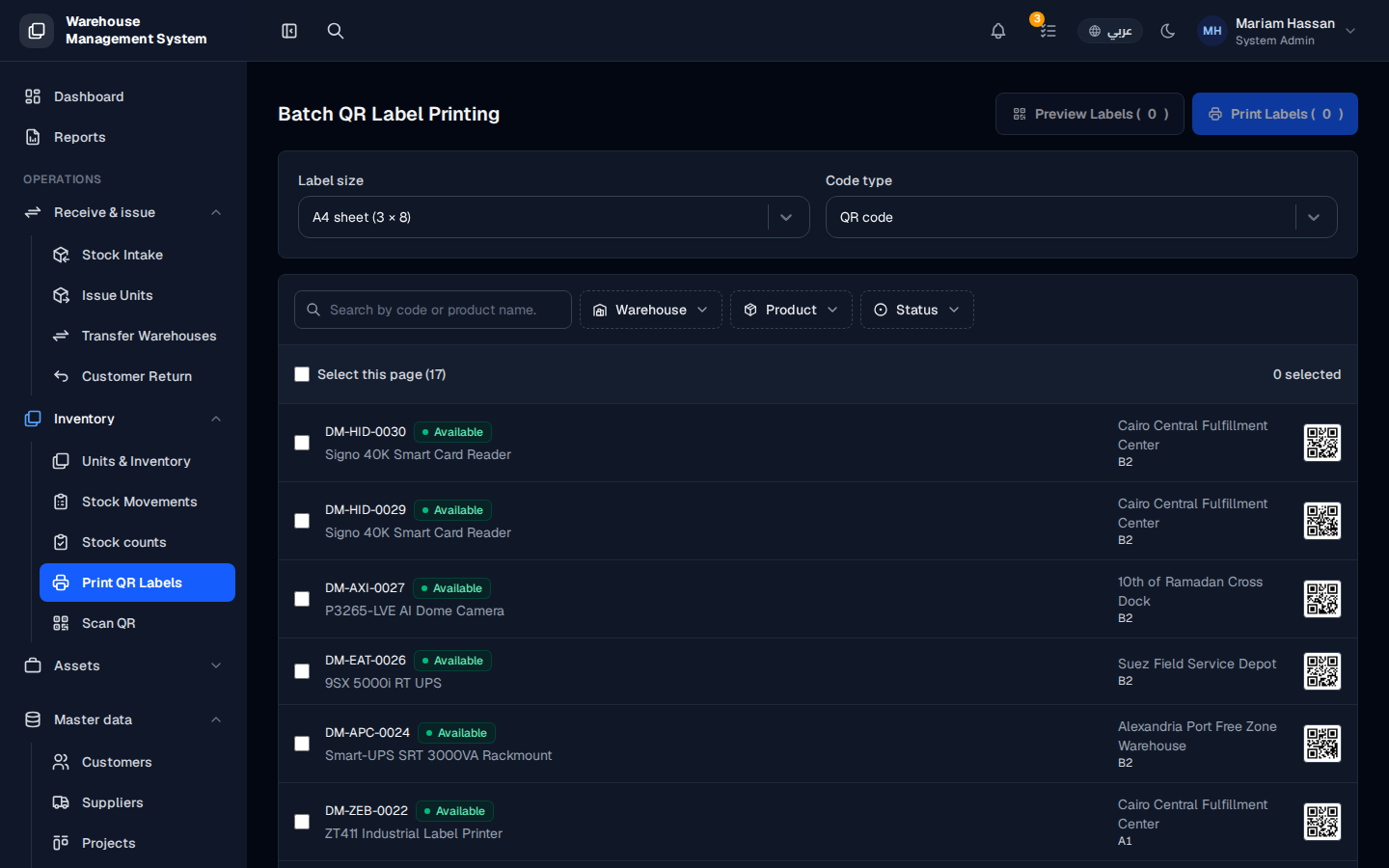
Each unit can carry a printed label with a QR code or barcode, so it can be identified quickly by scanning. This screen lets you print labels for many units at once.
Use it after receiving new stock, or whenever labels are missing or damaged.
What’s on this screen
Section titled “What’s on this screen”- Label size — the sheet layout, for example A4 sheet (3 × 8).
- Code type — QR code or a linear barcode.
- A search box to find units by code or product name, plus the Warehouse, Product and Status filters.
- A list of units with a checkbox, the unit code, status, product, warehouse, location and a QR preview.
- Select this page and the number of selected units.
- The Preview Labels and Print Labels buttons at the top right, showing how many labels are selected.
How to print labels
Section titled “How to print labels”- From the side menu, open Inventory › Print QR Labels.
- Choose the Label size and Code type.
- Use the search box and filters to narrow the list.
- Tick the units you want, or tick Select this page to select all units on the page.
- Click Preview Labels to check the layout.
- Click Print Labels. Each label shows the code with the product name, the warehouse and the unit code.