

Units & inventory
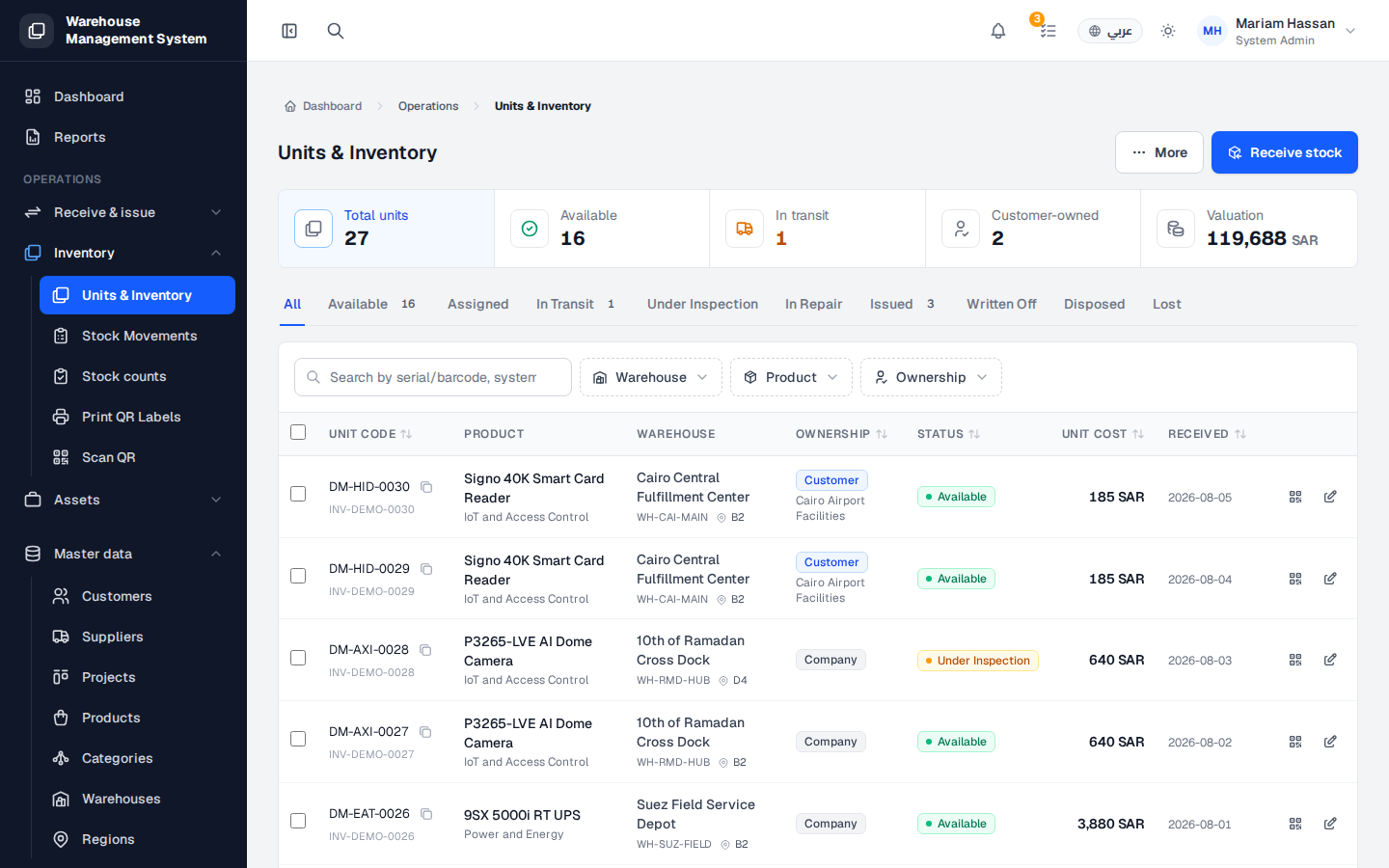
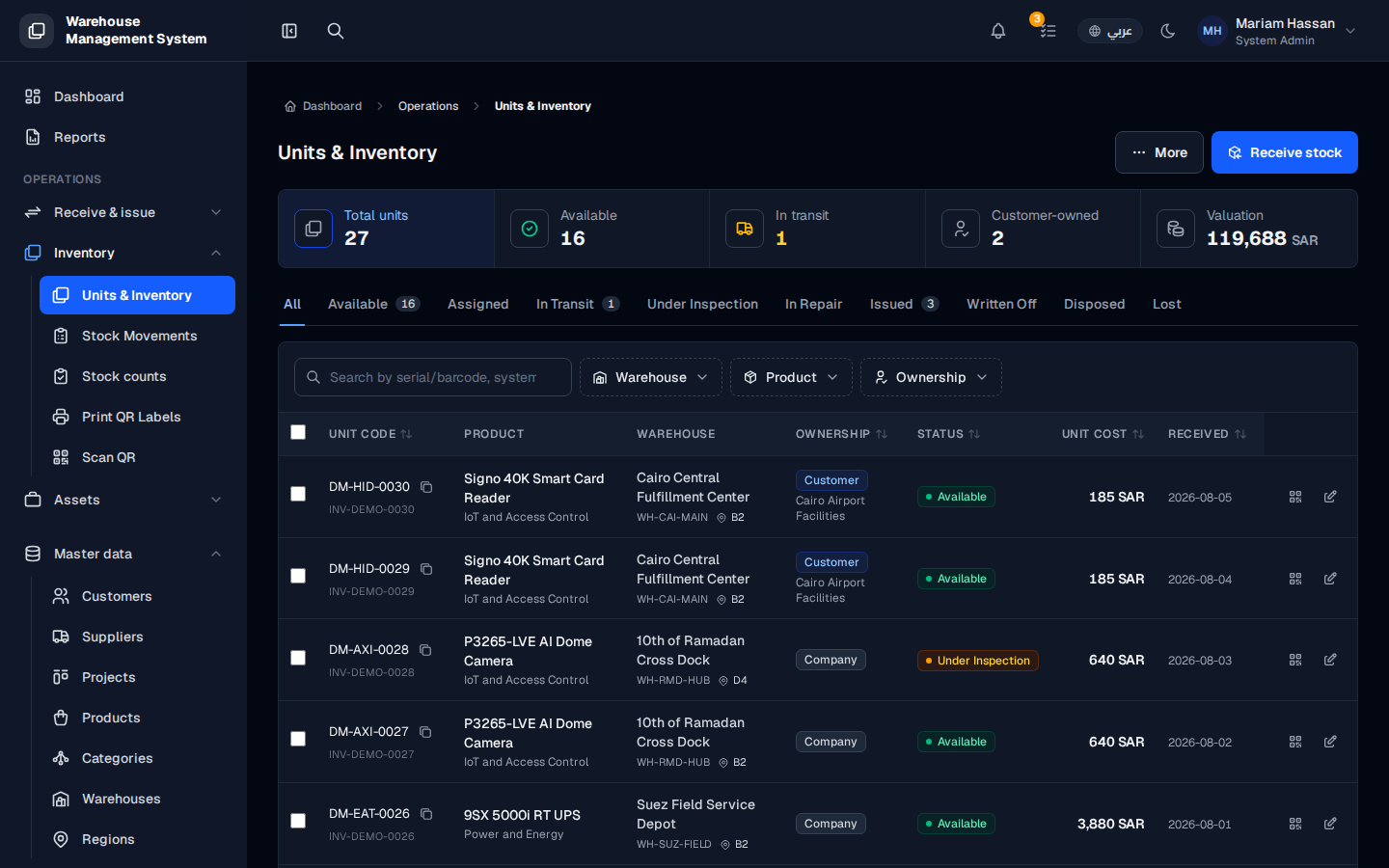
Every physical item in your warehouses is tracked as a separate unit with its own unit code. This screen is the central list of all units, showing where each one is, who owns it, what state it is in and what it cost.
Use it to check what stock you have, find a specific unit, or follow up on units that are in transit, in repair or issued to customers.
What’s on this screen
Section titled “What’s on this screen”- Summary cards: Total units, Available, In transit, Customer-owned and Valuation.
- Status tabs to filter the list, such as All, Available, Assigned, In Transit, Under Inspection, In Repair, Issued, Written Off, Disposed and Lost.
- A search box to find a unit by serial or barcode, plus the Warehouse, Product and Ownership filters.
- A table with the columns Unit code, Product, Warehouse, Ownership, Status, Unit cost and Received.
- Row actions: the QR icon and the edit icon.
- The Receive stock and More buttons at the top right.
How to open the units list
Section titled “How to open the units list”- From the side menu, open Inventory › Units & Inventory.
How to find a unit
Section titled “How to find a unit”- Pick a status tab to show only units in that state.
- Type a serial or barcode in the search box, or use the Warehouse, Product and Ownership filters.
- Click a row to open the unit’s details, such as its movements, warranty, repairs and attachments.
How to show a unit’s QR code
Section titled “How to show a unit’s QR code”- In the unit’s row, click the QR icon to view or print its QR code.
How to receive new stock
Section titled “How to receive new stock”- Click Receive stock at the top right. This opens the stock intake screen.