

Notifications
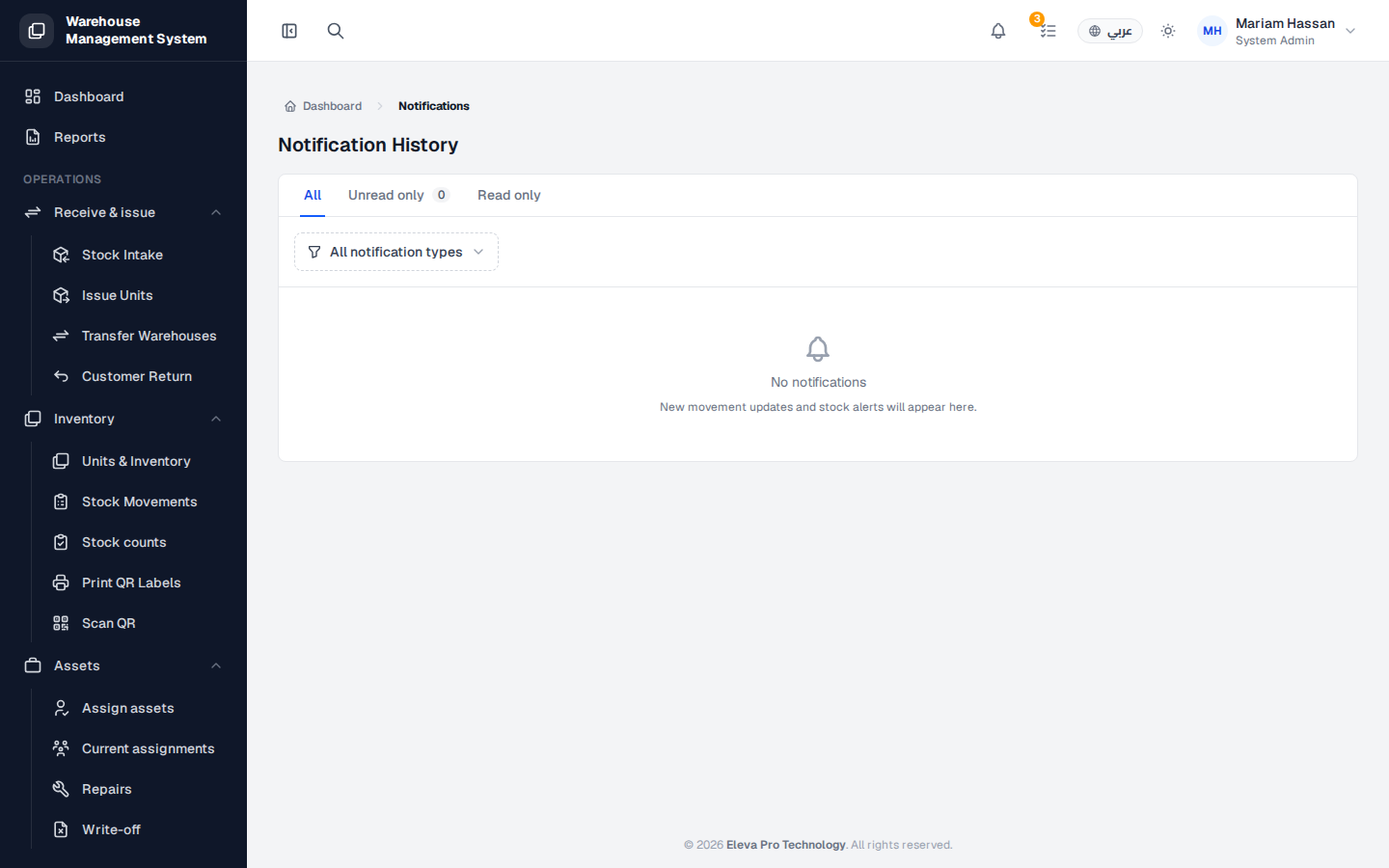
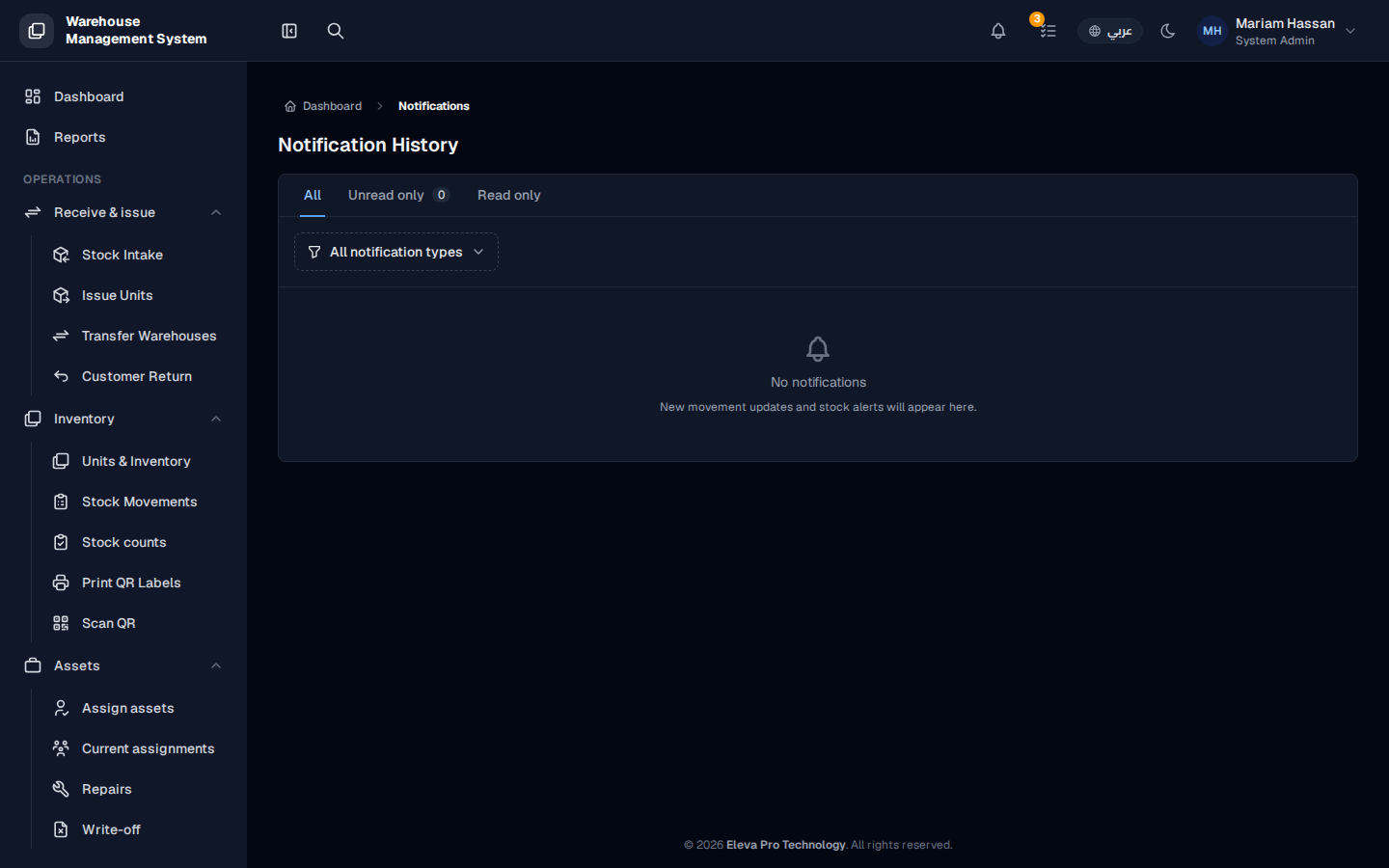
Notifications keep you informed about events that concern you, such as stock movement updates and stock alerts. The Notification History screen lists every notification sent to your account so you can catch up on anything you missed.
To open it, click the bell icon at the top of the screen.
What’s on this screen
Section titled “What’s on this screen”- All, Unread only and Read only: tabs that filter the list. Unread only shows how many unread notifications you have.
- All notification types: a filter to show only one type of notification.
- The list of notifications, each with a title, description, time and type icon. When there are none, the screen shows No notifications.
How to read your notifications
Section titled “How to read your notifications”- Open Unread only to see what is new.
- Click a notification to open it and mark it as read.
- To clear everything at once, click Mark all as read.
How to filter by type
Section titled “How to filter by type”- Click All notification types.
- Choose the type you want to see.
How to choose where notifications reach you
Section titled “How to choose where notifications reach you”From the side menu, open My account › My profile, then the Notifications tab, and select your channels, such as email or in-app.