

Sign in with Eleva ID
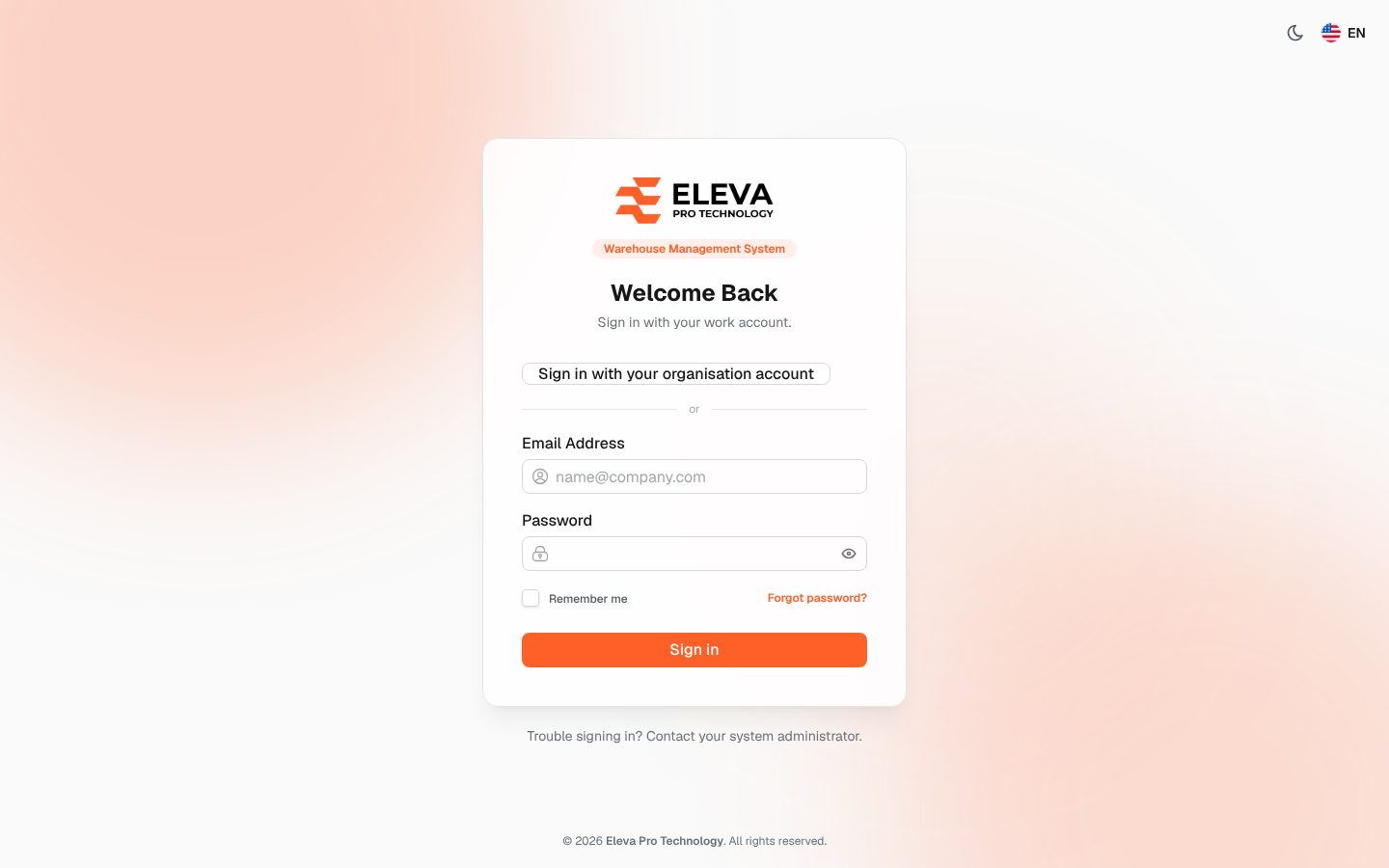
If your organisation uses Eleva ID, you can sign in with your organisation account instead of a separate password for this system. One account then opens every Eleva system your organisation uses. Your administrator decides whether Eleva ID is turned on, and whether the email and password form is still offered next to it.
How to sign in with Eleva ID
Section titled “How to sign in with Eleva ID”- On the sign-in screen, click Sign in with your organisation account.
- Sign in on the Eleva ID page, including any extra verification step your organisation requires.
- You return to the system, signed in.
If the email and password form is also shown, below or, you can still sign in with them as described in Sign in.
What changes when you use Eleva ID
Section titled “What changes when you use Eleva ID”- Your name and email come from Eleva ID and are updated every time you sign in. You cannot change your email on My profile; it shows Managed by your organisation’s sign-in.
- Your password is managed by Eleva ID. The change-password form is hidden; use Change password at Eleva ID instead.
- Two-factor authentication is handled by Eleva ID, so the system does not ask for its own code after you sign in this way.
- Sensitive actions, such as downloading a backup, creating an API token or signing out your other sessions, ask you to Confirm with your organisation account instead of typing your password. Eleva ID asks you to sign in again and brings you back.
- Signing out of the system also signs you out of Eleva ID.
Your role and the warehouses you can work in are still set in this system by an administrator. A new account created through Eleva ID has no warehouses until an administrator assigns them on the Warehouse personnel screen.