

Customer return
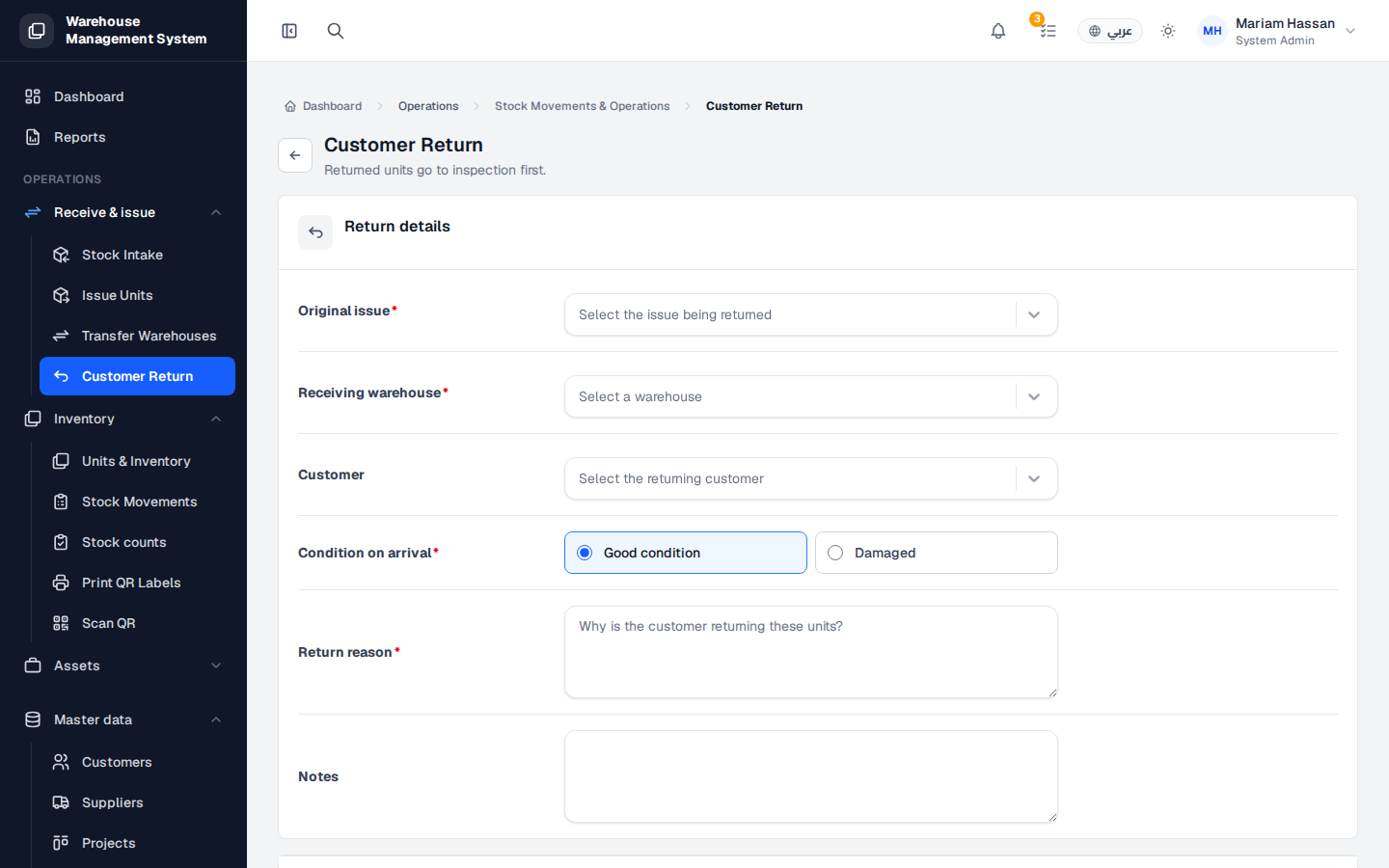
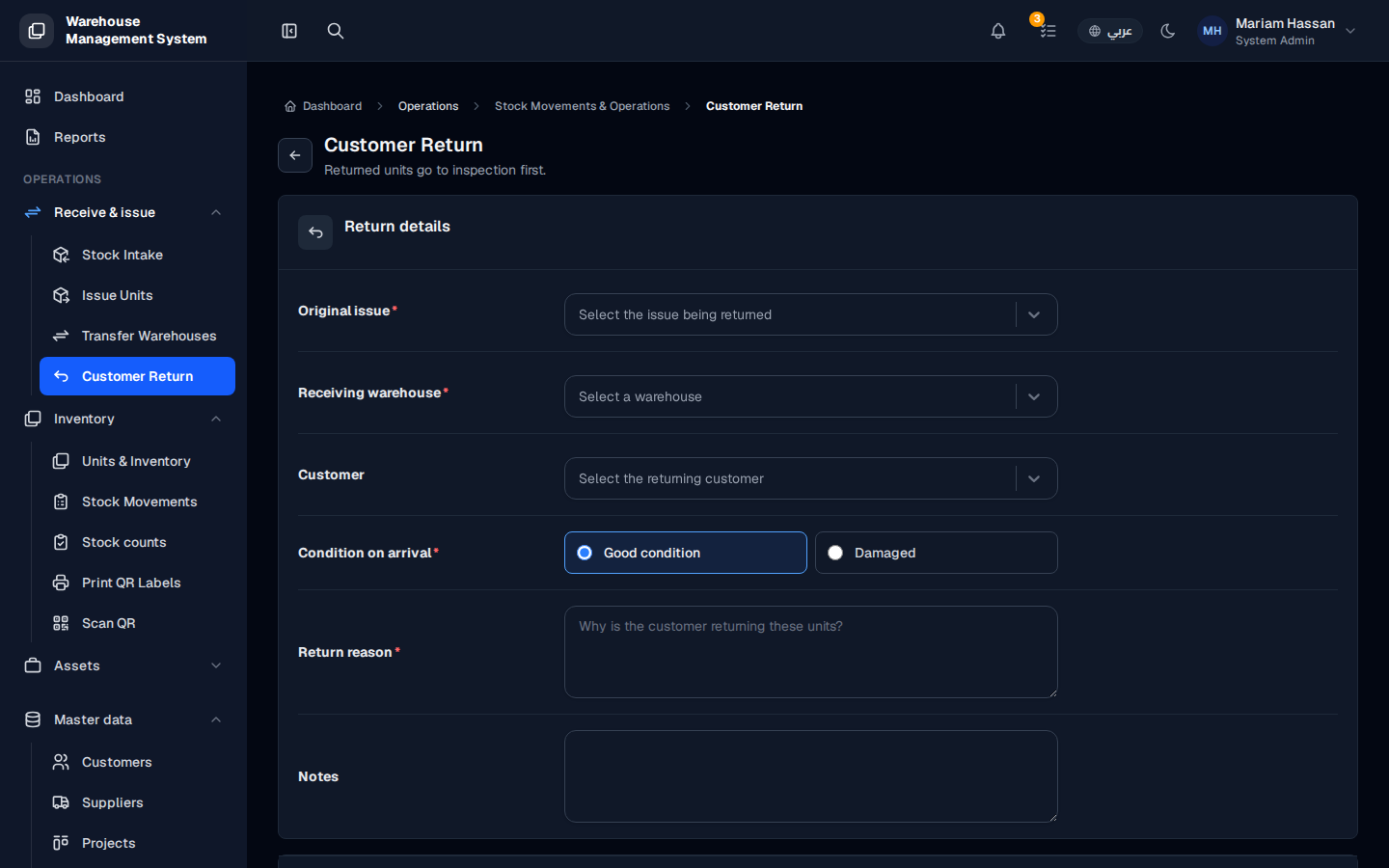
Use this screen when a customer sends back units that were previously issued to them. Recording the return brings the units back into a warehouse and links them to the original issue, so the customer’s history and your stock stay accurate.
Returned units go to inspection first, then become available or are marked as damaged depending on their condition.
What’s on this screen
Section titled “What’s on this screen”- Return details — the original issue, the receiving warehouse, the customer, the condition on arrival, the reason and notes.
- Returned units — the units from the original issue that you can select for return.
How to record a customer return
Section titled “How to record a customer return”- From the side menu, open Receive & issue › Customer Return.
- Select the Original issue the customer received the units under.
- Select the Receiving warehouse.
- Check the Customer (filled in from the issue; you can change it if needed).
- Choose the Condition on arrival: Good condition or Damaged.
- Type the Return reason and any Notes.
- In the Returned units section, tick the units being returned and adjust the condition of each unit if needed.
- Click Record return.
Fields
Section titled “Fields”- Original issue — the issue movement being returned (required).
- Receiving warehouse — the warehouse that accepts the returned units (required).
- Customer — the customer returning the units.
- Condition on arrival — Good condition or Damaged (required).
- Return reason — why the customer is returning the units (required).
- Notes — any extra details.