

Users
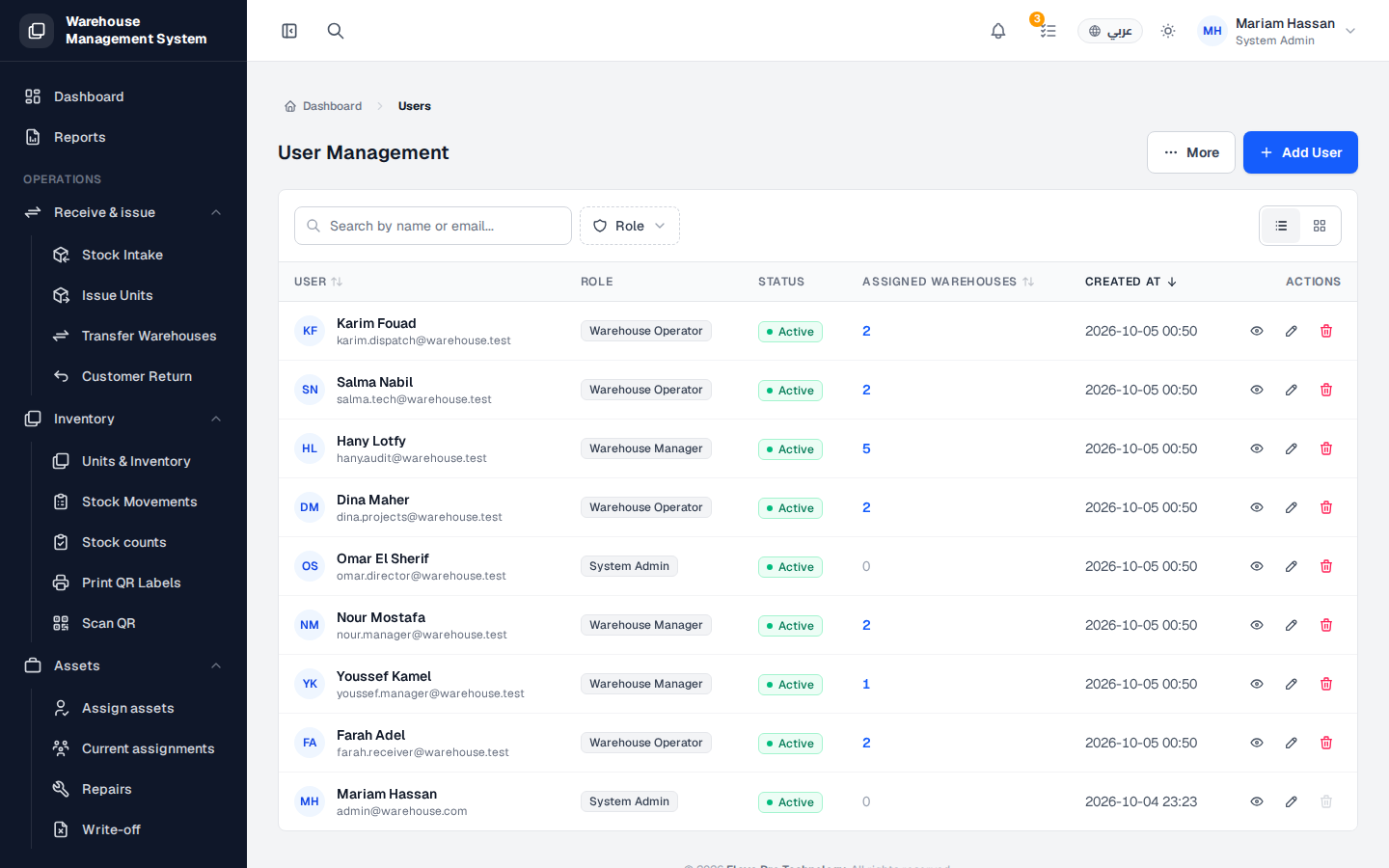
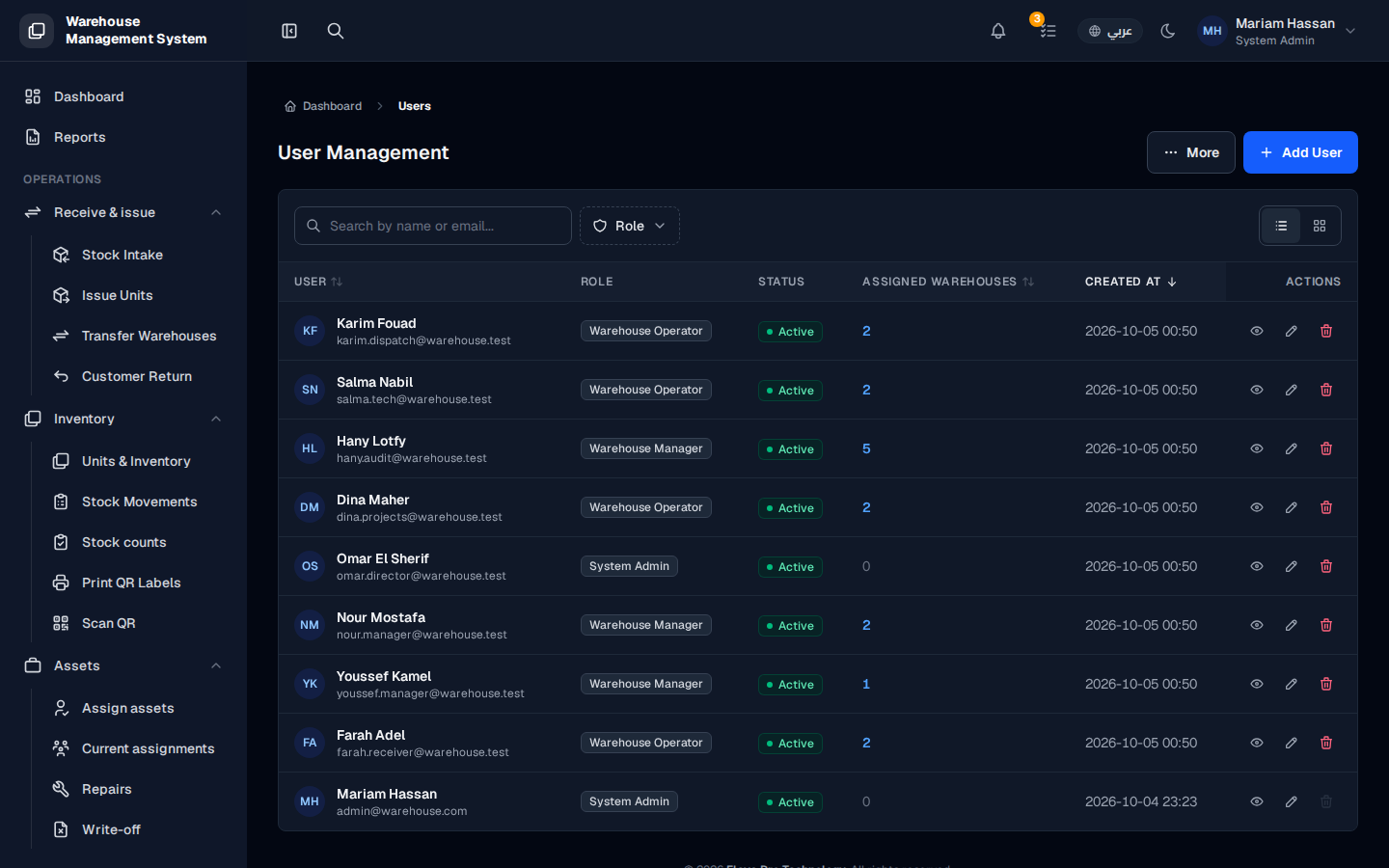
The users screen lists everyone who can sign in to the system. Administrators use it to see each person’s role, status and assigned warehouses, to add new staff, and to edit or deactivate accounts.
What’s on this screen
Section titled “What’s on this screen”- Search by name or email — find a user quickly.
- Role — show only users with a given role.
- List / grid view — switch between a table and cards.
- User — name and email address.
- Role — the role that defines what the user can do.
- Status — whether the account is Active.
- Assigned warehouses — how many warehouses the user works with.
- Created at — when the account was created.
- Actions — view, edit or deactivate the user.
- More and Add User — additional options and creating a new user.
How to find a user
Section titled “How to find a user”- From the side menu, open Users.
- Type a name or email in the search box, or filter by Role.
- Click the view icon in Actions to see the user’s profile, permissions, warehouse assignments and activity.
How to edit or deactivate a user
Section titled “How to edit or deactivate a user”- Find the user in the list.
- In Actions, click the pencil icon to edit, or the trash icon to deactivate.