

Add a user
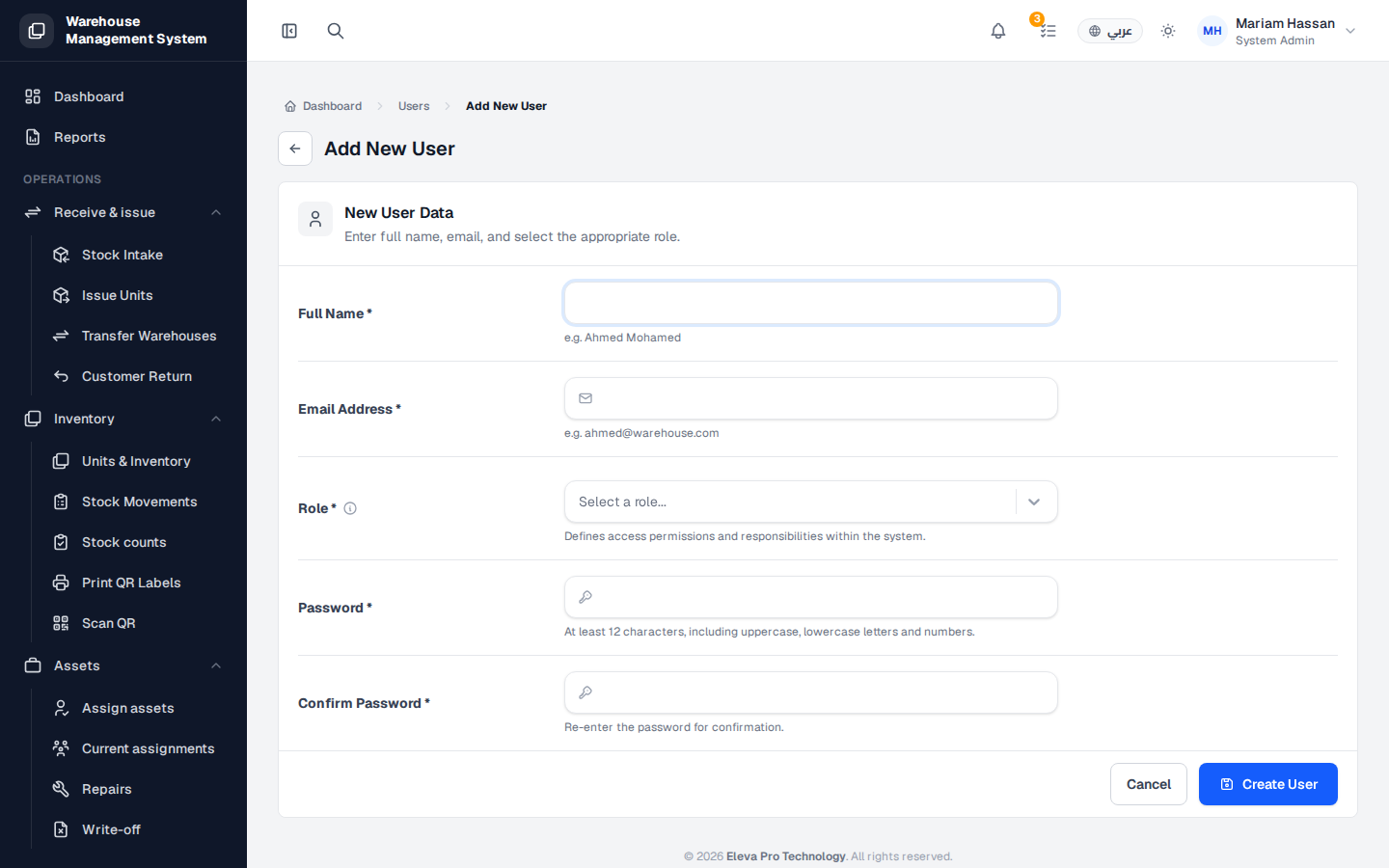
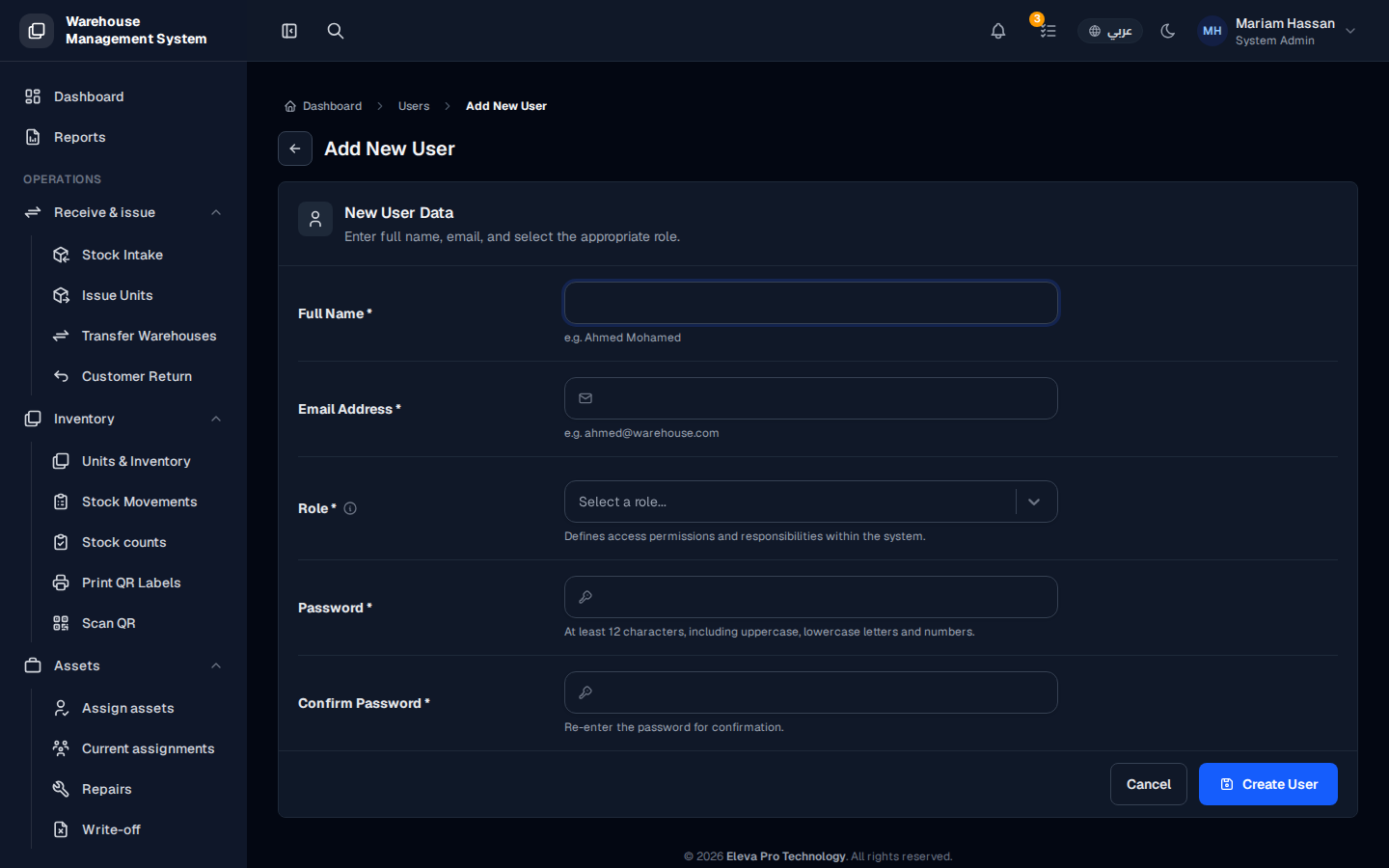
Add a user when a new employee needs access to the system. Each user gets a role that defines what they can see and do, so make sure the right role exists before you start.
Fields
Section titled “Fields”- Full Name — the employee’s name, for example “Ahmed Mohamed”.
- Email Address — the work email the user signs in with.
- Role — defines the user’s access permissions and responsibilities, for example System Admin, Warehouse Manager or Warehouse Operator.
- Password — at least 12 characters, including uppercase letters, lowercase letters and numbers.
- Confirm Password — re-enter the same password.
All fields are required.
How to add a user
Section titled “How to add a user”- From the side menu, open Users.
- Click Add User.
- Fill in Full Name and Email Address.
- Choose a Role.
- Enter the Password and repeat it in Confirm Password.
- Click Create User. To leave without saving, click Cancel.
- Open the new user’s page and assign the warehouses they will work with.
- Share the sign-in details with the user securely.