

Transfer stock between warehouses
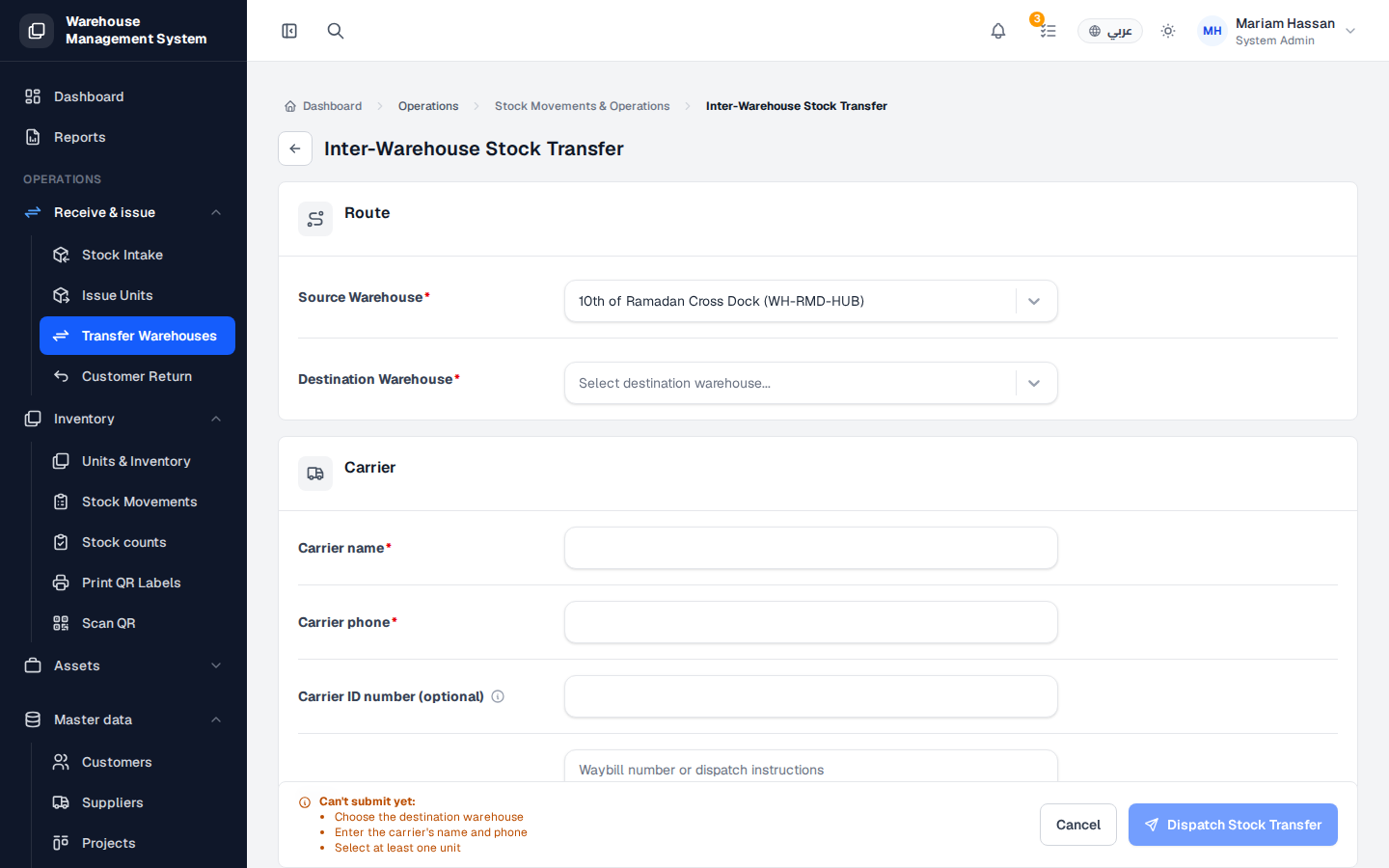
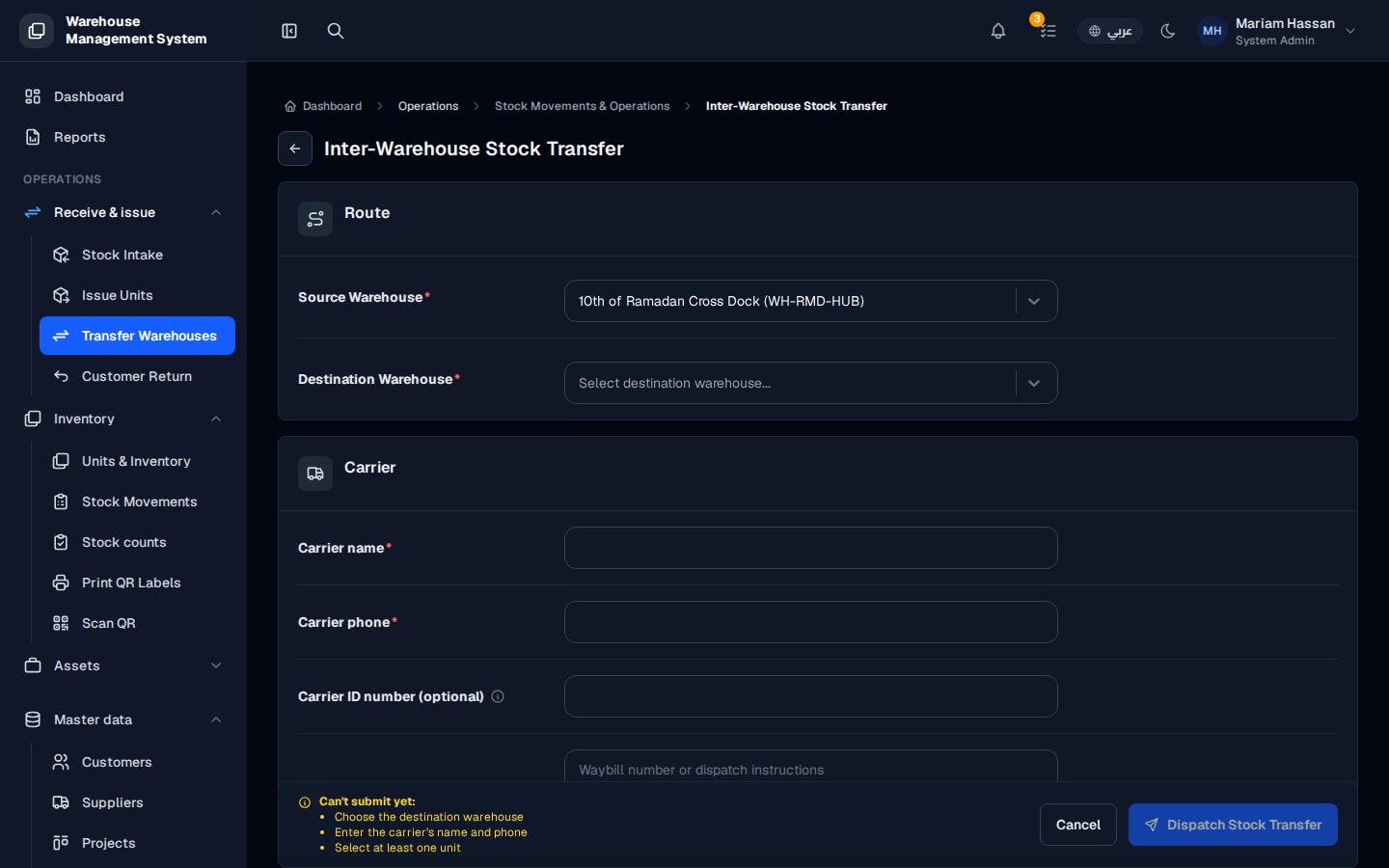
A warehouse transfer moves units from one of your warehouses to another, with the carrier who delivers them. It keeps a record of the shipment while it is on the way.
Use it when you need to rebalance stock between warehouses or supply another site.
How to open this screen
Section titled “How to open this screen”- From the side menu, open Receive & issue › Transfer Warehouses.
Fields
Section titled “Fields”- Source Warehouse — the warehouse the units leave from (required).
- Destination Warehouse — the warehouse that will receive the units (required).
- Carrier name — the person or company delivering the shipment (required).
- Carrier phone — the carrier’s contact number (required).
- Carrier ID number (optional) — the carrier’s identification number.
- Waybill number or dispatch instructions — the waybill number or any notes for the shipment.
How to transfer stock
Section titled “How to transfer stock”- Choose the Source Warehouse and Destination Warehouse.
- Fill in the carrier details.
- In the units section, add the units to transfer. You can search by code or scan a unit’s QR code.
- Click Dispatch Stock Transfer.
- The transfer is now In transit. The destination warehouse must confirm receipt of the shipment from the transfer’s page, after which the transfer is completed.