

Add a product
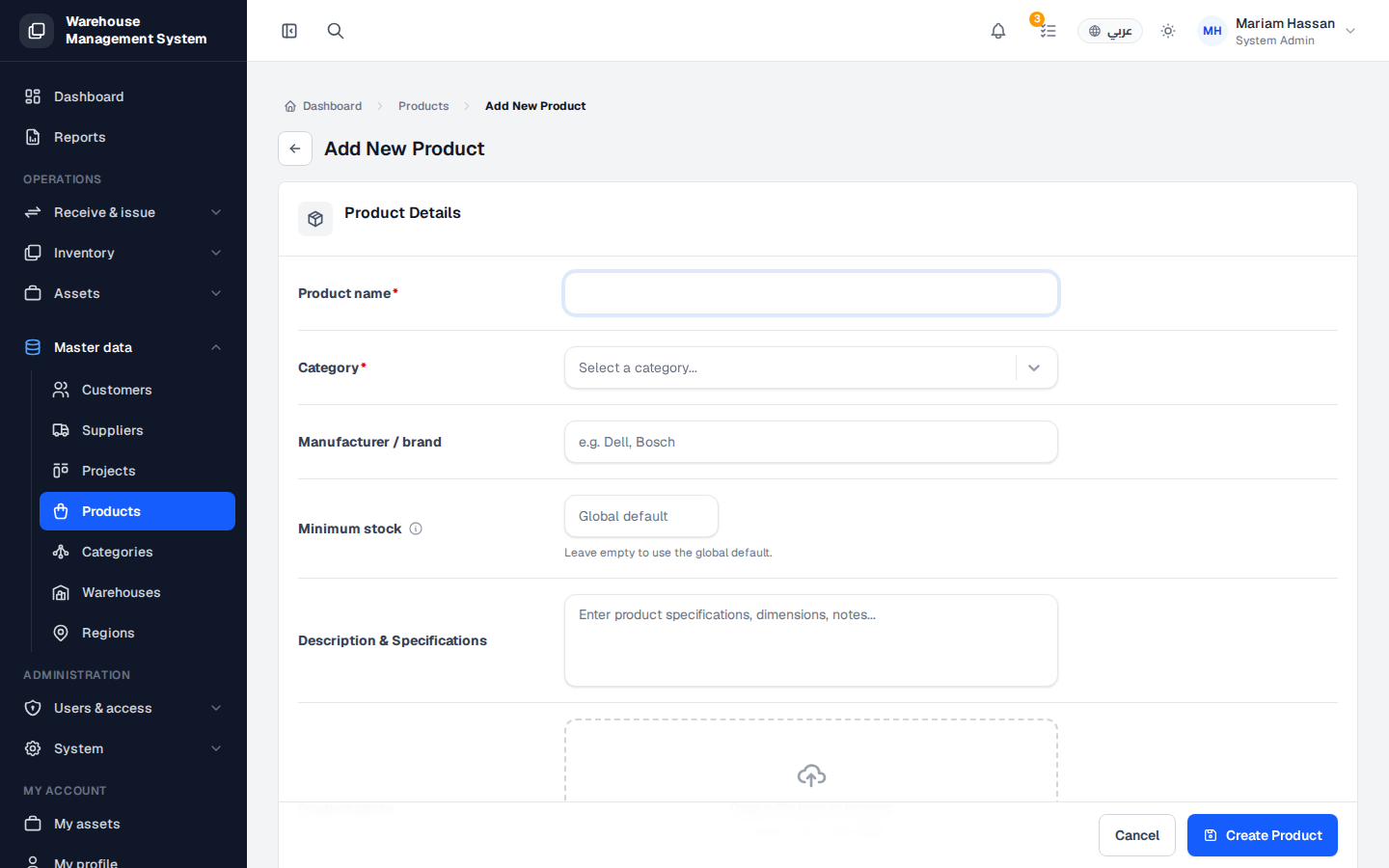
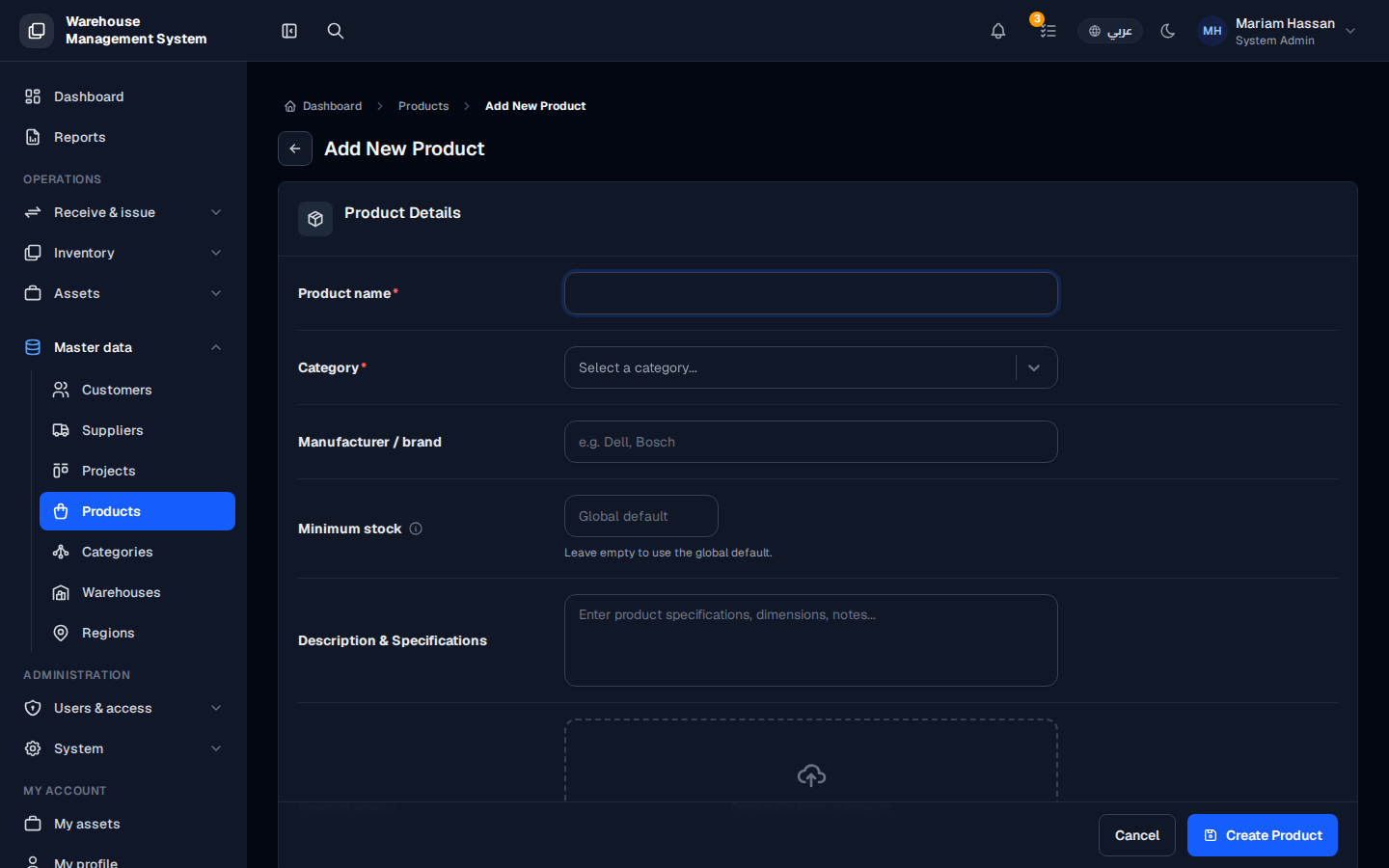
Add a product before you receive a new kind of item into stock. The product describes the item once, and all of its stock units are then recorded against it.
How to add a product
Section titled “How to add a product”- From the side menu, open Master data and click Products.
- Click Add product.
- Fill in the fields described below.
- Click Create Product, or Cancel to discard.
- After saving, you can add Inventory units for the product from its own page.
Fields
Section titled “Fields”- Product name (required) — a clear, unique name, for example Cisco Catalyst 9300X 48-Port PoE Switch.
- Category (required) — the category the product belongs to. If it is missing, add it first under Categories.
- Manufacturer / brand — the brand name (optional).
- Minimum stock — when stock falls below this number, the product appears on the dashboard among products below minimum. Leave it empty to use the global default.
- Description & Specifications — technical specifications or other important details.
- Product image — an image of the product (PNG, JPEG or WEBP, up to 2 MB), if available.
- Active — on by default. Keep it on if the product is ready to receive stock units.